
Introduction:
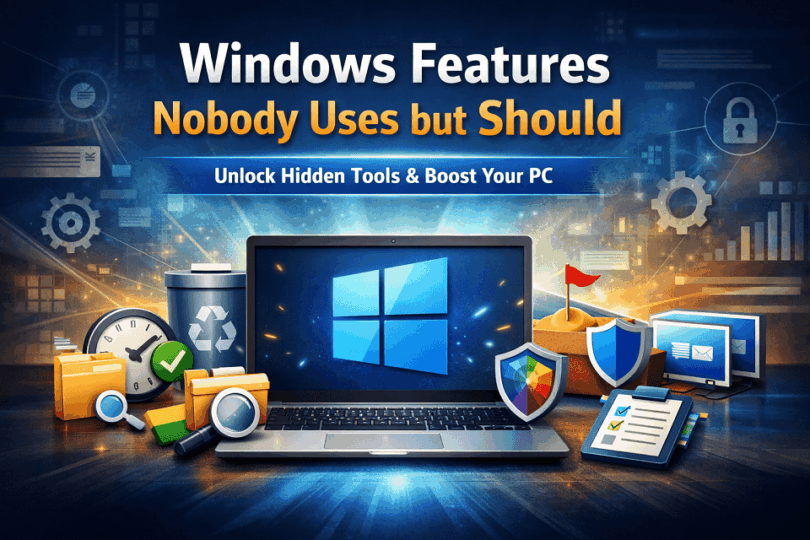
Windows comes packed with dozens of powerful built-in features, yet most users only scratch the surface of what the operating system can actually do. Many people install third-party apps to solve problems that Windows already handles quietly in the background.
This guide reveals hidden, underrated, and often overlooked Windows hidden features that can significantly enhance productivity, strengthen privacy, and optimize system performance, all without requiring additional software or clutter on your PC.
Quick Answer: Windows includes powerful built-in features such as Clipboard History, Focus Assist, Storage Sense, Virtual Desktops, and Windows Sandbox that most users ignore. These features can boost productivity, improve system performance, and enhance security without installing any extra software.
Why Most Windows Hidden Features Go Unused
Despite being one of the most widely used operating systems in the world, Windows hides many of its most useful features in plain sight. Most users rely on only a small portion of what Windows offers, often missing tools that could make everyday tasks faster, safer, and more efficient.
The main reason is not a lack of capability, but a lack of awareness. Many advanced features are disabled by default, buried deep inside settings, or introduced quietly through updates without proper guidance. As a result, users turn to third-party software, assuming Windows cannot handle tasks it already supports natively.
There is also a common hesitation to explore system features. Users fear that changing settings might slow down their PC or cause unexpected problems. This mindset leads to the underutilization of powerful built-in tools designed specifically to improve productivity, privacy, and performance.
Default Settings Hide Advanced Tools
Windows is designed to work for the widest possible audience, which means many advanced features are intentionally hidden behind default settings. Microsoft prioritizes simplicity for first-time and non-technical users. It often disables powerful tools to avoid overwhelming them during initial setup.
As a result, features that enhance productivity, privacy, and system control are placed deep inside the Settings app, Control Panel, or optional Windows components. Unless users actively explore these menus, they may never realize these tools exist.
This design choice creates the impression that Windows lacks certain capabilities, even though the functionality is already built in. Advanced tools remain unused, not because they are unnecessary, but because they are not visible by default.
Users Rely on Third-Party Software Unnecessarily
Many Windows users assume that essential functions require external software, even when Windows already provides built-in solutions. Tasks such as file sharing, screen recording, clipboard management, disk cleanup, and focus control are often handled by third-party apps that duplicate native Windows features.
This reliance happens largely because third-party tools are aggressively marketed, while Windows hidden features receive little visibility. App stores, ads, and online tutorials frequently promote external software without mentioning that similar functionality exists within the operating system itself.
Over time, this habit leads to cluttered systems, increased background processes, and potential privacy risks. In contrast, built-in Windows hidden features are optimized for system compatibility. Because of it, they receive regular security updates and integrate seamlessly with the operating system. This optimization makes them a safer and more efficient choice for many everyday tasks.
Lack of Awareness and Poor Onboarding
Windows introduces new features regularly through updates. But many of these tools are added quietly without clear explanations or guided onboarding. Users often skip update notes or dismiss pop-ups. As a result, users often miss important information about newly available capabilities.
Unlike mobile operating systems that highlight features through interactive tips, Windows provides limited in-system education. As a result, users are rarely shown how a feature works, where to find it, or why it matters in everyday use.
This lack of structured onboarding creates a knowledge gap. Even long-time Windows users may remain unaware of powerful tools that have existed for years. This leads them to overlook features that could significantly improve productivity, privacy, and overall system efficiency.
Fear of “Breaking” System Settings
Many users avoid exploring Windows hidden features because they fear making changes that could negatively affect system stability or performance. This concern is common among non-technical users who worry that adjusting settings might slow down their PC, cause errors, or require technical troubleshooting.
 Windows settings are often perceived as complex or irreversible, even though most modern options are designed to be safe and easily reversible. In reality, many built-in features can be enabled or disabled without permanent impact. Windows provides safeguards such as reset options and system restore points.
This hesitation leads users to stay within familiar workflows. The users ignore tools that could simplify tasks or improve efficiency. Over time, fear replaces curiosity, and powerful features remain unused; not because they are risky, but because they are misunderstood.
Windows Hidden Features Nobody Uses but Should (Complete List)
Windows includes a wide range of built-in features designed to improve productivity, security, and everyday usability. However, yet many of them remain largely unnoticed. These tools are not experimental or advanced tweaks. They are stable. In modern versions, these tools have officially supported features.
The following list highlights practical Windows hidden features that most users ignore, even though they can replace common third-party apps, reduce system clutter, and simplify daily tasks. Each feature is easy to enable, safe to use, and useful for real-world scenarios such as work, study, and home computing.
Most features discussed here are available in both Windows 10 and Windows 11, though menu locations may differ slightly depending on the version.
Clipboard History – Copy More Than One Item
What Clipboard History does
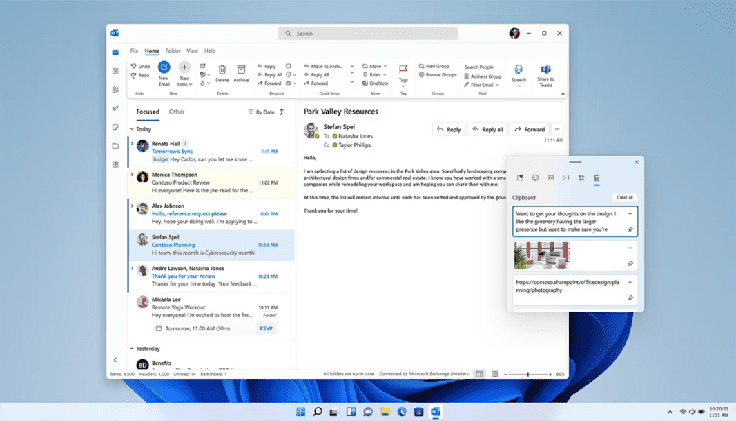
Clipboard History allows Windows to store multiple copied items instead of only the most recent one. This means you can copy text, links, or small images and access them later, rather than losing previous copies each time you press copy again.
Why most users don’t know about it
Clipboard History is disabled by default and rarely mentioned during Windows setup or updates. Many users assume Windows supports only single-item copying, so they never look for an alternative built into the system.
How does it improve daily productivity?
By keeping a history of copied content, Clipboard History reduces repetitive actions such as switching between apps to re-copy text. It helps users work faster when handling emails, documents, research notes, or web links.
How to enable Clipboard History in Windows
- Open Settings
- Go to System → Clipboard
- Turn on Clipboard History
- Press Windows + V to access copied items
Best use cases (students, writers, office work)
- Students are collecting notes from multiple sources.
- Writers manage drafts, references, and quotes.
- Office workers handling emails, spreadsheets, and reports.
Who should NOT use this feature?
Users working on shared or public computers may want to avoid enabling Clipboard History, as copied content can remain accessible to other users of the same account. It may also be unsuitable for handling highly sensitive information unless the clipboard data is cleared regularly or sync is disabled.
Focus Assist – Block Distractions Automatically
What Focus Assist is
Focus Assist is a built-in Windows feature that helps reduce interruptions by temporarily silencing notifications. Instead of manually muting alerts, Focus Assist automatically controls which notifications are allowed to appear while you work.
Difference between Focus Assist and Do Not Disturb
While Do Not Disturb simply blocks notifications, Focus Assist offers more control. It allows priority notifications and supports automatic schedules. In addition, Focus Assist can activate based on activities such as full-screen apps or specific time periods.
When and why to use it
Focus Assist is useful during tasks that require concentration, such as writing, studying, attending virtual meetings, or coding. It prevents constant pop-ups from breaking focus while still allowing critical alerts to come through if needed.
How to configure Focus Assist rules
- Open Settings
- Go to System → Focus Assist
- Choose Off, Priority only, or Alarms only
- Set automatic rules based on time, activity, or app usage
Ideal users (remote workers, students)
- Remote workers attending meetings or deep work sessions.
- Students studying or attending online classes.
- Anyone easily distracted by frequent notifications.
Who should NOT use this feature?
Users who rely on real-time notifications, such as customer support staff, system administrators, or anyone who needs to respond immediately to messages or alerts, may find Focus Assist disruptive if not carefully configured. In such cases, using it without priority exceptions can lead to missed important notifications.
Storage Sense – Automatic Disk Cleanup
What Storage Sense does
Storage Sense is a built-in Windows feature that automatically frees up disk space by removing unnecessary files. It clears temporary system files. Storage Sense empties the recycle bin on a schedule. It manages locally stored cloud content to prevent storage overload.
Why manual cleanup is outdated
Manually deleting files or running cleanup tools requires time and regular attention. Many users forget to do it until storage space becomes a problem. Storage Sense automates this process. It ensures that disk space is managed continuously without user intervention.
How Storage Sense frees space automatically
Once enabled, Storage Sense runs in the background according to user-defined rules. It removes temporary files created by apps. Storage Sense deletes unused system files and can automatically clear files that have been in the recycle bin for a specified period.
How to enable and customize Storage Sense
- Open Settings
- Go to System → Storage
- Turn on Storage Sense
- Customize cleanup frequency, recycle bin rules, and cloud file handling
Benefits for low-storage systems
- Prevents sudden storage shortages.
- Improves performance on devices with limited disk space.
- Reduces the need for third-party cleanup tools.
- Keeps the system running smoothly with minimal effort.
Who should NOT use this feature?
Users who prefer full manual control over file management or those working with temporary files they need to retain for extended periods may want to review Storage Sense settings carefully. If left on default configurations without customization, it can remove files from the recycle bin or local storage sooner than expected.
Virtual Desktops – Organize Work Like a Pro
What Virtual Desktops are
Virtual Desktops allow users to create multiple separate desktop environments on a single Windows system. Each desktop can have its own set of open apps and windows. Virtual Desktops help to keep different tasks organized without cluttering the screen.
Why most users avoid them
Many users are unaware that Virtual Desktops exist or assume they are complicated to use. Others believe the feature is only meant for advanced users, even though it requires no technical knowledge to operate.
How Virtual Desktops Improve Multitasking
By separating work into distinct desktops, users can focus on one task at a time without distraction. This reduces window switching and improves concentration. In addition, a virtual desktop makes it easier to manage multiple projects simultaneously.
How to create and manage Virtual Desktops
- Press Windows + Tab to open Task View
- Click New desktop to create an additional workspace
- Drag apps between desktops as needed
- Switch desktops using Ctrl + Windows + Left/Right Arrow
Real-world productivity examples
- One desktop for work applications and emails
- One desktop for research or study materials
- One desktop for entertainment or personal tasks
Who should NOT use this feature:
Users who prefer single-task workflows may not benefit from multiple desktops.
Windows Sandbox – Run Apps Safely
What is Windows Sandbox?
Windows Sandbox is a built-in security feature. It creates a temporary, isolated desktop environment. It allows users to run applications or open files without affecting the main operating system. Once the sandbox session is closed, all changes are automatically deleted.
Windows Sandbox may not be available on Home editions and requires virtualization support.
Why is it safer than installing unknown software
Installing unknown applications directly on a system can introduce malware, unwanted changes, or hidden background processes. Windows Sandbox runs software in isolation. That prevents it from accessing system files, personal data, or installed programs.
Use cases for testing files and apps
- Testing unfamiliar software before full installation
- Opening files from unknown sources
- Checking suspicious downloads
- Evaluating apps without long-term system impact
How to enable Windows Sandbox
- Open Control Panel
- Go to Programs → Turn Windows features on or off
- Enable Windows Sandbox
- Restart the system if prompted
Who should use it (security-conscious users)
- Users who frequently test new software
- Professionals handling files from external sources
- Anyone concerned about malware or system security
God Mode – All Settings in One Place
What is God Mode actually?
God Mode is a special Windows folder that provides centralized access to hundreds of system settings and administrative tools. It does not unlock hidden powers or bypass security; instead, it organizes existing Control Panel options into a single, searchable view.
Myths vs reality
Despite its name, God Mode does not grant elevated privileges or system-level control beyond what Windows already allows. It does not increase performance, remove restrictions, or modify system behavior automatically. It simply offers a more efficient way to access settings that already exist.
How God Mode simplifies system control
By placing all configuration options in one location, God Mode eliminates the need to navigate through multiple menus. This is useful for users who frequently adjust system settings related to display, power management, networking, or user accounts.
How to activate God Mode safely
- Right-click on the desktop
- Select New → Folder
- Rename the folder to:
- {ED7BA470-8E54-465E-825C-99712043E01C}
- Press Enter to activate it
The folder icon will change, indicating God Mode is active.
Who benefits most from it
- Power users who regularly manage system settings
- IT professionals and support staff
- Advanced users who want faster access to controls
Who should NOT use this feature
Beginner users who are unfamiliar with system settings may find God Mode overwhelming, as it exposes a large number of configuration options in one place. Making changes without understanding their impact can lead to confusion or unintended system behavior, even though the feature itself does not bypass Windows security.
PowerToys – Microsoft’s Hidden Power Toolkit
What PowerToys is
PowerToys is an official set of free utilities developed by Microsoft to enhance productivity and customization in Windows. It adds advanced tools that extend existing Windows functionality without modifying core system behavior.
Key PowerToys features people ignore
Many users install PowerToys without fully exploring its capabilities. Commonly overlooked tools include keyboard remapping, quick file renaming, window management utilities, and advanced search enhancements.
Why PowerToys boosts productivity
PowerToys reduces repetitive tasks and improves workflow efficiency. Automating small but frequent actions, such as snapping windows precisely or launching apps quickly, helps users work faster with fewer interruptions.
How to install and use PowerToys
- Download PowerToys from Microsoft’s official website or GitHub
- Install the application like any standard Windows program
- Launch PowerToys from the Start menu
- Enable or disable individual tools based on your needs
Best PowerToys features for beginners
- FancyZones for organizing windows
- PowerToys Run for quick app and file launching
- Keyboard Manager for remapping keys
- Text Extractor for copying text from images
Who should NOT use this feature
Users who prefer a minimal system setup or are uncomfortable adjusting advanced settings may not benefit from PowerToys. Enabling too many utilities without understanding their purpose can add unnecessary complexity to the workflow, even though the tools themselves are safe and optional.
Nearby Sharing – Share Files Without Internet
What Nearby Sharing does
Nearby Sharing allows Windows devices to share files, links, and small data packets directly with nearby computers. It works over Bluetooth and Wi-Fi. Nearby Sharing enables quick transfers without requiring an internet connection, cables, or third-party apps.
Difference between Nearby Sharing and Bluetooth
While Bluetooth handles basic file transfers, Nearby Sharing combines Bluetooth discovery with Wi-Fi for faster speeds and better reliability. This makes it more suitable for sharing larger files or multiple items between Windows devices.
When it works best
Nearby Sharing performs best when both devices are on the same Wi-Fi network or within close physical range. It is ideal for quick file transfers during meetings, classrooms, or home use where devices are nearby.
How to enable Nearby Sharing
- Open Settings
- Go to System → Nearby sharing
- Turn on Nearby Sharing
- Choose sharing permissions (My devices only or Everyone nearby)
Privacy considerations
Users can control who is allowed to send or receive files; By limiting sharing to known devices and disabling the feature when not in use, Nearby Sharing remains a secure and privacy-conscious option for local file transfers.
Who should NOT use this feature?
Users working in public or crowded environments may want to disable Nearby Sharing when it is not actively needed. Leaving the feature enabled with broad sharing permissions can increase the risk of accidental file requests or unwanted visibility to nearby devices.
Steps Recorder – Record Problems Automatically
What Steps Recorder is
Steps Recorder is a built-in Windows tool that records user actions step by step. It captures mouse clicks, keyboard actions, and screenshots, then compiles them into a simple report that explains exactly what happened on the screen.
Why it’s useful for troubleshooting
Describing a technical problem in words can be difficult and often leads to misunderstandings. Steps Recorder removes ambiguity by showing each action visually. This makes it easier for support teams or developers to identify issues quickly.
How it records actions with screenshots
Once activated, Steps Recorder tracks user interactions and automatically takes screenshots at each step. These screenshots are annotated with descriptions. That creates a clear timeline of events without requiring screen recording software.
How to use Steps Recorder
- Open the Start menu and search for Steps Recorder
- Click Start Record
- Perform the actions related to the issue
- Click Stop Record
- Save and share the generated report
Ideal for tech support and reporting bugs
- Communicating issues to IT support teams
- Reporting software bugs accurately
- Assisting with remote troubleshooting
- Reducing back-and-forth explanations
Who should NOT use this feature
Users dealing with sensitive or confidential information should be cautious when using Steps Recorder, as it captures screenshots and detailed action logs. Recording sessions should be reviewed carefully before sharing to ensure no private data is included.
Night Light & Eye Comfort Tools
What Night Light does
Night Light is a built-in Windows feature that reduces blue light emission from the screen by shifting colors to warmer tones. This helps make prolonged screen use more comfortable. That is especially more helpful in low-light environments or during nighttime hours.
Why eye strain is ignored
Many users underestimate the long-term impact of screen exposure on eye comfort and sleep quality. Eye strain often develops gradually, making it easy to overlook until symptoms such as headaches, dryness, or disrupted sleep patterns appear.
How Night Light protects vision
By lowering blue light intensity, Night Light reduces eye fatigue and helps regulate natural sleep cycles. While it does not prevent all forms of eye strain, it provides a simple and effective way to improve visual comfort during extended computer use.
How to schedule Night Light
- Open Settings
- Go to System → Display
- Enable Night Light
- Set a custom schedule or align it with sunset and sunrise
Who should use it daily
- Users working late hours on a computer
- Students attending online classes
- Professionals spending long hours in front of screens
- Anyone experiencing eye discomfort from extended screen use
Who should NOT use this feature?
Users who require precise color accuracy, such as graphic designers, photographers, or video editors, may want to disable Night Light during color-sensitive work. The warmer color tone can alter color perception and affect visual accuracy.
Quick Overview of Hidden Windows Features
| Feature | Main Benefit | Best For |
| Clipboard History | Copy and access multiple items instead of one | Students, writers, office workers |
| Focus Assist | Reduces distractions by managing notifications | Remote workers, students |
| Storage Sense | Automatically frees up disk space | Low-storage and older PCs |
| Virtual Desktops | Organizes apps across multiple workspaces | Multitaskers, professionals |
| Windows Sandbox | Safely tests apps in an isolated environment | Security-conscious users |
| God Mode | Centralized access to system settings | Power users, IT support |
| PowerToys | Enhances productivity with advanced utilities | Productivity-focused users |
| Nearby Sharing | Shares files without internet or cables | Home, office, and classroom use |
| Steps Recorder | Records actions for easy troubleshooting | Tech support, bug reporting |
| Night Light | Reduces eye strain during screen use | Night users, long screen hours |
Availability Note:
Most of the Windows hidden features listed above are available in both Windows 10 and Windows 11. Menu locations and interface labels may vary slightly depending on the version and system configuration.
Are These Windows Hidden Features Safe to Use?
All the Windows features discussed in this guide are official, built-in tools developed and maintained by Microsoft. They are designed to work within the operating system’s security framework. They are tested through regular Windows updates before being released to users.
Unlike many third-party applications, built-in Windows features do not introduce additional background processes, advertising trackers, or external data sharing. They integrate directly with a system component, which helps maintain performance, stability, and compatibility.
Most of these features are also fully reversible. Users can enable or disable them at any time without permanent changes to the system. In cases where administrative access is required, Windows provides clear prompts and safeguards to prevent accidental misconfiguration.
For users concerned about privacy, security, or performance, using native Windows features is often safer than installing unknown external tools when those tools request broad permissions or access to personal data.
Built-In vs Third-Party Tools
Built-in Windows features are developed specifically for the operating system and are tested for compatibility, security, and performance. They integrate directly with system components. That reduces the risk of crashes, conflicts, or unexpected behavior.
Third-party tools, while often useful, can introduce unnecessary background processes, advertising, or data collection. Some also require elevated permissions that go beyond their core functionality. This increases potential security and privacy risks.
For common tasks such as file sharing, notifications management, disk cleanup, or productivity enhancements, built-in Windows tools are often sufficient and more efficient. Relying on native features helps keep the system lightweight, secure, and easier to maintain—especially for everyday users.
Built-In Tool vs Third-Party Tools
| Aspect | Built-In Windows Features | Third-Party Tools |
| Security | Developed and maintained by Microsoft with regular security updates | Varies by developer; may include hidden risks |
| System Integration | Deeply integrated with Windows for stability and compatibility | Can conflict with system settings or updates |
| Performance Impact | Minimal background usage | Often runs background services |
| Privacy | Limited data collection within Windows privacy policies | May collect user data or include trackers |
| Cost | Free and included with Windows | Often paid or ad-supported |
| Maintenance | Updated automatically through Windows Update | Requires manual updates |
| Ease of Use | Designed for everyday users | Interface and complexity vary |
| Reliability | Tested across millions of Windows systems | Quality depends on the developer |
Privacy and Data Considerations
Built-in Windows features operate within Microsoft’s documented privacy and security framework. While Windows does collect certain diagnostic data, native tools do not introduce additional third-party trackers or external data-sharing mechanisms beyond the operating system’s existing policies.
In contrast, many third-party applications require broad permissions to function. These permissions can include access to files, system activity, network usage, or user behavior, sometimes exceeding what is necessary for the tool’s core purpose.
Windows also gives users centralized control over privacy settings. Privacy settings allow users to review and limit data collection across the system. By relying on built-in features, users reduce the number of external applications with access to sensitive information. This makes it easier to manage privacy and maintain transparency.
Performance Impact (or Lack of It)
Built-in Windows features are designed to run efficiently within the operating system, using system resources only when necessary. Most of these tools remain inactive until triggered by user actions or scheduled conditions, which minimizes their impact on overall performance.
Unlike many third-party applications, native Windows features do not install persistent background services or startup processes unless explicitly required. This helps keep system boot times faster and reduces unnecessary CPU or memory usage.
For systems with limited hardware resources, using built-in tools can actually improve performance by replacing heavier external software. In most cases, enabling these features has little to no noticeable impact on system speed. This makes them a practical choice even for older or low-end devices.
Common Mistakes People Make With Windows Features
Even though Windows includes many useful built-in tools, users often fail to benefit from them due to common misunderstandings and habits. These mistakes not only limit productivity but can also lead to unnecessary system clutter and performance issues.
Ignoring Default Productivity Tools
Many users overlook built-in Windows features that are designed to simplify everyday tasks. Tools like Clipboard History, Focus Assist, and Virtual Desktops are often ignored because users assume productivity enhancements require third-party software.
Installing Unnecessary Apps
Installing external applications for basic functions increases system load and can introduce security or privacy risks. In many cases, Windows already provides a lightweight and reliable solution, making additional software unnecessary.
Disabling Features Without Understanding Them
Some users disable Windows features in an attempt to optimize performance without fully understanding their purpose. This can result in lost functionality, reduced system efficiency, or unexpected behavior.
Not Updating Windows Regularly
Windows updates often include improvements, bug fixes, and enhancements to existing features. Skipping updates means missing out on performance optimizations, security patches, and newly introduced tools that could improve the overall user experience.
If you want to go further, explore our guides on speeding up Windows performance and improving Windows privacy settings.
Final Thoughts – Use What You Already Have
Windows already includes a wide range of powerful tools designed to improve productivity, performance, and everyday usability. Many of these features remain unused, not because they lack value, but because users are unaware they exist.
Taking time to explore built-in Windows hidden features can save significant time, reduce storage usage, and eliminate the need for unnecessary third-party applications. Native tools are optimized for system compatibility, receive regular updates, and work seamlessly without added complexity.
Even small changes, such as enabling Clipboard History, using Focus Assist, or organizing work with Virtual Desktops, can have a noticeable impact on how efficiently a computer is used each day. By making better use of what Windows already provides, users can enjoy a smoother, safer, and more productive computing experience.
FAQs – Windows Hidden Features (People Also Ask)
What is the most useful hidden feature in Windows?
There is no single answer, as usefulness depends on the user. However, features like Clipboard History, Focus Assist, and Storage Sense are among the most practical because they improve productivity and performance without requiring additional software.
Are hidden Windows features safe to use?
Yes. Hidden or lesser-known Windows features are official tools developed and maintained by Microsoft. They operate within Windows security and privacy guidelines and are generally safer than installing unknown third-party applications.
Do these Windows features slow down the system?
No. Most built-in Windows features have minimal or no impact on system performance. Many remain inactive until enabled or triggered by specific actions, making them suitable even for low-end or older devices.
Are these features available in Windows 10 and Windows 11?
Most of the features discussed, such as Clipboard History, Focus Assist, Storage Sense, Virtual Desktops, and Night Light, are available in both Windows 10 and Windows 11. Some features may have minor interface differences depending on the version.
Why doesn’t Microsoft clearly promote these features?
Microsoft prioritizes simplicity for new users, which means advanced tools are often kept out of the spotlight. While this approach demonstrated reduces complexity, it also means many useful features remain undiscovered unless users actively explore system settings.
Do I need technical knowledge to use these Windows features?
No. These features are designed for everyday users and can be enabled or disabled through simple settings menus. Most do not require administrative skills or advanced system knowledge.
Should I replace third-party apps with built-in Windows features?
For common tasks such as notifications management, file sharing, disk cleanup, and productivity enhancements, built-in Windows features are often sufficient. Using native tools helps reduce system clutter and improves security and stability.
*Last reviewed and updated for 2026.