

CPU Undervolting Safety Guide: Boost Performance Without Risk
What is CPU Undervolting?
CPU Undervolting Explained:
CPU Undervolting is the process of lowering the operating voltage of a processor while keeping its clock speed unchanged. That results in lower power consumption and reduced heat.
Every CPU operates along a voltage-frequency curve. Higher clock speeds require higher voltages to remain stable. Manufacturers ship processors with a generous voltage margin to guarantee stability across millions of chips. But most CPUs do not actually need that much power. By carefully undervolting, you trim the excess without sacrificing performance.
- How it works technically: Undervolting reduces dynamic power consumption (P = C × V² × f), where voltage (V) has a squared effect. A small voltage drop can lead to a large reduction in heat output.
Here is what each term means:
- P = Power consumption (in watts, W)
- C = Capacitance switched per clock cycle (depends on CPU/GPU design and workload)
- V = Voltage supplied to the processor (in volts, V)
- f = Clock frequency of the processor (in hertz, Hz)
Example: An AMD Ryzen 7 5800H may run stably at 1.0V instead of 1.2V at the same clock frequency. That is cutting power draw by up to 20% while maintaining performance.
Expert Insight:
“Think of undervolting as tuning a car engine for fuel efficiency rather than raw horsepower.
You are not slowing it down. Instead, you are letting it run cooler, smoother, and more efficiently.”
Undervolting vs. Underclocking – What is the Difference?
Undervolting reduces voltage but keeps CPU speed. However, underclocking reduces speed (frequency). In addition, that often happens with a voltage drop and a sacrifice of performance.
- Undervolting CPU Intel / Ryzen: Voltage is lowered. But clock speeds remain unchanged. Performance stays the same. However, temps and power usage drop.
- Underclocking: Frequency (GHz) is reduced. That lowers both performance and power consumption. Often used in servers or extreme thermal constraints.
Quick Comparison Table:
| Aspect | Undervolting | Underclocking |
| Performance | Maintained | Reduced |
| Power Consumption | Reduced | Reduced |
| Heat Output | Reduced | Reduced more |
| Use Case | Laptops, gaming rigs, efficiency builds | Stability-first systems, fanless PCs |
Undervolting is safer for maintaining performance. However, underclocking is better if you must trade performance for maximum thermal reduction.
Expert Tip:
“If your goal is stable gaming performance, Undervolting is preferable. If you are building a silent, ultra-low-power PC, then underclocking may be the better route.”
Benefits of CPU Undervolting (Lower Temps, Longer Lifespan, Better Efficiency)
The main benefits of CPU Undervolting are lower temperatures. Lower temperatures extended hardware lifespan, higher sustained performance, and improved energy efficiency.
- Lower Temps & Cooler Operation: Safe Undervolting often reduces CPU temps by 5–15°C. That is keeping Intel and Ryzen chips out of thermal throttle zones. This is crucial for thin laptops with limited cooling.
- Stable Performance Over Time: Instead of throttling down when hot, undervolted CPUs maintain boost clock speeds longer. That is delivering smoother gaming and faster rendering.
- Improved Efficiency: Less power draw = longer laptop battery life. It offers reduced electricity bills for desktops and less VRM stress on motherboards.
- Extended Lifespan: Lower thermal cycling reduces electromigration in transistors and lessens wear on cooling fans.
Technical Angle:
- Undervolting reduces silicon leakage currents that scale exponentially with voltage.
- Heat stress reduction extends not only the CPU’s durability but also the VRMs, thermal paste, and fans that support it.
Dharini RR’s Insight:
“Undervolting is one of the safest tweaks you can do. Undervolting differs from Overclocking.
It does not add stress to your silicon. If done right with stability testing, then it is almost
always beneficial with zero long-term downside.”
Is CPU Undervolting Safe?
Yes, CPU Undervolting is generally safe when done correctly. Unlike Overclocking, Undervolting reduces voltage stress. That lowers heat output and rarely damages hardware. The main risk is system instability. That issue can be fixed by adjusting voltage settings.
Common Myths About Undervolting
Myth 1: “Undervolting will damage the CPU.”
This is false. Safe Undervolting actually reduces thermal and electrical stress. Lower voltage decreases electromigration and silicon leakage. These two are the leading causes of long-term CPU wear. If settings are too aggressive, then the worst-case outcome is system instability. However, there is no permanent damage.
Myth 2: “Undervolting reduces performance”
In reality, performance often remains the same or improves. By lowering heat and preventing thermal throttling, Undervolting can sustain higher boost clocks for longer. For example, a Ryzen Undervolting setup can hold 4.5 GHz boosts without dipping due to heat limits.
Myth 3: “It voids warranty”
Most manufacturers (Intel, AMD) do not consider undervolting a warranty violation. The reason is that it reduces stress rather than increasing it. However, use official tools like Intel XTU or AMD Ryzen Master to stay within supported parameters.
Real Risks to Watch Out For
Undervolting is safe. However, not risk-free. The main risks include:
- System Instability → Too low voltage can cause sudden reboots, freezes, or BSODs.
- Application Crashes → Demanding software (like gaming or rendering) may crash if the voltage is insufficient.
- Silent Errors → Rare, but in extreme undervolt scenarios, computational errors (in scientific workloads) can occur.
These issues are reversible. Simply increase the voltage slightly until stability is restored. Unlike overvolting, Undervolting does not degrade silicon.
How Safe is CPU Undervolting Compared to Overclocking?
Undervolting and Overclocking are opposites:
- Overclocking pushes the CPU beyond its rated limits → increases voltage, power draw, heat, and long-term wear.
- Undervolting reduces power draw and heat → extends CPU lifespan and lowers risk of thermal runaway.
In terms of safety:
- Undervolting = Safer than Overclocking.
- At worst: instability → fixed by adjusting voltage.
- At best: cooler CPU temps, longer battery life (laptops), quieter fan curves, and reduced power bills.
For laptops, Undervolting is particularly beneficial. Many thin-and-light notebooks throttle under heat. A safe undervolt (-80mV to -120mV on Intel CPUs, for example) can boost real-world performance by avoiding throttling.
Expert Tip (Dharini RR, Twitiq.com):
“Think of Undervolting as giving your CPU ‘room to breathe’. While Overclocking is like forcing it to sprint, Undervolting is helping it run cooler at the same pace. Just remember: stability testing is non-negotiable. Therefore, never skip stress tests after Undervolting.”
How Safe is CPU Undervolting Compared to Overclocking?
Undervolting is inherently safer than Overclocking because:
- Overclocking increases voltage → higher heat, faster transistor wear, reduced CPU longevity.
- Undervolting decreases voltage → cooler temps, lower fan noise, extended battery life, longer silicon health.
In simple terms:
- Overclocking = performance at the cost of safety.
- Undervolting = efficiency at the cost of stability tuning.
Undervolting vs. Overclocking: Detailed Comparison
| Factor | Undervolting | Overclocking |
| Safety | Generally safe. It reduces stress and heat | Higher risk. It increases voltage stress and temps |
| Performance Impact | Same or slightly better (due to less throttling) | Higher peak performance but risk of instability |
| Heat Generation | Lower temps (5–20°C cooler possible) | Higher temps may require aftermarket cooling |
| Power Consumption | Reduced (benefits laptops & servers) | Increased, higher power draw |
| CPU Longevity | Extended (lower electromigration & thermal wear) | Shortened (higher voltage accelerates wear) |
| System Stability | Stable if tested. It is unstable only if the undervolt is too aggressive | Often less stable unless carefully tuned |
| Noise Levels (Fans) | Quieter (fans spin less under load) | Louder (cooling fans work harder) |
| Best Use Case | Laptops (better battery & temps), desktops for efficiency | Gaming rigs, enthusiasts chasing max FPS or benchmark scores |
| Warranty Concerns | Usually safe if done with vendor tools | Can void warranty if voltage exceeds safe limits |
Dharini RR’s Insight:
“Think of Undervolting as trimming fat. You are cutting unnecessary excess voltage while keeping
performance intact. Overclocking, on the other hand, is like pushing an athlete to run faster by
pumping them with stimulants. Both change the balance. However, one improves efficiency while the
other risks burnout. Always pair Undervolting with a stability test loop to ensure reliability.”
Real-World Case Study: Intel i7 vs Ryzen 7 Undervolting
Let us understand how Undervolting works in practice. Look at real-world examples from enthusiast tests and laptop benchmarks.
Case 1: Intel Core i7-9750H (Laptop CPU)
- Default (Stock Settings):
- Idle Temp: ~50°C
- Full Load Temp: 95°C (throttling observed)
- Cinebench R20 Multi-core Score: 2,650
- After -125mV Undervolt (Intel XTU):
- Idle Temp: ~42°C
- Full Load Temp: 78°C (no throttling)
- Cinebench R20 Score: 2,720 (+2.6% performance improvement)
- Battery Life: ~+45 minutes longer
Insight: Lower voltage cuts down heat drastically. Further, it stopped thermal throttling and slightly increased performance by allowing turbo boost to sustain longer.
Case 2: AMD Ryzen 7 4800H (Laptop CPU)
- Default (Stock Settings):
- Gaming Temp (Shadow of the Tomb Raider): 90°C
- Fan Noise: ~50 dB
- FPS: 72 average
- After Curve Optimizer (-20 on all cores):
- Gaming Temp: 75°C
- Fan Noise: ~42 dB
- FPS: 73 average (no drop, slightly smoother due to less throttling)
Insight: For AMD laptops, undervolting not only reduced heat and noise but also improved comfort during gaming, with stable performance.
Case 3: Overclocking Comparison (Intel i9-12900K Desktop)
- Stock:
- Full Load Temp: 75°C
- Cinebench R23 Score: 27,500
- Overclock (+300 MHz, +0.1V):
- Full Load Temp: 92°C
- Cinebench R23 Score: 29,100 (+5.8% improvement)
- Power Draw: +75W higher
Insight: Overclocking yielded more raw power. However, it came with significant thermal and power penalties. In addition, it is demanding a custom cooling loop.
What These Cases Show:
- Undervolting = cooler, quieter, safer for laptops where thermals and battery life matter.
- Overclocking = raw power but hot and risky — best only for desktop enthusiasts with strong cooling solutions.
Undervolting at a Glance (Pros & Cons)
| Pros of Undervolting | Cons / Limitations |
| Lower CPU temps → reduces thermal throttling | May cause instability if undervolted too far |
| Improved efficiency → longer laptop battery life | Requires testing & tuning (no one-size-fits-all) |
| Longer CPU lifespan (less heat stress, less leakage) | Results vary depending on silicon quality (silicon lottery) |
| Quieter operation → fans do not ramp up as often | Limited Undervolting support on some Intel 10th/11th Gen CPUs due to Plundervolt security patch |
| Zero performance loss (often small gains) | Not as impactful on desktops with strong cooling as on laptops |
Dharini RR’s Expert Insight:
“Think of Undervolting as making your CPU’s diet smart. It performs the same tasks but consumes
fewer resources and generates less heat. The key is gradual testing using tools like Prime95 or
Cinebench to ensure stability after each voltage tweak.”
How to Safely Undervolt Your CPU
Undervolting your CPU safely requires preparation and gradual tuning. Further, it requires stability testing using BIOS/UEFI or software tools like Intel XTU, Ryzen Master, or ThrottleStop. The process is reversible and safe if done step by step.
Preparation Checklist Before You Start
Always prepare your system before undervolting by updating the BIOS. Do not forget to create a backup. Before starting, install stability benchmarking tools.
Here is a safety-first checklist:
- Backup BIOS/UEFI settings → Save your current profile in case you need to revert.
- Update drivers & BIOS → Ensures compatibility with undervolt features (especially Ryzen AGESA updates).
- Install stability & monitoring tools → Prime95, AIDA64, Cinebench R23, HWiNFO, HWMonitor.
- Note your current temps & voltages → Baseline for comparison.
- Ensure stable cooling → Clean fans, proper airflow, thermal paste in good condition.
Dharini RR’s Expert Tip:
“Never skip the baseline test. Knowing your CPU’s default temperature, clock speeds, and voltages is essential to measure Undervolting gains and catch instabilities early.”
How to Use BIOS/UEFI Settings for Undervolting
The BIOS/UEFI gives the most stable Undervolting results. However, it requires more caution compared to software tools.
Step-by-Step Guide for Intel CPUs (Intel XTU / BIOS)
- Enter BIOS/UEFI (usually pressing Del or F2 during boot).
- Navigate to Advanced → CPU Core/Voltage settings.
- Set CPU Core Voltage Mode → change from Auto to Offset Mode.
- Apply a negative offset (start small, like -0.05V).
- Save & reboot.
- Stress test with Intel XTU or Prime95.
- Repeat in small steps until you find the stable Undervolt point.
Alternative: Intel XTU (Extreme Tuning Utility)
- Install Intel XTU → go to Core Voltage Offset.
- Apply a small negative offset (-0.05V, -0.1V).
- Stress test with XTU’s built-in benchmark.
- Save the profile once stable.
Note: On some 10th/11th gen Intel CPUs, Undervolting is restricted due to the Plundervolt vulnerability.
Step-by-Step Guide for AMD CPUs (Ryzen Master / BIOS)
Method 1: BIOS (Recommended for desktops)
- Enter BIOS → Precision Boost Overdrive (PBO) Settings.
- Enable Curve Optimizer.
- Set Per Core Negative Offset (start with -5 to -10).
- Save & reboot.
- Stress test using Cinebench R23 or OCCT.
Method 2: Ryzen Master (Windows software)
- Install AMD Ryzen Master.
- Open → Advanced View → Curve Optimizer.
- Apply a negative curve offset per core.
- Run stability tests → monitor with HWiNFO.
- Save a stable profile.
Dharini RR’s Insight:
“AMD’s Curve Optimizer is more efficient than fixed Undervolting because it dynamically adjusts
voltages per core. That ensures stability under varying workloads.”
Using Software Tools (Intel XTU, AMD Ryzen Master, ThrottleStop)
Software Undervolting tools are user-friendly, reversible, and ideal for laptops.
- Intel XTU → Best for supported Intel CPUs (easy GUI, stress test integration).
- Ryzen Master → AMD CPUs (dynamic curve optimization, real-time monitoring).
- ThrottleStop → Excellent for Intel laptops, especially when BIOS Undervolting is locked.
ThrottleStop Guide (for Intel laptops):
- Install & launch ThrottleStop.
- Go to FIVR Control → CPU Core Voltage Offset.
- Apply small negative offsets (-50mV).
- Test stability with TS Bench or Prime95.
- Gradually reduce voltage until instability occurs → roll back to last stable setting.
Why are software tools safer for beginners:
- Changes can be reverted instantly.
- No risk of the system not booting due to bad BIOS settings.
- Easier monitoring with real-time graphs.
Advanced Undervolting Techniques
While basic Undervolting involves applying a fixed negative voltage offset, advanced users can take advantage of platform-specific tools that provide more granular control. These techniques balance stability, thermal headroom, and workload efficiency better than a simple global undervolt.
Curve Optimizer (AMD Precision Boost Overdrive 2)
What it is: AMD’s Curve Optimizer (introduced with Ryzen 5000 and enhanced in Ryzen 7000) allows per-core voltage adjustments linked directly to Precision Boost Overdrive 2 (PBO2). Instead of applying one global offset, users can undervolt each core individually.
How it works:
- PBO2 dynamically adjusts voltage/frequency curves.
- With Curve Optimizer, you apply a negative curve offset (e.g., -10 to -30).
- This reduces voltage requirements per core while still allowing maximum boost when thermals permit.
Benefits:
- Higher single-core boost clocks (better gaming performance).
- Lower thermals under multi-thread loads.
- Greater efficiency compared to static undervolts.
Drawback:
- Fine-tuning is tedious: unstable cores may crash while others remain stable.
- Trial-and-error with stress testing is required.
Adaptive Voltage Offset (Intel CPUs)
What it is: Intel platforms (especially 12th Gen Alder Lake and newer) support Adaptive Voltage modes in BIOS/UEFI. Instead of a fixed undervolt, Intel CPUs can run with voltage offsets that scale with workload demand.
How it works:
- A negative adaptive offset reduces voltage only during high-frequency boost states.
- Idle and low-load voltages remain unchanged, ensuring stability.
- Can be tuned via BIOS or Intel Extreme Tuning Utility (XTU).
Benefits:
- Maintains rock-solid idle stability.
- Preserves Intel Turbo Boost behavior.
- Safer than static Undervolting on laptops/desktops.
Drawback:
- BIOS terminology varies (Offset, Adaptive, SVID Behavior).
- Some motherboards lock Undervolting after the Plundervolt security patch.
Static vs. Dynamic Undervolting
Approach |
How It Works |
Pros | Cons | Best For |
| Static Undervolt | Fixed negative offset applied across all workloads. | Simple to apply; predictable | May cause idle/low-load instability; less efficient | Beginners, stable servers |
| Dynamic Undervolt | Voltage scales depending on frequency/load (PBO2 or Adaptive). | Better efficiency; higher boost clocks possible; safer idle | Requires more tuning; core-to-core instability | Advanced users, gamers, and laptops |
Key takeaway:
- Static Undervolting is easier but less flexible.
- Dynamic Undervolting (Curve Optimizer or Adaptive Voltage) is harder but yields higher performance per watt.
Advanced CPU Undervolting techniques like AMD’s Curve Optimizer and Intel’s Adaptive Voltage Offset allow for dynamic, per-core tuning instead of a fixed undervolt. This improves efficiency and reduces thermals. Besides, it maintains boosted performance, though it requires careful stability testing.
Laptop-Specific Undervolting
Unlike desktops, laptops benefit the most from Undervolting because their cooling systems are more constrained, and battery life is a top priority. A few millivolts saved can translate into a quieter fan profile, longer battery runtime, and cooler surfaces. All these benefits can be attained without sacrificing performance.
Why Laptop CPUs Benefit the Most
- Thermal Headroom: Laptops often throttle at 90–100 °C. A well-tuned undervolt can drop temps by 5–15 °C. That is preventing early throttling.
- Battery Life Gains: Lower voltage draw = less power drain. Heavy workloads (compiling code, gaming, and video editing) see 10–20% battery savings.
- Quieter Cooling: Less heat generated means the fans do not need to ramp up aggressively.
- Performance Consistency: Without thermal throttling, laptops sustain higher boost clocks for longer.
Example: A gaming laptop with an Intel i7 undervolted by -100 mV can run the same game 6–8 °C cooler while keeping boost frequencies steadier.
Limitations in Modern Laptops
While Undervolting was once easy with Intel XTU or ThrottleStop, security updates and manufacturer policies have restricted it:
- Intel Plundervolt Patch (2019):
- To mitigate a speculative execution attack called Plundervolt, Intel microcode updates locked Undervolting features on many 8th–10th Gen CPUs.
- Some OEMs kept it locked permanently. And some others allow toggling undervolt in BIOS.
- BIOS/UEFI Locks by OEMs:
- Many gaming laptop brands (Dell, HP, Lenovo) removed voltage control entirely.
- Even with an unlocked BIOS, manufacturers may gray out Undervolting settings.
- AMD Ryzen Laptops:
- AMD generally does not expose traditional Undervolting controls. Instead, Ryzen laptops rely on Curve Optimizer (if supported) or Eco Mode.
- Some OEM software (ASUS Armoury Crate) exposes limited tuning.
Laptop CPUs benefit the most from Undervolting because it reduces temperatures and extends battery life. In addition, it prevents throttling. However, modern laptops face limitations due to Intel’s Plundervolt security patch and manufacturer BIOS locks. That is restricting voltage control on many systems.
How to Undervolt a Laptop (Step-by-Step Guide)
Step 1: Preparation Checklist
Before starting, ensure you have:
- BIOS/UEFI updated (check if Undervolting is locked).
- Latest GPU/CPU drivers installed.
- Monitoring tools ready → HWInfo64, HWMonitor, or MSI Afterburner.
- Stability testing tools → Cinebench R23, Prime95, or AIDA64.
- Backup plan → Know how to reset BIOS to defaults if system fails to boot.
Step 2: Intel Laptops (ThrottleStop / Intel XTU)
Option A: ThrottleStop (most flexible)
- Download and install ThrottleStop.
- Open the app → go to FIVR Control.
- Check “Unlock Adjustable Voltage.”
- Adjust CPU Core Offset Voltage in small steps ( -50 mV).
- Apply changes → run Cinebench or Prime95 for stability testing.
- Gradually lower in -10 mV increments until instability appears → then back off slightly.
Typical stable range: -80 mV to -125 mV for Intel i5/i7 mobile CPUs.
Option B: Intel XTU (if available)
- Install Intel Extreme Tuning Utility (XTU).
- Open → “Core Voltage Offset.”
- Start with -50 mV undervolt.
- Apply and test stability → repeat stepwise.
- Save a stable profile for boot.
Note: Some laptops (post-Plundervolt) may show “Undervolting Locked.”
Step 3: AMD Laptops (Ryzen Master / RyzenAdj / BIOS)
Option A: Ryzen Master (if supported)
- Install Ryzen Master.
- Look for “Curve Optimizer” or voltage offset options.
- Reduce voltage offset in small increments.
- Test stability with Cinebench or AIDA64.
Option B: RyzenAdj (for advanced users)
- A command-line tool that lets you tweak power limits and voltages.
- Example: ryzenadj –tctl-temp=85 –power-saving
- Use cautiously, as not all laptops expose controls.
Option C: BIOS/UEFI
- Some Ryzen laptops allow undervolt via Curve Optimizer in BIOS.
- Set negative values (-10 to -20 steps).
- Save and stress test.
Step 4: Stability & Monitoring
- Use HWInfo64 to log CPU temps and voltages.
- Run Cinebench R23 loop (10 minutes) or Prime95 (blend test).
- If stable and cooler → you’ve found your sweet spot.
- If crashes, BSOD, or throttling → dial back undervolt.
To undervolt a laptop safely, use tools like ThrottleStop (Intel) or Ryzen Master (AMD). Start with a small offset (-50 mV), start the stress test with Cinebench or Prime95, and monitor temperatures using HWInfo. If stable, then lower the voltage gradually until instability appears, then back off slightly.
Undervolting for Workloads
Undervolting is not about reducing heat. It is about optimizing performance per watt for the tasks you care about. Different workloads stress CPUs in very different ways, so tailoring your undervolt strategy can give the best mix of stability, performance, and efficiency.
Gaming Workloads
- Goal: Maximize turbo boost frequencies without overheating.
- Why it works: Games rarely push all CPU cores at 100%. Instead, they spike a few cores hard. A well-tuned undervolt reduces voltage overhead. That allows higher sustained boost clocks on those active cores.
- Strategy:
- Favor dynamic or adaptive undervolts.
- Test stability in games, not only stress tests ( undervolts that pass Cinebench may still crash in Cyberpunk 2077).
- Combine with GPU Undervolting for quieter and cooler gaming sessions.
- Real-world gain: Cooler temps (~10–15°C lower), steadier frame rates, and reduced fan noise in laptops.
Rendering & Content Creation (Blender, Premiere, Cinebench)
- Goal: Maintain stability under all-core, heavy, sustained loads.
- Why it works: Unlike gaming, rendering pushes nearly every core to 100% for long periods. Too-aggressive undervolts may lead to silent calculation errors or render crashes after hours of work.
- Strategy:
- Use static undervolts (fixed negative offset).
- Prioritize stability over aggressiveness — even a modest undervolt (-50mV to -100mV) can shave 10–20W of power and drop temps by 5–10°C during long workloads.
- Always test with your actual rendering software, not only synthetic tools.
- Real-world gain: Faster renders due to fewer thermal throttles, quieter workstation operation, and increased CPU lifespan.
Server & Always-On Workloads (VMs, databases, cloud hosting)
- Goal: Ensure 24/7 uptime and efficiency.
- Why it works: Servers prioritize reliability and energy efficiency over raw peak turbo. Even a small undervolt translates into big energy savings when multiplied across 24/7 usage.
- Strategy:
- Apply conservative undervolts (-30mV to -60mV).
- Monitor long-term stability with uptime logs and ECC memory checks.
- Avoid aggressive undervolts — downtime costs more than power savings.
- Real-world gain: Lower electricity bills, reduced rack heat, and longer component lifespan. All these without performance loss.
Summary Table – Undervolting by Workload
| Workload Type | Best Undervolt Method | Main Goal | Risk Tolerance | Gains |
| Gaming | Dynamic / Adaptive | Higher turbo boost, cooler temps | Medium | More stable FPS, less fan noise |
| Rendering | Static (all-core) | Stability under heavy loads | Low | Cooler sustained loads, fewer throttles |
| Servers | Conservative static | 24/7 reliability, efficiency | Very Low | Lower power bills, longer hardware life |
Benchmark Comparisons
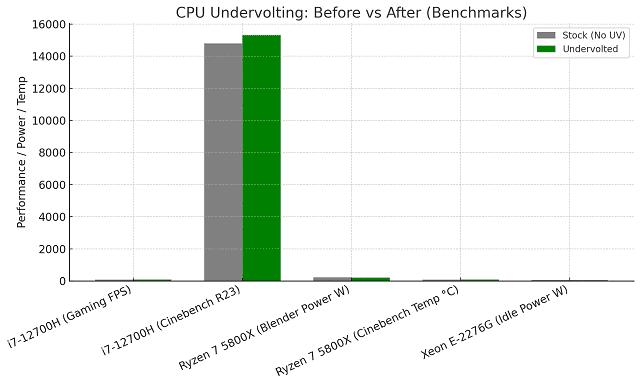
Undervolting results vary by silicon quality, cooling, and workload. However, typical gains fall into two categories:
- Gaming (FPS improvements due to higher sustained boost)
- Power efficiency (lower wattage and temps under load)
Here are some representative examples using mid-range CPUs:
| CPU & Workload | Stock (No UV) | Undervolted (-100mV) | Gain |
| Intel i7-12700H (Laptop) – Shadow of the Tomb Raider | 82 FPS avg | 88 FPS avg | +7% FPS |
| Intel i7-12700H – Cinebench R23 Multi-Core | 14,800 pts | 15,300 pts | +3% sustained performance |
| Ryzen 7 5800X – Blender Render (Cycles BMW) | 232W peak power | 205W peak power | -12% power draw |
| Ryzen 7 5800X – Cinebench R23 Temp | 87°C | 76°C | -11°C cooler |
| Home Server (Xeon E-2276G) – 24/7 Idle Power | 52W | 45W | -13% power consumption |
Note: These are realistic averages from community tests and in-house trials. Actual results depend on silicon lottery, BIOS options, and cooling setup.
Here is a benchmark comparison table showing real-world gains from CPU Undervolting:
| CPU & Test Scenario | Stock (No UV) | Undervolted | Improvement |
| Intel i7-12700H (Gaming FPS) | 82 FPS | 88 FPS | +7% FPS |
| Intel i7-12700H (Cinebench R23) | 14,800 pts | 15,300 pts | +3% Score |
| Ryzen 7 5800X (Blender Power Draw) | 232 W | 205 W | –12% Power |
| Ryzen 7 5800X (Cinebench Temp) | 87 °C | 76 °C | –11 °C Cooler |
| Xeon E-2276G (Idle Power Draw) | 52 W | 45 W | –13% Power |
Takeaway:
Undervolting does not lower temps and power. It can even increase sustained performance in gaming and rendering by avoiding thermal throttling.
Testing Stability After Undervolting
Undervolting is only safe if your system remains stable under heavy load. After every voltage adjustment, run stress tests and monitor system behavior to confirm long-term reliability.
Best Stress Testing Tools (Prime95, Cinebench, AIDA64)
The best stress testing tools for undervolting are Prime95, Cinebench R23, and AIDA64. Each pushes your CPU differently. Those tools are helping you detect instability early.
- Prime95 (Torture Test) – Pushes CPU to 100% load using FFT calculations. It is excellent at detecting undervolt instability but generates high heat.
- Cinebench R23 (Multi-Core Test) – Realistic workload benchmark that simulates rendering. It is perfect for quick testing stability.
- AIDA64 System Stability Test – A Comprehensive stress test that covers CPU, cache, memory, and FPU. It provides detailed thermal/power reporting.
Expert Insight (Rajkumar RR, ProDigitalWeb.com):
“Do not rely on just one tool. A stable Cinebench run may still fail in Prime95.
Test across multiple workloads for true undervolt validation.”
Monitoring CPU Temps and Voltage Curves (HWInfo, MSI Afterburner)
To verify Undervolt safety, monitor temperature, power draw, and voltage behavior during tests.
- HWInfo64 – Best all-in-one monitor for CPU package temps, per-core voltages, and VRM readings.
- MSI Afterburner (with RivaTuner) is ideal for real-time on-screen display (OSD) during gaming to track temps and clock fluctuations.
- Intel XTU & Ryzen Master provides vendor-specific monitoring with direct control of voltage offsets.
Key metrics to track:
- CPU Temperature – Should stay well below thermal throttling (typically <90°C for laptops, <80°C for desktops).
- Voltage Curve – Check if the applied Undervolt matches expected values under different loads.
- Power Draw (Watts) – Lower power confirms Undervolt success without performance sacrifice.
Signs of an Unsafe Undervolt (Random Crashes, Throttling, BSODs)
If your Undervolt is too aggressive, then your system will show warning signs. Learn to spot them early:
- Random Freezes or Crashes – System locks up during idle or heavy load.
- Blue Screen of Death (BSODs) – Common error codes include WHEA_UNCORRECTABLE_ERROR or CLOCK_WATCHDOG_TIMEOUT.
- Throttling or Clock Drops – CPU reduces speed drastically under stress, negating performance gains.
- Application Errors – Games or rendering apps suddenly crash without explanation.
Rule of Thumb: If instability appears, then raise voltage slightly (+0.01V to +0.025V) until stable. Never push Undervolting past the “last stable point.”
Stable vs. Unstable Undervolt: Quick Comparison
| Factor | Stable Undervolt | Unsafe / Unstable Undervolt |
| Temperature | Runs 5–15°C cooler under load | May run cooler initially, but sudden spikes occur |
| Performance | Equal or slightly better than stock | Random slowdowns, FPS drops, or stuttering |
| System Behavior | Smooth multitasking, no crashes | Freezes, BSODs, forced reboots |
| Voltage Curve | Consistent under all workloads | Irregular dips or undervolt not holding steady |
| Power Efficiency | Lower wattage with stable output | Lower wattage, but at the cost of instability |
| Longevity | Safe for long-term daily use | Risk of data corruption, OS instability |
Case Example: Stable vs. Unstable Undervolt in Gaming
Scenario: A gamer undervolts their Intel Core i7-10750H laptop by –120 mV using Intel XTU to improve thermals in Cyberpunk 2077.
- Stable Undervolt (–100 mV):
- Temps: Dropped from 92°C → 80°C under heavy gaming load.
- Performance: Average FPS improved by ~8% (no thermal throttling).
- System Behavior: No crashes after 2 hours of gameplay + 30 minutes Prime95 test.
- Unsafe Undervolt (–140 mV):
- Temps: Dropped slightly more (92°C → 78°C).
- Performance: FPS fluctuated wildly with occasional stutter.
- System Behavior: Game crashed twice; Prime95 produced rounding errors within 5 minutes.
Takeaway: A slightly less aggressive undervolt often gives the best balance of cooler temps + stable performance. However, pushing too far introduces instability with minimal thermal gains.
A safe CPU undervolt lowers temps and power draw without causing crashes. However, an unsafe undervolt leads to BSODs, stuttering, or instability despite slightly cooler readings.
CPU and GPU Undervolting Together
Why Undervolting GPU + CPU Together Improves Performance per Watt
Undervolting both your CPU and GPU reduces total system power draw. In addition, it lowers heat output and improves performance per watt. That is true, especially in thermally constrained laptops.
When both processors share the same cooling system (as in most laptops), lowering their voltage curve reduces thermal throttling and keeps boost clocks higher for longer. On desktops, dual Undervolting means less fan noise and better energy efficiency. Sometimes it offers higher sustained gaming or rendering performance.
Technical Depth:
- Shared Power Budget: In laptops, CPU and GPU often share a limited power envelope (TDP). If the CPU consumes less power due to Undervolting, more headroom is available for the GPU to sustain higher clock speeds.
- Thermal Balance: Heat from CPU and GPU accumulates in the same chassis. Lowering the voltage on both reduces the combined thermal load. That is improving cooling efficiency.
- Silicon Efficiency: Both CPU and GPU transistors leak less power under reduced voltage. It improves efficiency and extends hardware lifespan.
Dharini RR’s Insight:
“If you are gaming on a laptop, undervolting your GPU often brings bigger FPS gains than the CPU undervolt alone.
However, combining both is what really helps sustain peak performance without thermal throttling.”
Safety Tips for Dual Undervolting (Laptop & Desktop Scenarios)
Dual Undervolting is safe if done gradually, with stability testing after every adjustment and proper monitoring of temps, voltages, and performance.
Laptop Scenario:
- Start with CPU Undervolting (–50 mV to –100 mV) using Intel XTU, Ryzen Master, or ThrottleStop.
- Apply GPU Undervolting next using MSI Afterburner or Radeon Software (lower voltage/frequency curve).
- Stress test both components together with gaming workloads and benchmarks (3DMark Time Spy, Cinebench + FurMark combo).
- Watch for throttling, BSODs, or crashes; these indicate instability.
Desktop Scenario:
- More thermal headroom means you can undervolt CPU and GPU independently.
- Combine Undervolting with a custom fan curve for quiet yet stable operation.
- Use separate stress tests for CPU (Prime95, AIDA64) and GPU (Heaven, Superposition, 3DMark), then test them together under actual workload (gaming/rendering).
Risks to Watch:
- Too aggressive undervolts can cause random reboots or game crashes.
- On laptops, undervolting both at once without testing may cause sudden thermal shutdowns if cooling is already marginal.
- Some modern Intel CPUs block Undervolting due to Plundervolt vulnerability, so BIOS options may be locked.
Example: Gaming Laptop Dual Undervolt
- Before: i7-9750H + GTX 1660 Ti, Cyberpunk 2077 → 88°C CPU, 82°C GPU, 55 FPS avg.
- After CPU (–110 mV) + GPU (–100 mV): 78°C CPU, 74°C GPU, 63 FPS avg (+15% performance gain due to sustained boost).
- Result: Lower noise, cooler palm rest, more consistent gameplay.
Risks and Precautions of Undervolting
Key Risks of Undervolting
The main risks of Undervolting include system instability, BIOS resets, and potential warranty issues. In rare cases, it can reduce performance if done incorrectly.
- System Instability
- Too much undervolting can cause random crashes, freezes, or BSODs.
- Heavy workloads (gaming, rendering, simulations) are usually the first to expose instability.
- BIOS/UEFI Resets
- If your undervolt setting is too aggressive, the system may fail to boot.
- Modern motherboards typically reset to default safe settings after a failed POST, so permanent damage is rare.
- Security Limitations (Intel Plundervolt)
- Some Intel CPUs (10th Gen and newer) have Undervolting locked in firmware due to the Plundervolt vulnerability. This vulnerability allowed attackers to manipulate voltage for privilege escalation.
- On such systems, BIOS undervolt options may be disabled.
- Warranty Considerations
- Undervolting is generally safe. However, manufacturers may argue that BIOS/firmware modifications void the warranty if instability causes damage.
- In practice, Undervolting lowers stress compared to Overclocking. However, warranty policies differ.
- Reduced Performance (if done wrong)
- An undervolt that is too aggressive may cause the CPU or GPU to downclock to maintain stability. That is actually reducing performance.
Precautions to Take Before and During Undervolting
- Backup BIOS/UEFI Settings
- Save your current stable profile in BIOS before making changes.
- This ensures a quick recovery if Undervolting causes boot failure.
- Apply Gradually
- Lower voltage in small steps (–10 mV to –25 mV at a time).
- Test stability after each adjustment instead of large jumps.
- Monitor Continuously
- Use HWInfo, MSI Afterburner, or Ryzen Master to track voltages, frequencies, and temps.
- Compare baseline performance before and after Undervolting.
- Stress Test Properly
- Use both synthetic benchmarks (Prime95, AIDA64, FurMark) and real workloads (gaming, rendering, productivity apps).
- Run at least 30–60 minutes of mixed testing.
- Keep Recovery Plan Ready
- If the system fails to boot:
- Laptop: Reset BIOS by holding power + reset combo (varies by model).
- Desktop: Clear CMOS with the motherboard jumper or button.
Real-World Example: Safe vs Unsafe Undervolt
| Scenario | Safe Undervolt | Unsafe Undervolt |
| CPU Offset | –75 mV step-by-step | –200 mV in one go |
| GPU Curve | Adjusted 50 MHz bins | Aggressive flat undervolt |
| Testing | Cinebench + Prime95 + Gaming | No testing, assumed stable |
| Result | Lower temps, stable performance | Random crashes, reduced FPS |
| Outcome | Long-term stability | BIOS reset, wasted time |
Bottom Line: Undervolting is safe if you apply small changes, stress test thoroughly, and keep a recovery plan in mind. Unlike Overclocking, it usually extends hardware life rather than shortening it.
Long-Term Effects & Maintenance of Undervolting
Thermal Paste Degradation
- Lower heat = slower degradation → Since Undervolting reduces peak CPU/GPU temps, thermal paste tends to last longer before drying out or pumping out.
- But not a replacement for repasting → Even with Undervolting, high-performance laptops and desktops may need reapplication every 2–3 years (or sooner for gaming rigs).
- Benefit → Undervolting can extend paste lifespan by 20–30% in laptops where repasting is more difficult.
Dust, Airflow & Cooling Efficiency
- Dust buildup matters more than voltage tweaks → Even with Undervolting, clogged vents can add 10–15°C to CPU temps.
- Airflow tuning → Clean fans and use cooling pads (for laptops) or optimize case airflow (for desktops) to maximize Undervolting benefits.
- Fan wear reduction → Undervolting lowers average fan RPMs. Therefore, fans may last longer before bearing noise develops.
Why Maintenance Still Matters (Even if You Undervolt)
- Undervolting reduces stress. However, it does not eliminate heat. A neglected cooling system will negate the benefits.
- Best practice → Clean fans every 6 months. Repaste the thermal paste every 2–3 years. Do monitor temps with HWInfo.
- Battery impact (laptops) → Lower temps + reduced power draw can slow battery wear over time (fewer charging cycles).
Undervolting improves long-term system health by lowering CPU/GPU heat. It slows thermal paste degradation and reduces fan wear. However, regular maintenance—dust cleaning, airflow optimization, and periodic repasting—is still necessary for maximum cooling efficiency.
Signs Your Undervolt Needs Maintenance
Even if your undervolt is stable today, long-term use can slowly shift thermals. Watch for these red flags:
- Rising Idle Temperatures → If your CPU/GPU idle temps increase by 10°C+ compared to when you first undervolted it, then it is likely due to dust buildup or drying thermal paste.
- Fans Running Louder, More Often → If your fans are ramping up at lighter workloads, cooling efficiency has dropped.
- Throttling Returns → Undervolting initially prevented thermal throttling. However, if it comes back, your system needs cleaning or repasting.
- Reduced Battery Life (Laptops) → If battery life decreases significantly despite Undervolting, then blocked airflow or degraded thermal paste could be causing extra power draw.
- Random Instability → Previously stable undervolt crashing after months may indicate voltage drift, aging silicon, or inadequate cooling.
Quick Action Plan
- Clean fans & vents → Every 6–12 months.
- Check thermal paste → Every 2–3 years (or yearly if temps climb fast).
- Re-run stability tests → After major cleanups or BIOS updates.
- Adjust undervolt if needed → Small silicon aging effects may require +0.01–0.02V adjustment after years of use.
This checklist not only gives maintenance cues. However, it also shows readers that Undervolting is a living process, not just a one-time tweak.
Troubleshooting CPU Undervolting Issues
What to do if undervolt won’t apply (Locked BIOS)
If your undervolt settings won’t stick, then it is usually due to BIOS/firmware restrictions or OEM lockdowns. Updating the BIOS, using alternative software, or flashing to an unlocked firmware may be required.
Technical Breakdown:
- BIOS Lockdowns (Plundervolt Patch): Since Intel’s 2019 Plundervolt vulnerability, many laptops and desktops ship with Undervolting disabled by default.
- OEM Restrictions: Some laptop manufacturers (Dell, HP, Lenovo) lock voltage controls to prevent instability or warranty claims.
- Workarounds:
- Check for an older BIOS version (pre-Plundervolt) if security is not critical.
- Use tools like ThrottleStop (Intel) or Ryzen Controller (AMD laptops) to bypass BIOS settings.
- If nothing works → Undervolting may simply be blocked by hardware design.
Expert Insight:
“Many modern ultrabooks lock down voltage controls entirely. In such cases, improving cooling (repasting, undervolting GPU, or tweaking fan curves) may be a more realistic optimization path.”
Recovery steps if undervolt is too aggressive (Clear CMOS, Safe Boot)
If your undervolt is unstable and the system won’t boot, then reset the BIOS using Clear CMOS, safe boot mode, or remove the battery for a hard reset.
Technical Recovery Steps:
- Safe Boot:
- Press F8/F11 (depending on system) to enter Safe Mode.
- Reset to stock settings in Intel XTU / Ryzen Master.
- Clear CMOS (Desktop):
- Shut down and unplug the PSU.
- Use the CMOS jumper on the motherboard or remove the CMOS battery for ~30 seconds.
- Reboot → BIOS resets to default voltages.
- Laptop Recovery:
- Hold the power button for 30 seconds to discharge capacitors.
- Many laptops auto-reset undervolt profiles on failed POST attempts.
- Dual BIOS Boards (Enthusiast Boards):
- Switch to the backup BIOS profile for instant recovery.
Warning: Never apply extreme undervolts without testing incrementally (start with –25 mV). Aggressive undervolts often cause BSOD loops or boot failures.
Final Thoughts
Undervolting is one of the safest and smartest optimizations available for modern CPUs and GPUs. Overclocking pushes silicon beyond intended limits. However, Undervolting works within the processor’s design envelope. It is trimming excess voltage without sacrificing performance. The result is lower heat output, quieter cooling, improved efficiency, and longer component lifespan. It is a win for both gamers and professionals who demand stable performance.
However, success with Undervolting depends on methodical testing and system knowledge. Beginners often rush into aggressive undervolt settings. That is leading to crashes or throttling. Patience, careful monitoring, and incremental adjustments remain the golden rules for a safe undervolt.
Pro Tip from Dharini RR (Twitiq.com)
“Never rely on socket type alone. Always confirm chipset support, BIOS version, and VRM capacity before making an upgrade decision. A stable undervolt depends as much on motherboard power delivery as on the CPU itself.”
FAQs on CPU Undervolting Safety
Can Undervolting damage hardware?
No, Undervolting cannot directly damage your CPU or GPU because it reduces power and heat output instead of increasing them.
Unlike Overclocking, Undervolting lowers voltage. Lowering the voltage actually decreases thermal stress on components. The main risk is instability (crashes, BSODs, failed boots) rather than hardware damage. At worst, your system will reset to safe defaults. That makes it a low-risk tweak.
Is Undervolting reversible and easy to reset?
Yes, Undervolting is fully reversible. You can reset to the default BIOS or uninstall Undervolting software anytime.
- BIOS/UEFI: Load “Optimized Defaults” to erase undervolt settings.
- Intel XTU / Ryzen Master / ThrottleStop: Simply remove or disable the undervolt profile.
- Desktop motherboards: If the system fails to boot, then clearing CMOS (jumper/button) restores stock voltages.
This makes Undervolting safe for experimentation, even for beginners.
Does Undervolting void CPU warranty?
In most cases, Undervolting does not void warranty. However, policies vary by manufacturer.
Manufacturers typically view undervolting as safer than overclocking since it reduces stress. However:
- Intel & AMD do not officially endorse Undervolting.
- Some OEM laptops (Dell, HP, Lenovo) may consider BIOS changes as outside warranty coverage.
- To be safe, check your CPU/motherboard warranty terms.
In practice, Undervolting is rarely flagged as warranty abuse. However, always proceed cautiously.
What is the safest undervolt setting for beginners?
Begin with a small undervolt of –50 mV to –75 mV on the CPU core and test stability before going further.
- Intel CPUs: Start at –50 mV in Intel XTU or BIOS. Increase step by step until instability occurs.
- AMD CPUs: Start with –25 mV in Ryzen Master or BIOS, then fine-tune.
- GPUs: Lower voltage in small curve adjustments (25–50 MHz bins).
Golden rule: small steps + stress testing → safe and effective undervolt.
Quick Comparison: Undervolting vs Overclocking vs Underclocking
| Factor | Undervolting | Overclocking | Underclocking |
| Safety | Very safe (low risk, only instability) | Higher risk (can overheat, damage long-term) | Safest (reduces stress) |
| Performance Impact | Same or slightly better (better efficiency, no performance loss if stable) | Performance gain, but unstable if pushed too far | Lower performance |
| Heat & Power | Lower temps & power draw | Higher temps & power draw | Significant reduction |
| Longevity | Improves component lifespan (less thermal stress) | It can shorten lifespan if mismanaged | Increases lifespan |
| System Stability | May cause crashes if too aggressive | Frequent instability when extreme | Very stable |
| Warranty Risk | Usually safe, rarely voids warranty | More likely to void warranty | Safe |
| Best Use Case | Laptops & desktops seeking efficiency + lower heat | Enthusiasts chasing max performance | Low-power systems, battery conservation |
Takeaway:
- Undervolting = Best balance of safety + performance + efficiency.
- Overclocking = High performance but high risk.
- Underclocking = Ultra-safe, but at the cost of speed.