

Introduction
Why Knowing Your CPU Socket Type Matters
When upgrading a computer, choosing a compatible CPU is not as simple as picking the latest model. Every processor is designed for a specific socket type on the motherboard. If the socket does not match, the CPU will not physically fit. Even if it does fit, electrical and firmware compatibility may fail. That is why knowing your CPU socket type is critical for system upgrades, troubleshooting, and ensuring hardware longevity.
How can you identify your CPU socket?
You can identify your CPU socket type by:
- Checking system information in Windows or Linux,
- Using CPU diagnostic tools like CPU-Z, HWiNFO, or Speccy,
- Alternatively, you can physically inspect your motherboard for the printed socket model.
Intel vs AMD: The Two Major Families
Most modern sockets fall into one of two categories:
- Intel LGA (Land Grid Array) → Used in Intel processors, where the pins are on the motherboard socket.
- AMD PGA/AM (Pin Grid Array / AM series) → Traditionally, it is used in AMD CPUs. In which the pins are on the processor itself (though AMD’s newer Ryzen AM5 also uses LGA).
Understanding which family your PC belongs to helps narrow down upgrade paths and compatibility options.
What Is a CPU Socket? (Background for Beginners)
Understanding the CPU Socket
A CPU socket is the physical interface on your computer’s motherboard that holds and connects the processor (CPU) to the rest of the system. Think of it as the “seat” for your CPU. It provides both the mechanical stability (so the chip fits snugly) and the electrical connections (so data and power can flow between the CPU and motherboard).
Without the right socket, your processor simply will not work. Even two CPUs from the same brand may use entirely different sockets. That is why identifying your socket type is so important for upgrades and repairs.
Major Types of CPU Sockets
CPU sockets have evolved in both design and technology over the period of time. When discussing CPU compatibility, the socket type is the single most important factor. A CPU socket acts as the interface between the processor and the motherboard. It is not only about determining whether a CPU physically fits. It also ensures the CPU will function properly with the board’s chipset, memory, and power design. Over the years, several socket architectures have emerged. Each of the emerging ones comes with unique advantages, trade-offs, and use cases. Here are the three most common types:
What is an LGA socket?
LGA (Land Grid Array) is a socket primarily used by Intel processors. In this design, the pins are on the socket, while the CPU has flat contacts. This reduces the risk of bending delicate CPU pins.
- Design: The pins are located on the motherboard socket. The CPU has flat contacts, namely “lands”.
- Used by Intel processors since LGA 775 (2004 onward). AMD has also adopted LGA for Threadripper (sTRX4) and EPYC (SP3) CPUs.
- Advantages:
- More durable CPUs (since the pins are on the board, not the processor).
- Supports higher pin counts for modern CPUs. Modern CPUs need PCIe lanes, memory channels, etc.
- Better power delivery and signal integrity.
- Disadvantages:
- Motherboard repair becomes costly if the pins bend.
- Examples: Intel LGA 1151, LGA 1200, LGA 1700; AMD sTRX4, SP3.
What is a PGA socket?
PGA (Pin Grid Array) – is a socket traditionally used by AMD processors. Here, the pins are on the CPU, and the socket has tiny holes to fit them in. This design makes CPUs easier to swap. However, it is also more prone to bent pins during handling.
- Design: CPU has pins on its underside that fit into holes on the motherboard socket.
- Used By: Primarily AMD processors (though Intel used PGA in the past in Sockets such as 370 and 478).
- Advantages:
- Pins on the CPU provide firm connectivity.
- Easy to manufacture, cost-effective.
- Disadvantages:
- CPU pins are fragile and can bend easily.
- Limited scalability for very high pin counts.
- Examples: AMD AM2, AM3, AM4 sockets.
What is a BGA socket?
BGA (Ball Grid Array) is the socket found in many laptops and compact devices. The CPU is soldered directly to the motherboard. That means it cannot be upgraded or replaced without specialized equipment.
- Design: CPU is soldered directly onto the motherboard via tiny solder balls.
- Used By: Laptops, compact desktops, and embedded systems.
- Advantages:
- Space-saving, ideal for portable devices.
- Efficient power and thermal design.
- Disadvantages:
- Not user-upgradeable — CPU is permanently attached.
- Repair/replacement requires professional equipment.
- Examples: Many Intel mobile CPUs (U-series, H-series) and ARM-based SoCs.
Specialized / High-End Sockets
These are sockets designed for workstations, servers, and enthusiast desktops, where high core counts, multi-channel memory, and additional PCIe lanes are critical.
- Examples:
- AMD sTR4 / sTRX4 / sTR5 for Ryzen Threadripper CPUs.
- AMD SP3 for EPYC server processors.
- Intel LGA 2011, LGA 2066, LGA 4677 for Xeon and HEDT platforms.
These sockets are typically larger. They come with thousands of contacts. They are optimized for professional workloads like 3D rendering, AI training, and server hosting.
Why Do Different Sockets Exist?
At first glance, it might seem frustrating that CPUs are not universally compatible. But different sockets exist for important reasons:
- Performance Upgrades – As CPUs get faster, they need more power delivery and better signal integrity. That often requires a new socket design.
- Compatibility with New Features – Technologies like DDR5 RAM, PCIe 5.0, or integrated AI accelerators. These accelerators require updated sockets and chipsets.
- Thermal & Mechanical Design – CPUs keep getting smaller yet hotter. Socket design affects how cooling systems (like air coolers or liquid coolers) can attach.
- Product Segmentation – Intel and AMD also design sockets to align with specific market needs (consumer desktops, gaming rigs, or enterprise servers).
| Socket Type | Pin Location | Upgradeability | Commonly Used By | Pros | Cons |
| PGA (Pin Grid Array) | Pins on the CPU, holes on the motherboard | Yes – CPUs can be swapped easily | AMD desktop CPUs (AM4, AM5) | Easy to upgrade, affordable motherboards | Fragile pins on the CPU can bend |
| LGA (Land Grid Array) | Pins on the motherboard, flat contacts on the CPU | Yes – CPUs can be swapped | Intel desktop CPUs (LGA 1700), AMD Threadripper/EPYC | Better durability for CPUs, supports higher pin counts | A damaged motherboard socket is costly to repair |
| BGA (Ball Grid Array) | CPU soldered directly to the motherboard | No – permanently attached | Laptops, embedded systems, and some Intel mobile CPUs | Compact design, efficient power/thermal use | Not user-upgradeable, repair requires special tools |
Why You Need to Know Your CPU Socket Type
You need to know your CPU socket type to ensure compatibility when upgrading your processor, choosing a motherboard, or buying a cooler. Using the wrong socket leads to wasted money and hardware that will not fit or function properly.
-
CPU Upgrade Planning
One of the most common reasons to check your CPU socket type is when planning an upgrade. If you want to replace your current processor with a faster one, then you must know whether your motherboard supports it. For example:
- An Intel 10th-Gen CPU (LGA1200) will not fit in a 12th-Gen motherboard (LGA1700).
- An AMD Ryzen 5000 CPU (AM4) cannot be installed in the newer AM5 socket boards.
Identifying your socket type can filter out incompatible processors and focus only on the ones that will physically fit and function with your system.
-
Choosing Compatible Motherboards
If you are building a PC from scratch or replacing a faulty motherboard, then your CPU socket type becomes the number-one compatibility factor. Even two motherboards with similar features (PCIe slots, USB ports, Wi-Fi, etc.) may differ in socket type.
- Intel users must choose between sockets like LGA1200, LGA1700, or older LGA1151.
- AMD users must know whether they are on AM4, AM5, or legacy sockets.
Knowing this ensures your CPU + motherboard pairing works seamlessly.
-
Buying Correct Coolers/Heatsinks
Many PC users overlook that cooling systems are also socket-dependent. Air coolers and liquid coolers use brackets that are specifically designed to mount onto certain socket layouts.
- A cooler built for LGA1151 will not mount properly on LGA1700, unless it comes with an adapter kit.
- AMD’s AM4 and AM5 sockets share some cooler compatibility. However, they are not always in some cases.
If you do not check your socket type, you may end up with a cooler that does not fit physically, no matter how powerful it is.
-
Avoiding Costly Compatibility Issues
Finally, knowing your socket type prevents expensive mistakes. Buying a high-end CPU or motherboard only to discover they are incompatible is one of the most frustrating (and costly) problems for PC builders. With one quick check, you save yourself the hassle of:
- Returning incompatible parts.
- Downgrading your upgrade plans.
- Delays in building or repairing your PC.
Methods to Identify Your CPU Socket Type
The easiest ways to identify your CPU socket type are:
- Check System Information in Windows (find CPU model, look up specs).
- Use third-party tools like CPU-Z, HWInfo (Windows), or lscpu (Linux).
- Visit the official CPU manufacturer’s website (Intel ARK, AMD product pages).
- Physically inspect your motherboard to find its socket type directly.
Check System Information (Windows)
This is the simplest method for most Windows users. Windows does not directly list the socket type. However, it provides the CPU model, which you can cross-reference.
Step-by-Step:
- Press Win + R → type msinfo32 → hit Enter.
- In System Summary, locate the Processor field.
- Example: Intel Core i7-12700K
- Copy this CPU name and search online.
- Open Intel’s ARK or AMD’s CPU spec page → find Socket Type.
Example:
- If msinfo32 shows Intel Core i7-12700K, Intel ARK confirms it uses LGA 1700.
- If it shows AMD Ryzen 7 5800X, AMD confirms AM4.
Pros: Built-in, no extra downloads.
Cons: Requires an extra step of checking manufacturer specs.
Use Third-Party Software (Cross-Platform)
If you want instant results without cross-checking, then third-party tools are best.
Windows Tools
- CPU-Z (Free, lightweight)
- Directly shows CPU name, socket type, and motherboard model.
- Tab: CPU → Look for “Package” (Socket 1700).
- HWInfo (More detailed)
- Generates full reports of hardware (CPU, GPU, RAM, and motherboard).
- Tab: CPU → “Package Type” displays socket info.
Linux Tools
- lscpu command
- lscpu
-
- Outputs architecture, CPU model, cores, and socket info.
- Look for fields:
- “Socket(s)” → number of physical sockets.
- “Model name” → exact CPU model.
Pros: Direct, fast, and highly reliable.
Cons: Requires download (Windows tools), not pre-installed.
For beginners, CPU-Z is the most straightforward way.
Check Manufacturer’s Website
Even if tools give you socket info, verifying on the official manufacturer’s site ensures accuracy — especially if you’re buying a new CPU or motherboard.
Intel CPUs → Use Intel ARK
- Example: Search Intel Core i5-13600K.
- Specs page shows: Socket LGA 1700.
AMD CPUs → Use AMD product pages
-
- Example: Search AMD Ryzen 9 7950X3D.
- Specs show: Socket AM5.
Why this matters:
- Third-party tools sometimes list “Package” instead of the socket type.
- Manufacturer specs confirm officially supported motherboards and chipsets.
Pro Tip: Bookmark Intel ARK or AMD specs if you upgrade often.
Physically Inspect the Motherboard (Advanced)
If your PC does not boot, or you are buying second-hand hardware, sometimes physical inspection is unavoidable.
Steps:
- Power off the system and unplug it.
- Open the case → locate the motherboard model number.
- Usually printed between PCIe slots, near RAM slots, or next to the CPU socket.
- Example: ASUS TUF GAMING B660M-PLUS.
- Search this model online → manufacturer page lists socket type.
- ASUS B660M-PLUS → Supports LGA 1700 CPUs.
- If needed, then inspect the socket itself:
- LGA (Intel): Pins on the motherboard socket. The CPU has flat pads.
- PGA (AMD older): Socket has holes. The CPU has visible pins.
- BGA (rare for desktops): CPU soldered, non-replaceable.
Pros: Works even if the system is dead.
Cons: Risk of damage if handled improperly; requires opening the PC case.
Pro Tips & Common Mistakes
- Do not confuse the CPU socket with the chipset (Intel Z690 vs LGA 1700).
- Socket = physical fit
- Chipset = features & compatibility layer
- Always check BIOS version support for newer CPUs.
- Avoid guessing: many Intel CPUs use similar names but different sockets (i7-7700K = LGA 1151, i7-12700K = LGA 1700).
Inspecting BIOS/UEFI (Built-in Firmware)
Another way to identify your CPU model (and then its socket) is through your system’s BIOS/UEFI interface.
Steps:
- Restart your computer and press the setup key (commonly Del, F2, F10, or Esc) during boot.
- In BIOS/UEFI, navigate to System Information / Processor Information.
- Note the CPU model number (Intel Core i5-10400 or AMD Ryzen 5 5600X).
- Cross-check the model on Intel ARK or AMD product page to confirm its socket type.
Tip: BIOS/UEFI usually will not display the socket type directly. Instead, it gives the CPU model that can then match the socket via the official spec sheet.
Using Alternative Software Tools
Apart from CPU-Z and HWInfo, several other utilities can reveal your CPU model and socket type:
- Speccy (Windows) is a lightweight tool from Piriform that provides an easy-to-read summary of CPU, motherboard, RAM, and socket type. Great for beginners.
- AIDA64 (Windows, Paid) is a Professional-grade diagnostic software that lists exact socket type, chipset, and even supported upgrade options.
- SiSoftware Sandra (Windows) is a Benchmarking + hardware info tool with detailed reports, including CPU socket details.
- Neofetch / Hardinfo (Linux) is a Simple Linux terminal tools that show CPU model, which can be cross-referenced for socket type.
Identifying Socket Types by CPU Brands
Both Intel and AMD have developed multiple socket types over the years. Each new socket typically supports a specific generation of CPUs. Each new socket introduces improvements in performance, power delivery, and memory support. Knowing which socket your processor belongs to helps you instantly figure out compatible motherboards and upgrade paths.
Intel vs AMD CPU Sockets: Detailed Comparison
| Brand | Socket Name | Release Year | Form Factor | Supported CPU Families / Generations | Memory Support | Status | Notes |
| Intel | LGA 1151 | 2015 | LGA (Land Grid Array) | 6th–9th Gen Intel Core (Skylake, Kaby Lake, Coffee Lake) | DDR3L / DDR4 | Legacy | Still widely found in budget pre-built. No PCIe 4.0 |
| LGA 1200 | 2020 | LGA | 10th–11th Gen Intel Core (Comet Lake, Rocket Lake) | DDR4 | Legacy | Transition socket before the DDR5 era | |
| LGA 1700 | 2021 | LGA | 12th–14th Gen Intel Core (Alder Lake, Raptor Lake, Arrow Lake) | DDR4 / DDR5 | Active | Supports DDR5, PCIe 5.0, and a new rectangular shape | |
| LGA 2066 | 2017 | LGA | Intel Core X-Series (Skylake-X, Cascade Lake-X) | DDR4 (quad-channel) | Semi-active (HEDT niche) | High-end desktop/workstation socket | |
| LGA 4677 | 2022 | LGA | Intel Xeon Scalable 4th Gen (Sapphire Rapids) | DDR5 (Octa-channel) | Active (server) | Designed for servers/HPC workloads | |
| AMD | AM3+ | 2011 | PGA (Pin Grid Array) | AMD FX Series | DDR3 | Legacy | Popular in older budget gaming builds |
| AM4 | 2016 | PGA | Ryzen 1000–5000 (Zen 1 → Zen 3) + some APUs | DDR4 | Semi-active | Legendary longevity (6 years of support) | |
| AM5 | 2022 | LGA (switch from PGA) | Ryzen 7000+ (Zen 4, Zen 5 upcoming) | DDR5 | Active | PCIe 5.0 support, Future-proof for next-gen Ryzen | |
| sTRX4 (TR4) | 2017 | LGA | Ryzen Threadripper 3000 (High-end desktop) | DDR4 (quad-channel) | Legacy | Huge socket for creators with >32 cores | |
| sTR5 (TR5/SP5) | 2023 | LGA | Ryzen Threadripper 7000 Pro (Zen 4) | DDR5 (8-channel) | Active | Current HEDT/workstation socket |
Key Insights from the Table
- Intel refreshes sockets often: Users may need a new motherboard every 2–3 CPU generations.
- AMD’s AM4 was legendary: It supported 5 CPU generations on the same socket.
- AM5 is AMD’s future: Moved to LGA (like Intel) for better power delivery.
- High-End Desktop (HEDT) sockets (Intel LGA 2066, AMD sTRX4/sTR5) are much larger and built for creators, engineers, and scientific workloads.
- Memory is a deciding factor: AM5 and LGA 1700 introduced DDR5. DDR5 is faster but more expensive.
Pro Tip: Always check official CPU compatibility lists (Intel ARK or AMD CPU page) before upgrading. Some processors within the same family may require BIOS updates.
Understanding Compatibility (Beyond the Socket)
Simply matching your CPU to the correct socket is not the full story. A processor may physically fit into a motherboard but still fail to work properly, or at all. That is due to deeper compatibility factors. Let us break down the most important considerations:
Chipset Limitations (Even with the Same Socket)
- Why it matters: A socket defines physical fit. However, the chipset controls features like PCIe lanes, USB versions, memory speeds, and overclocking.
- Example – Intel: Both the LGA 1200 socket and 10th Gen (Comet Lake) / 11th Gen (Rocket Lake) CPUs fit. But if you pair an 11th Gen CPU with an older H410 chipset board, features like PCIe 4.0 and faster RAM speeds will not work.
- Example – AMD: The AM4 socket supported CPUs from Ryzen 1000 through Ryzen 5000. But early chipsets (A320, B350, X370) often lack official support for Ryzen 5000 without BIOS updates. Some boards never received updates at all.
- Key takeaway: Always check the motherboard’s CPU support list on the manufacturer’s website, other than the socket type.
BIOS or Firmware Updates (CPU Microcode Support)
- Why it matters: Even if the chipset is compatible, a BIOS update may be required to recognize newer CPUs.
- Example – AMD AM4: To run a Ryzen 5000 (Zen 3) CPU, many B450/X470 boards require a BIOS update. Without it, the PC would not boot.
- Example – Intel LGA 1151: Some motherboards shipped with early BIOS versions supporting only 6th/7th Gen CPUs. Users had to update BIOS (sometimes requiring an older CPU first) before installing 8th/9th Gen chips.
- Key takeaway: Always update to the latest stable BIOS before upgrading CPUs. Some boards offer “BIOS Flashback” (update without CPU installed), which is a huge help.
Power Delivery (VRM) and Cooling Requirements
- VRM (Voltage Regulator Module) Quality:
- The VRM ensures stable power to the CPU. Entry-level boards with weak VRMs can struggle with high-core CPUs.
- Example: A budget A320 board can technically run a Ryzen 9 3900X (AM4). However, the VRMs may overheat or throttle performance.
- On Intel’s side, H410 or H510 motherboards are not built for i9 processors under sustained workloads.
- Cooling Requirements:
- Higher-end CPUs often require better cooling solutions (air coolers or liquid AIOs).
- Example: Intel i9-13900K or AMD Ryzen 9 7950X can run at 200W+ under load. Stock coolers will not be enough, even if the socket and BIOS are compatible.
- Check TDP (Thermal Design Power) and ensure your cooler supports it.
- PSU (Power Supply) Considerations:
- Upgrading from an i3 to an i9 or Ryzen 3 to a Ryzen 9 may increase overall power consumption.
- Make sure your PSU wattage and efficiency (80+ Bronze/Gold) can handle it.
Quick CPU Upgrade Checklist (Beyond the Socket)
Does the chipset officially support the new CPU?
Is the BIOS updated to the required version?
Can the motherboard VRMs handle the CPU’s power draw?
Do you have adequate cooling for the new processor?
Is your PSU sufficient for the upgraded system?
Why This Matters for Upgraders
Ignoring these factors can lead to:
- The system will not boot after installing a new CPU
- Features like PCIe 4.0, DDR5, or higher memory speeds will not work
- CPU throttling due to overheating VRMs
- Random system instability or crashes under heavy loads
In short: socket compatibility is only the beginning. The success of a true CPU upgrade requires looking at the entire motherboard ecosystem.
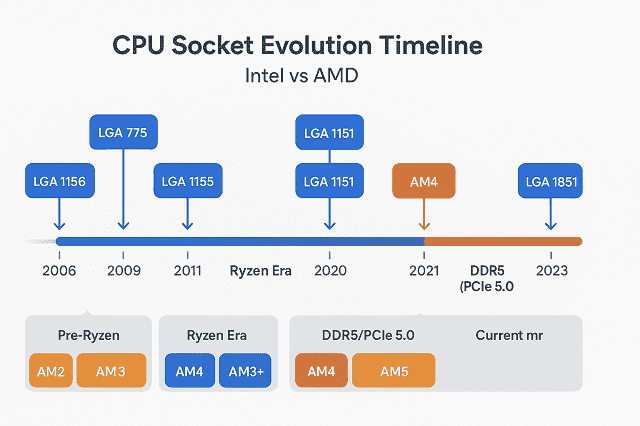
CPU Socket Evolution Timeline: Intel vs AMD
- Intel vs AMD Socket Evolution (Side-by-Side Table)
| Year / Era | Intel Sockets | AMD Sockets |
| 2006–2008 | LGA 775 (Socket T) → Core 2 Duo/Quad | AM2 (DDR2, Athlon 64 / Phenom) |
| 2009–2010 | LGA 1156 (Socket H) – Core i3/i5/i7 (1st Gen) | AM3 (DDR3, Phenom II) |
| 2011–2012 | LGA 1155 (Socket H2) – Sandy/Ivy Bridge | AM3+ (Bulldozer, Piledriver FX CPUs) |
| 2013–2015 | LGA 1150 (Socket H3) – Haswell/Broadwell | FM2/FM2+ (APUs), AM3+ still in use |
| 2015–2017 | LGA 1151 (v1) – Skylake/Kaby Lake | AM4 (2016 launch) → Ryzen 1000 CPUs |
| 2017–2019 | LGA 1151 (v2) – Coffee Lake (8th/9th Gen) | AM4 → Ryzen 2000 & 3000 CPUs |
| 2020–2021 | LGA 1200 – Comet Lake, Rocket Lake | AM4 → Ryzen 5000 CPUs |
| 2021–2022 | LGA 1700 – Alder Lake (12th Gen, DDR5 & PCIe 5.0) | AM5 (2022 launch) → Ryzen 7000 (DDR5 & PCIe 5.0) |
| 2023–2024 | LGA 1700 continues – Raptor Lake & Refresh | AM5 → Ryzen 7000X3D, Ryzen 8000G APUs |
| 2025 (Current) | Expected: LGA 1851 (Arrow Lake, Panther Lake) | AM5 is still active, and AMD promised long-term support |
Key Takeaways (Intel vs AMD Philosophy)
- Intel:
- Frequent socket changes (roughly every 2–3 generations).
- Example: LGA 1156 → 1155 → 1150 → 1151 (v1 & v2) → 1200 → 1700 → upcoming 1851.
- Pros: Often optimizes power delivery and new features.
- Cons: Less future-proof for upgraders.
- AMD:
- Long socket lifespan, such as AM4 (2016–2022), which supported 5+ CPU generations.
- AM5 is designed with long-term support (at least through 2027+).
- Pros: Better upgrade path, user-friendly.
- Cons: Some features are limited by keeping backward compatibility (early AM4 boards needed BIOS updates).
Legacy & Specialized CPU Sockets
While most PC users today only deal with modern Intel LGA sockets (like LGA 1200, LGA 1700) and AMD AM4/AM5, there is a long history of sockets that powered earlier desktops, workstations, and servers. Knowing them is useful for retro builds, upgrades, and research.
Legacy Desktop CPU Sockets
- Socket 370 (Intel, late 1990s–2000s)
- Used for Pentium III and some Celeron CPUs.
- PGA design (pins on CPU).
- Socket 478 (Intel, 2002–2004)
- Supported Pentium 4 and early Celerons.
- Replaced by LGA 775.
- Socket 754 / 939 / 940 (AMD, early 2000s)
- Powered by Athlon 64 and Opteron CPUs.
- Marked AMD’s jump to 64-bit consumer processors.
High-End & Server Sockets
- Intel Xeon Sockets (LGA 3647, LGA 4189, LGA 4677)
- Designed for workstations and data centers.
- Support multi-core Xeons with massive memory bandwidth.
- AMD Threadripper Sockets (sTR4, sTRX4, sTR5)
- Created for HEDT (High-End Desktop) CPUs.
- Feature quad-channel or 8-channel memory support.
- AMD EPYC Socket SP3 (2017–Present)
- Enterprise-grade socket for AMD’s EPYC server CPUs.
- Supports up to 96+ cores per CPU.
Mobile & Embedded Sockets
- BGA Sockets (Ball Grid Array)
- Found in most modern laptops.
- The CPU is soldered directly to the motherboard. Further, it is not upgradeable.
- Older Laptop Sockets (Socket P, Socket M)
- Allowed CPU swaps in laptops (Intel Core 2 Duo era).
- Rare today as manufacturers moved to soldered designs.
Legacy CPU Socket Reference Table
| Socket | Brand | Era / Release | Compatible CPUs | Notes |
| Socket 370 | Intel | 1999–2002 | Pentium III, Celeron (Mendocino, Coppermine) | One of the last PGA Intel sockets before moving to the NetBurst era. |
| Socket 478 | Intel | 2002–2004 | Pentium 4 (Northwood, Prescott), Celeron | Replaced by LGA 775. |
| LGA 775 (Socket T) | Intel | 2004–2011 | Pentium 4, Pentium D, Core 2 Duo/Quad, early Xeon | Extremely long-lived socket with multiple CPU generations. |
| Socket 7 | Intel / AMD | 1995–1999 | Intel Pentium, AMD K5/K6, Cyrix CPUs | Industry-standard socket used by multiple brands. |
| Socket 939 | AMD | 2004–2006 | Athlon 64, Athlon 64 FX, Opteron | Supported dual-channel DDR memory. |
| Socket 940 | AMD | 2003–2006 | Opteron, Athlon 64 FX | The early 64-bit era socket required registered DDR RAM. |
| Socket AM2 / AM2+ | AMD | 2006–2009 | Athlon 64, Athlon 64 X2, Phenom | DDR2 memory support was introduced. |
| Socket 754 | AMD | 2003–2006 | Athlon 64, Sempron | First AMD socket to support 64-bit CPUs. |
| Socket SP3 | AMD (Server) | 2017–Present | EPYC CPUs (up to 96+ cores) | Enterprise-grade, high-core count servers. |
| sTR4 / sTRX4 / sTR5 | AMD (HEDT) | 2017–Present | Threadripper (Zen to Zen 4) | High-End Desktop CPUs with quad/8-channel memory. |
| LGA 1366 | Intel | 2008–2011 | Core i7 (Nehalem), Xeon W3500/W5500 series | Enthusiast & server platform with triple-channel DDR3. |
| LGA 2011 / 2066 | Intel | 2011–2021 | High-End Core i7, i9 Extreme, Xeon E5 | Enthusiast and workstation CPUs with quad-channel memory. |
Future Socket Outlook (Intel & AMD in 2025 and Beyond)
Why this matters:
CPU socket roadmaps determine how long your current motherboard will last. Further, it helps you to know whether you will need to invest in a new platform for your next upgrade. Enthusiasts, gamers, and professionals planning hardware investments should keep an eye on Intel and AMD’s evolving strategies.
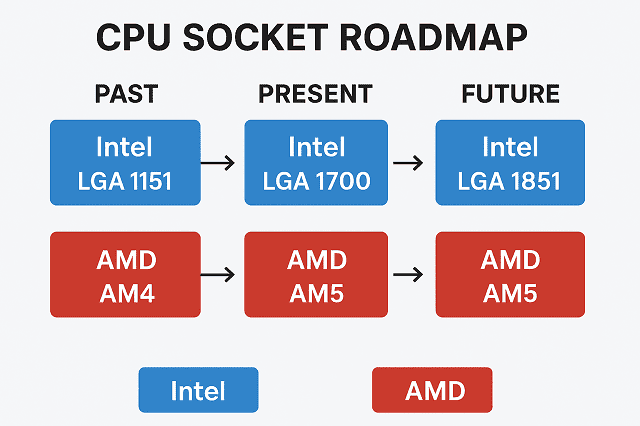
Intel’s Next Steps: LGA 1851 & Beyond
Intel has historically changed sockets more frequently than AMD. That is creating compatibility challenges for long-term upgraders.
- LGA 1700 (Current Mainstream, 2021–2024):
- Used for 12th Gen Alder Lake, 13th Gen Raptor Lake, and 14th Gen Raptor Lake Refresh CPUs.
- Supports DDR4 & DDR5 RAM, PCIe 5.0 (on newer boards).
- Nearing the end of the lifecycle.
- LGA 1851 (Expected with Arrow Lake, 2025):
- Successor to LGA 1700. That is reportedly debuting with Intel 15th Gen Arrow Lake CPUs.
- Likely optimized for DDR5-only support (dropping DDR4).
- Expected improvements: higher efficiency cores, AI acceleration, and better integrated graphics.
- Anticipated longevity: Intel may support this socket for at least two CPU generations (Arrow Lake, Panther Lake).
AMD’s Strategy: Longevity with AM5
AMD has built a reputation for longer socket support compared to Intel. That makes it attractive for budget-conscious upgraders.
- AM4 Legacy (2017–2022):
- Supported multiple CPU families: Ryzen 1000 → Ryzen 5000.
- Required occasional BIOS updates, but gave users ~5 years of upgrade flexibility.
- AM5 (Current & Ongoing, 2022–?):
- Launched with Ryzen 7000 series (Zen 4).
- Supports DDR5 memory and PCIe 5.0 as baseline features.
- AMD has officially promised AM5 support until at least 2027, covering Zen 4, Zen 5, and Zen 6 CPUs.
- Expected to deliver long-term platform stability similar to AM4 (or longer).
Intel vs. AMD: Future Socket Outlook Compared
| Feature | Intel (LGA 1851) | AMD (AM5) |
| First CPUs | Arrow Lake (15th Gen, 2025) | Ryzen 7000 (Zen 4, 2022) |
| Memory Support | DDR5 only | DDR5 only |
| PCIe Support | PCIe 5.0+ | PCIe 5.0+ |
| Longevity Promise | 1–2 generations (unconfirmed) | Until 2027+ (official) |
| Upgrade Friendliness | Frequent socket changes | Long-term socket stability |
Conclusion
Identifying your CPU socket type is the first step toward smarter upgrades, better compatibility, and avoiding costly mistakes. If you are planning to swap in a more powerful processor, purchase a new motherboard, or even install the right cooler, then knowing your exact socket type ensures that every component fits seamlessly.
Safe tip: Use software tools like CPU-Z, HWInfo, or built-in commands (like msinfo32 in Windows or lscpu in Linux) before attempting any physical inspection. Software checks are not only faster but also safer for beginners. That reduces the risk of damaging delicate CPU or motherboard pins.
If you found this guide useful, then consider bookmarking it for future upgrades and sharing it with friends or colleagues who are planning to build or upgrade their PCs. It could save them from a lot of trial-and-error.
Frequently Asked Questions
-
How do I quickly find my CPU socket type?
The fastest way is to use software like CPU-Z (Windows) or run the lscpu command (Linux). These tools display your CPU model and socket type directly without opening your PC case.
-
Can I upgrade my CPU without changing the motherboard?
Only if your new CPU is compatible with the same socket and chipset as your existing motherboard. Some upgrades may require BIOS updates, even with the same socket.
-
What is the difference between Intel LGA and AMD PGA sockets?
- Intel LGA (Land Grid Array): Pins are on the motherboard socket.
- AMD PGA (Pin Grid Array): Pins are on the CPU itself.
- This design difference affects installation, durability, and cooler compatibility.
-
Do coolers also depend on CPU socket type?
Yes. CPU coolers and heatsinks are designed to match specific socket sizes and mounting brackets. Always check socket compatibility before buying a cooler.
-
Is it safe to remove the CPU to check the socket?
Not recommended for beginners. Physical inspection carries risks of bent pins or damage. Instead, use software or manufacturer websites to identify the socket type safely.
-
Why do CPU sockets keep changing?
New sockets are introduced to support:
- Faster data transfer speeds
- Higher core counts and power delivery
- New chipset features (like PCIe 5.0, DDR5)
This ensures CPUs evolve with new technologies.
-
What happens if I install a CPU in the wrong socket?
It will not fit physically. But forcing it can damage both the CPU and motherboard. Always double-check compatibility before upgrading.
-
Where can I check official CPU socket compatibility?
- Intel ARK database for Intel processors
- AMD Product Specifications page for AMD CPUs
Both provide socket type, chipset support, and upgrade notes.