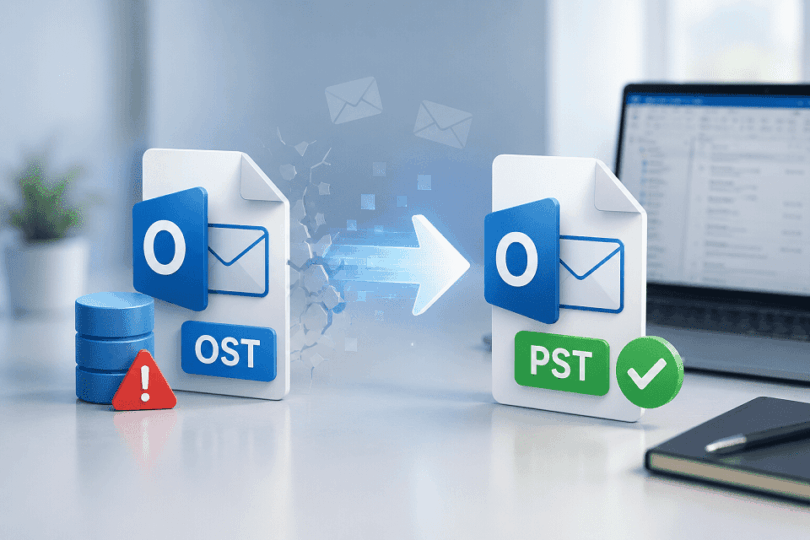

Microsoft Outlook OST files can become inaccessible after profile corruption, Exchange sync failures, or system crashes. When that happens, users often need an OST to PST converter to access mailbox data. A damaged or inaccessible OST file can lock years of emails, contacts, and attachments. That is where OST to PST converter tools help.
Why Users Need OST to PST Conversion
OST files work as offline copies of Outlook mailbox data. They help users access emails without an internet connection. But these files stay linked to the original Outlook profile and Exchange account.
That creates problems when:
- Outlook profile gets deleted
- Exchange server becomes unavailable
- System crashes damage the mailbox
- Outlook stops syncing correctly
In many cases, the OST file still exists on the computer but Outlook refuses to open it.
That is where OST to PST conversion becomes useful.
A PST file works more like a portable Outlook data file. Users can open it directly in Outlook without depending on the original Exchange profile.
This makes PST files easier for:
- Email backup
- Mailbox migration
- Data conversion
- Long-term storage
For businesses, PST conversion also helps when employees leave and mailbox access needs preservation.
Instead of losing mailbox access completely, users can access emails, contacts, attachments, and calendar data from the OST file.
I tested the online OST to PST converter by Stellar using an orphan OST file. I also tested the desktop version after using the online tool.
The goal was simple. Check how easy the tool feels for normal users and see if the conversion process works without confusion.
First Impressions
The online tool opens with a very clean interface. There are no distracting banners or complicated setup steps. You upload the OST file, wait for the scan, preview the mailbox, and start the conversion.
The process feels beginner-friendly from the start.
You do not need Outlook installed for the online converter. That makes the tool useful when you only need quick access to mailbox data.
Testing the Free Online Preview
The free preview feature is the strongest part of the online version.
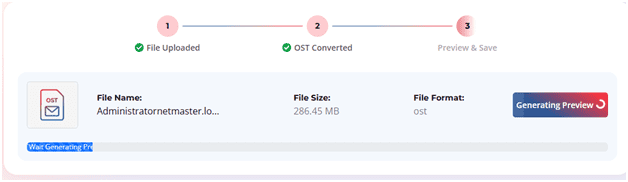
I uploaded the same OST file for testing. The upload process was smooth and the file scanning started automatically after upload completion.
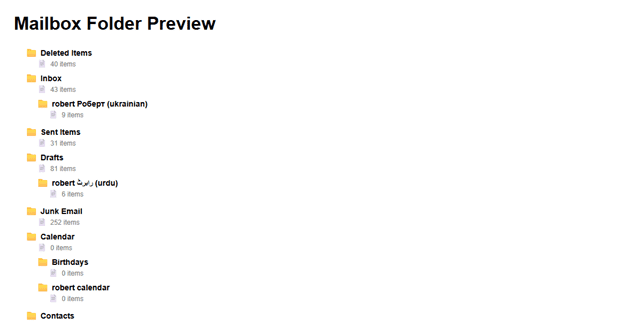
- The tool displayed html preview ofall Foldersin a tree like structure
The preview window looked organized and easy to navigate.
This matters because many users only want to confirm the OST file is readable before paying for conversion.
The free preview removes that uncertainty.
Understanding the 500 MB Free Upload Limit
The online version allows free uploads up to 500 MB.
That limit works fine for:
- Small mailbox backups
- Personal Outlook accounts
- Quick mailbox access
But many business OST files are much larger. Heavy Outlook users can easily cross 1 GB or more.
When files go beyond 500 MB, the tool redirects users toward paid plans. According to the platform, the online service supports files between 500 MB and 5 GB under premium pricing.
Large mailbox processing consumes more server resources and upload bandwidth.
Still, users should know this before starting.
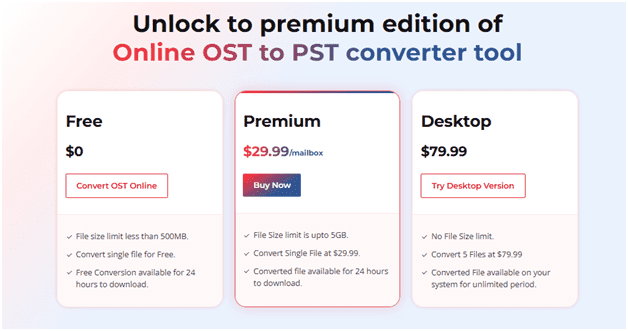
If your OST file exceeds 500 MB, the desktop version becomes the better option.
File Preview and Conversion Experience
The preview system works well and feels responsive.
Folder loading was reasonably fast during testing. Mail folders appeared on the left side correctly.
The conversion process itself was simple:
- Upload OST file
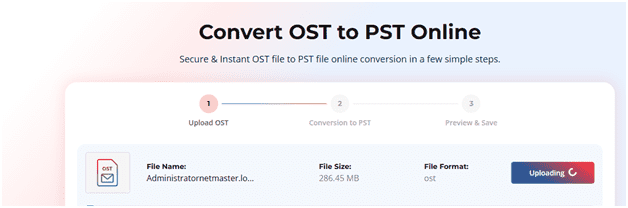
- Wait for scanning & conversion
- Preview mailbox data
- Save converted PST
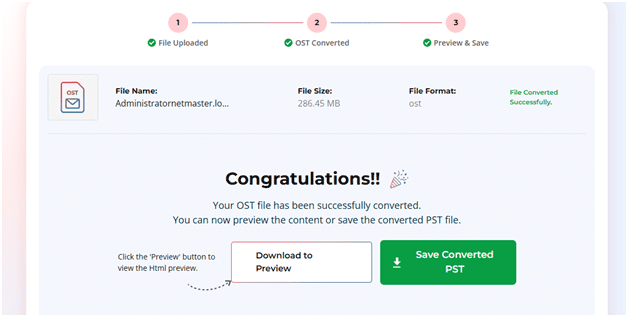
The workflow does not overwhelm new users.
I also liked that the interface avoided technical jargon. Many tools confuse users with advanced mailbox terms. This one keeps things readable.
The conversion speed depends on file size and internet speed. Small test files processed quickly.
For larger OST files, upload can take more time.
Where the Online Version Works Best
The online converter fits users who:
- Need quick OST access
- Want to preview mailbox data
- Have smaller OST files
- Do not want software installation
It also works well when using a temporary device where software installation is restricted.
The browser-based approach feels convenient for emergency situations.
Limitation of the Online Tool
The online version still has some practical limit. Large OST uploads take time. A slow internet connection can make the process slow. But in this case, you can use Desktop Edition.
Trying the Desktop Version
After testing the online converter, I clicked the “Try Desktop Version” option.
The installation process was straightforward. The interface looked modern but simple enough for non-technical users.
The software scanned the OST file directly from the local system.
This alone improves the experience for large mailboxes.
Desktop Version Walkthrough
The desktop workflow follows a simple structure.
Step 1: Select OST File
You can browse manually or search for OST files automatically.
That search feature helps users who do not know the OST file location.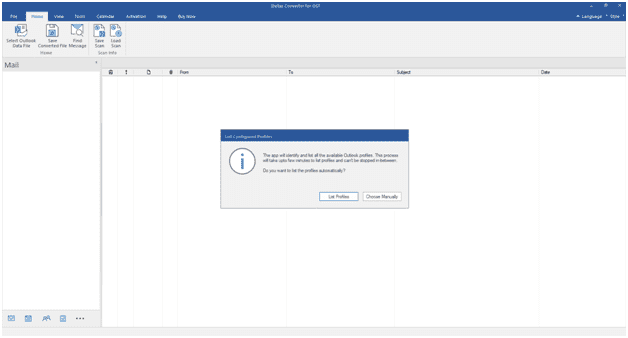
Step 2: Scan the File
The scan process started quickly during testing.
The software showed mailbox folders while scanning. That made the tool feel active instead of frozen.
Step 3: Preview Mailbox Data
The preview panel is one of the best parts of the desktop version.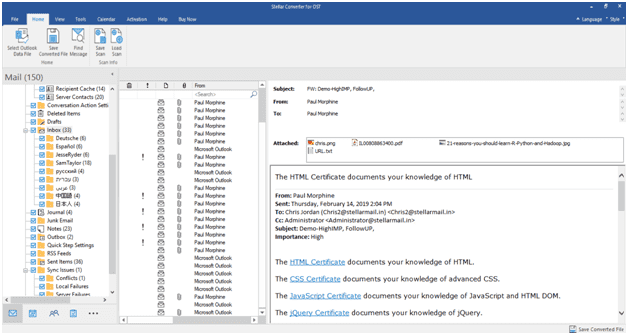
You can check:
- Emails
- Attachments
- Contacts
- Calendar items
The folder navigation feels similar to Outlook, so most users will understand it immediately.
Step 4: Save as PST
The export process is simple.
You choose PST output and select the save location. The software handles the remaining process automatically. You can also export your OST in multiple other file formats like .pdf, .msg, html etc.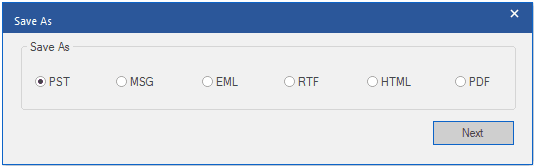
No complicated configuration steps appeared during testing.
Desktop Version Advantages
The desktop edition solves many limitations of the online converter.
Better for Large Files
There is no browser upload restriction.
Large OST files process locally and much faster.
Better Privacy
Mailbox data stays on your own system.
That matters for business users handling confidential emails.
More Stable Performance
The desktop version felt smoother during large file handling.
Browser tools can struggle with heavy mailbox processing. The desktop app avoids that issue.
What I Liked
The strongest parts of the product are:
- Easy interface
- Better mailbox preview
- Fast local scanning in desktop version
The software also avoids aggressive upselling during testing. That makes the experience feel more trustworthy.
During testing, the sample OST file opened without mailbox structure issues. Folder names appeared correctly and email previews loaded without formatting problems.
Unlike some browser-based OST converters, Stellar’s online OST to PST converter allows mailbox HTML preview before conversion.
What Could Improve
The free version could also allow limited PST export instead of preview-only access.
Online Version vs Desktop Version
The online tool works best for quick checks and smaller files.
The desktop version feels more practical for real recovery work.
If your OST file is:
- Under 500 MB → online tool is enough
- Over 500 MB → desktop version makes more sense
- Sensitive or business-related → desktop version is safer
The desktop software simply gives more control.
Final Verdict
The Stellar’s online OST to PST Converter delivers a clean and beginner-friendly conversion experience.
The online version works well for previews and small OST files. The free HTML preview feature is genuinely useful and removes much of the risk before purchase.
But Stellar Converter for OST desktop version is the stronger product overall.
It handles large files better, feels faster, and offers more privacy for sensitive mailbox data. Users with serious Outlook conversion needs will likely prefer the desktop software after testing the browser version.
For casual users, the online converter is a good starting point.
For professional conversion of large OST files, Stellar Converter for OST is the better long-term choice.