


By Rajkumar R R | Updated on June 11, 2026
How Do You Fix “Your PIN Is No Longer Available” in Windows 11?
You can fix the “Your PIN Is No Longer Available” error by signing in with your password, resetting your PIN, recreating the NGC folder, repairing system files using SFC and DISM, clearing TPM data, or creating a new user account if the profile is corrupted.
Introduction
Seeing the message “Your PIN is no longer available due to a change in the security settings on this device” can be frustrating, especially when you need immediate access to your Windows 11 PC. The error often appears unexpectedly after a Windows update, TPM reset, BIOS change, or other security-related modification.
When this issue occurs, Windows can no longer verify the PIN associated with your account. As a result, the operating system blocks PIN-based sign-in and may ask you to use another authentication method. If you do not have an alternative sign-in option configured, you may feel locked out of your computer.
Fortunately, this error does not usually indicate data loss or a damaged user account. In most cases, the problem is related to Windows Hello credentials or security settings that need to be repaired or recreated.
In this guide, you’ll learn what causes the “Your PIN Is No Longer Available” error in Windows 11 and discover step-by-step solutions to restore access to your account quickly and safely.
What Does the “Your PIN Is No Longer Available” Error Mean?
The “Your PIN Is No Longer Available” error indicates that Windows 11 can no longer verify the PIN associated with your account. This usually happens after a security-related change that affects Windows Hello or the Trusted Platform Module (TPM).
The full error message often reads:
“Your PIN is no longer available due to a change in the security settings on this device. Click to set up your PIN again.”
This message indicates that Windows no longer trusts the PIN information stored on the computer. As a security precaution, it prevents you from signing in with the existing PIN.
To understand why this happens, it helps to know how Windows Hello works.
How Windows Hello Uses TPM and Security Credentials
Windows Hello is Microsoft’s passwordless authentication system. It allows you to sign in using a PIN, fingerprint, facial recognition, or other secure methods.
Unlike a traditional password, a Windows Hello PIN is tied to a specific device. The PIN itself is protected by security credentials stored on the computer.
A key part of this process is the Trusted Platform Module (TPM). The TPM is a dedicated security chip built into most modern PCs. It securely stores cryptographic keys and helps Windows verify that sign-in credentials have not been tampered with.
When Windows Hello creates a PIN, it works together with the TPM to generate and protect authentication data. During sign-in, Windows checks this information before granting access to the account.
If the TPM is reset, disabled, cleared, updated, or becomes out of sync with Windows Hello data, the verification process can fail. Windows then displays the PIN error and blocks PIN-based sign-in.
Can This Error Lock You Out of Your Account?
Yes. In some situations, the error can prevent you from accessing your account with your usual PIN.
If you have another sign-in method available, such as your Microsoft account password, local account password, fingerprint, or security key, you can often regain access quickly.
However, users who rely only on a PIN may find themselves temporarily locked out of their accounts until the Windows Hello credentials are repaired or reset.
The good news is that this issue rarely affects your personal files. In most cases, the account remains intact, and the problem can be resolved by resetting the PIN or repairing the underlying security settings.
Takeaway: This error does not usually mean your account is damaged. It means Windows can no longer validate the existing PIN because of a change affecting Windows Hello, TPM security, or stored authentication credentials.
Other Versions of the Error Message
The “Your PIN Is No Longer Available” error can appear in several different forms. Although the wording may vary, these messages usually point to the same underlying problem involving Windows Hello credentials, TPM security data, or account authentication settings.
Microsoft has modified the wording of PIN-related errors across different Windows 11 updates and builds. As a result, users may encounter different messages even when the root cause is identical.
Some of the most common variations include:
- “Your PIN is no longer available due to a change in the security settings on this device.”
- “Something happened, and your PIN isn’t available.”
- “Your PIN is no longer available. Click to set up your PIN again.”
- “Windows Hello PIN isn’t working.”
- “We couldn’t verify your credentials.”
In many cases, these messages appear after a Windows update, TPM reset, BIOS change, user profile issue, or corruption of Windows Hello authentication data.
While the wording may look different, Windows is essentially reporting that it cannot validate the credentials associated with your PIN.
This is why the same troubleshooting methods covered in this guide are often effective regardless of the exact message displayed on the screen.
Whether you see a PIN unavailable warning, a Windows Hello authentication error, or a credential verification failure, the recommended approach remains the same:
- Sign in using your password if possible.
- Reset the Windows Hello PIN.
- Recreate Windows Hello credentials.
- Repair corrupted system files.
- Check TPM-related settings.
- Investigate user profile corruption if the problem persists.
Takeaway: Different error messages often point to the same Windows Hello authentication problem. If your PIN suddenly stops working, the solutions in this guide can usually resolve the issue regardless of the specific wording displayed by Windows 11.
Who Is Affected by the “Your PIN Is No Longer Available” Error?
The “Your PIN Is No Longer Available” error can affect any Windows 11 user who signs in with a PIN. It is not limited to a specific edition of Windows or a particular account type.
Because Windows Hello is widely used across Windows 11 devices, the issue can appear in both personal and business environments. The exact cause may vary, but the result is the same: Windows can no longer validate the stored PIN credentials.
Windows 11 Home Users
Windows 11 Home users commonly encounter this error after a Windows update, system restore, TPM change, or security configuration update.
Many home users rely on a PIN for daily sign-in because it is faster than entering a password. When the PIN becomes unavailable, they may need to sign in using their Microsoft account password and create a new PIN.
Windows 11 Pro Users
Windows 11 Pro users can also experience this issue. In addition to standard causes, business devices may be affected by domain policies, security settings, device management tools, or organization-wide authentication changes.
Companies often enforce Windows Hello security requirements. Changes to these settings can sometimes interfere with existing PIN credentials.
Microsoft Account Users
Users who sign in with a Microsoft account are among the most commonly affected. Windows Hello works closely with Microsoft account authentication and device security features.
If there is a problem with account synchronization, TPM data, or Windows Hello credentials, Windows may reject the existing PIN and request a new one.
Fortunately, Microsoft account users can usually recover access by signing in with their account password and resetting the PIN.
Local Account Users
The error is not limited to Microsoft accounts. Users who sign in with a local account can experience the same problem.
Although local accounts do not rely on cloud-based authentication, Windows still uses Windows Hello and security credentials to protect PIN-based sign-in. If those credentials become corrupted or invalid, the PIN may stop working.
In most cases, local account users can restore access by using their account password and recreating the PIN.
Takeaway: This error can affect Windows 11 Home and Pro users, as well as both Microsoft account and local account users. Any device that uses Windows Hello PIN authentication may encounter the problem if its security credentials become damaged or out of sync.
Why Does “Your PIN Is No Longer Available” Appear?
The “Your PIN Is No Longer Available” error usually appears when Windows 11 can no longer verify the security credentials associated with your PIN. This can happen after system updates, TPM changes, corrupted Windows Hello data, account synchronization problems, or damaged system files.
Windows Hello relies on several security components working together. If one of these components becomes corrupted, reset, or misconfigured, Windows may reject the existing PIN and require you to set up a new one.
Let’s look at the most common causes.
Recent Windows Update
Windows updates often include security improvements, bug fixes, and authentication changes. While these updates are important, they can sometimes affect Windows Hello and PIN-based sign-in.
Security Updates Changing Authentication Settings
Microsoft regularly updates how Windows handles authentication and credential protection. During the update process, Windows may modify security policies, TPM settings, or Windows Hello components.
In rare cases, the existing PIN credentials may no longer match the updated security requirements. When Windows detects this mismatch, it blocks PIN authentication and displays the error message.
This is one reason why some users notice the problem immediately after installing a cumulative update or feature update.
Failed Updates Causing Credential Corruption
Not every update installs successfully. Power interruptions, insufficient disk space, driver conflicts, or unexpected shutdowns can cause an update to fail.
When this happens, Windows Hello files or credential databases may become partially corrupted. The operating system may then lose access to the information needed to verify your PIN.
As a result, Windows treats the PIN as invalid even though you entered the correct code.
TPM Changes
The Trusted Platform Module (TPM) plays a critical role in Windows Hello authentication. Any significant TPM change can affect PIN verification.
TPM Reset
Some users manually clear or reset the TPM while troubleshooting security issues. Others may reset it during operating system upgrades or system maintenance.
When the TPM is cleared, stored cryptographic keys are removed. Windows Hello may no longer find the security information associated with your PIN.
Without those keys, Windows cannot validate the PIN and will request a new setup.
BIOS Update
A BIOS or UEFI firmware update can sometimes modify how the system communicates with the TPM.
Although firmware updates are generally safe, they may cause Windows Hello credentials to become temporarily out of sync with TPM security data.
After restarting the computer, Windows may detect the mismatch and reject the existing PIN.
Motherboard Firmware Update
Modern motherboards frequently receive firmware updates to improve security, compatibility, and stability.
Because TPM functionality is closely tied to motherboard firmware, certain updates can alter TPM behavior or security measurements.
If Windows can no longer verify previously stored credentials, the PIN may become unavailable.
Corrupted Windows Hello Data
Windows Hello stores PIN-related information in protected system folders and credential databases. If this data becomes damaged, authentication can fail.
Damaged PIN Credentials
Every PIN is linked to encrypted authentication data stored on the device.
Unexpected shutdowns, disk errors, software conflicts, or incomplete updates can damage these credentials.
When Windows attempts to validate the PIN, it may discover that some of the required information is missing or corrupted.
Rather than allowing a potentially insecure login, Windows blocks PIN access and requests a reset.
Corrupted NGC Folder
One of the most important Windows Hello folders is the NGC folder.
This folder stores PIN-related configuration files and authentication information used by Windows Hello.
If the NGC folder becomes corrupted, Windows may lose access to the credentials needed for PIN verification.
This is one of the most common causes of the “Your PIN Is No Longer Available” error and one of the most frequently successful fixes.
Microsoft Account Sync Issues
Windows 11 often synchronizes authentication settings with your Microsoft account. Problems during this process can sometimes trigger PIN-related errors.
Authentication Mismatch
Your Microsoft account and local device must remain synchronized for Windows Hello to function correctly.
If account information changes unexpectedly or synchronization is interrupted, Windows may detect a mismatch between local credentials and account authentication data.
When this occurs, Windows may require you to verify your identity and create a new PIN.
Cloud Credential Conflicts
Microsoft account users occasionally experience credential conflicts after changing passwords, restoring backups, signing in on multiple devices, or recovering an account.
In these situations, locally stored PIN information may no longer match the latest account security data stored in the cloud.
Windows responds by disabling the existing PIN until the credentials can be refreshed.
System File Corruption
Windows Hello depends on several system services and security components. If these components become damaged, PIN authentication may stop working.
Missing or Damaged Windows Components
Critical Windows files can become corrupted due to malware infections, storage errors, failed updates, driver conflicts, or unexpected system crashes.
When important authentication services fail to load properly, Windows may be unable to process PIN sign-ins.
The operating system then displays the error message even though the PIN itself is correct.
Tools such as System File Checker (SFC) and Deployment Image Servicing and Management (DISM) can often repair these damaged files and restore normal functionality.
Takeaway: The error usually appears because Windows can no longer trust or verify the credentials linked to your PIN. Windows updates, TPM changes, corrupted Windows Hello data, account synchronization issues, and damaged system files are the most common causes.
Quick Fixes Before Trying Advanced Solutions
Before modifying Windows Hello settings, TPM configurations, or system files, try a few basic troubleshooting steps. Many PIN-related sign-in problems are temporary and can often be resolved without advanced repairs.
These quick fixes are safe to perform and may restore access to your account within minutes.
Restart Your Computer
Restarting your PC can resolve temporary Windows Hello authentication issues by reloading critical sign-in services and clearing temporary software glitches.
Although restarting may seem too simple, it is often surprisingly effective. Windows relies on several background services to manage PIN authentication. If one of these services fails to load correctly during startup, Windows may incorrectly report that your PIN is unavailable.
A restart forces Windows to reload authentication services, re-establish communication with the TPM, and clear temporary issues that may have developed during an update or previous session.
This fix is particularly useful if the error appeared immediately after a Windows update, unexpected shutdown, or system restart.
To perform a restart, click the Power button on the sign-in screen and select Restart. Once Windows loads again, try signing in with your PIN.
Check Internet Connectivity
If you use a Microsoft account, an internet connection may be required to complete certain account verification and synchronization tasks.
Although Windows Hello PINs are stored locally, Microsoft account authentication still relies on cloud-based security services. If Windows recently synchronized account information, changed security settings, or detected unusual account activity, it may need to communicate with Microsoft’s servers.
A weak or unavailable internet connection can sometimes interrupt this process.
Before moving on to more advanced fixes, verify that your device is connected to Wi-Fi or Ethernet and that the internet connection is functioning correctly. If necessary, restart your router and reconnect to the network.
Once connectivity is restored, restart the computer and check whether the PIN issue has been resolved.
Microsoft Account Verification
Microsoft occasionally requires additional identity verification to protect user accounts. This can happen after a password change, account recovery process, or security update.
When Windows cannot complete this verification process successfully, it may temporarily disable PIN-based sign-in until your identity can be confirmed.
This situation is more common for Microsoft account users than local account users because cloud-based authentication is involved.
If you recently changed your Microsoft account password or updated security settings, allow Windows to connect to the internet and complete any pending account verification requests.
Sign In Using Your Password
Using your account password is often the fastest way to regain access when the PIN becomes unavailable.
Windows supports multiple sign-in methods. Even if Windows Hello PIN authentication stops working, your Microsoft account password or local account password may still function normally.
At the sign-in screen, click Sign-in options and select the password icon instead of the PIN option. Enter your account password and sign in as usual.
Once you are logged into Windows, you can access the settings required to reset your PIN, repair Windows Hello, or troubleshoot the underlying problem.
Many users resolve the issue simply by signing in with their password and creating a new PIN afterward.
Takeaway: Always start with basic troubleshooting. Restarting your computer, verifying internet connectivity, completing Microsoft account verification, and signing in with your password can often resolve the problem without making changes to Windows security settings.
Error Causes Summary Table
The “Your PIN Is No Longer Available” error can occur for several different reasons. The table below summarizes the most common causes, their typical symptoms, and the solution that is most likely to resolve the problem.
| Cause | Typical Symptoms | Recommended Fix |
| Corrupted PIN Credentials | PIN suddenly stops working after restart or update | Reset Windows Hello PIN |
| Corrupted NGC Folder | PIN reset fails, or Windows repeatedly asks to set up the PIN again | Delete and Recreate the NGC Folder |
| TPM Issues | Error appears after BIOS update, TPM reset, or security changes | Clear TPM and Reconfigure Windows Hello |
| System File Corruption | Multiple Windows features malfunction, authentication errors continue after PIN reset | Run SFC and DISM Scans |
| User Profile Corruption | Error affects only one account while other accounts work normally | Create a New User Account |
| Failed Windows Update | PIN problem begins immediately after a Windows update | Run System Repair Tools or Perform System Restore |
| Microsoft Account Synchronization Issues | Account verification problems or credential mismatch errors | Verify Account Credentials and Reset PIN |
| Windows Hello Data Corruption | Windows Hello stops working unexpectedly and PIN cannot be validated | Recreate Windows Hello Credentials |
| Third-Party Software Conflict | PIN error appears after installing security software or system utilities | Use Safe Mode and Reconfigure Sign-In Settings |
How to Use This Table
If you are unsure which solution to try first, compare your symptoms with the scenarios listed above.
For example, if the error appeared immediately after a BIOS update or TPM reset, TPM-related troubleshooting is likely the best starting point. If the issue affects only one user account, creating a new profile may save significant troubleshooting time.
While the exact cause can vary from one system to another, most users can identify the source of the problem by reviewing recent changes made to their computer.
Takeaway: Matching the symptoms to the likely cause can help you choose the correct solution more quickly and avoid unnecessary troubleshooting steps.
How to Check TPM Status in Windows 11
If you suspect that the “Your PIN Is No Longer Available” error is related to TPM issues, checking the TPM status is a good place to start. Windows includes a built-in management tool that lets you verify whether the Trusted Platform Module is installed, enabled, and functioning correctly.
Because Windows Hello relies on the TPM to protect authentication credentials, a TPM problem can prevent PIN-based sign-in from working properly.
Fortunately, checking the TPM status only takes a few moments.
Open the TPM Management Console
To view TPM information:
- Press Windows + R to open the Run dialog box.
- Type the following command:
tpm.msc
- Press Enter.
Windows will open the Trusted Platform Module (TPM) Management console.
This utility displays information about the TPM installed on your computer, including its status, manufacturer details, and version number.
Verify TPM Status
Once the TPM Management window opens, look for the Status section.
If the TPM is functioning correctly, you should see the message:
“The TPM is ready for use.”
This message indicates that:
- The TPM is detected by Windows.
- The TPM is enabled and operational.
- Windows can communicate with the security processor.
- TPM-based features such as Windows Hello and BitLocker should function normally.
If you see this message, the TPM is unlikely to be the direct cause of the PIN error. In that case, the issue may be related to Windows Hello credentials, system file corruption, or user profile problems.
What If You See a TPM Error?
If Windows reports that the TPM is unavailable, disabled, or cannot be initialized, the security processor may require attention.
Common TPM-related issues include:
- TPM disabled in BIOS or UEFI settings
- TPM not detected by Windows
- Corrupted TPM data
- Outdated BIOS or firmware
- Hardware-related TPM problems
In these situations, updating firmware, enabling TPM in BIOS, or clearing the TPM may help restore normal functionality.
Check TPM Version
While you are in the TPM Management console, verify the TPM version as well.
Most Windows 11 devices should display TPM 2.0, which is the version required by Microsoft for Windows 11 compatibility and security features.
If your system reports TPM 2.0 and shows “The TPM is ready for use,” the hardware security processor is functioning as expected.
Alternative Method Through Windows Security
You can also check TPM status through Windows Security.
Open Windows Security, select Device Security, and review the information under Security Processor.
This section provides additional details about the TPM and can help identify potential security-related issues.
Takeaway: If the TPM Management console displays “The TPM is ready for use,” Windows can communicate with the TPM correctly, and the security processor is functioning normally. If TPM errors appear, resolving them may help fix Windows Hello and PIN authentication problems.
Before You Begin
Before attempting any of the fixes in this guide, take a few minutes to prepare your system and gather important account information. These simple precautions can help prevent additional complications and make the recovery process much smoother.
Some troubleshooting steps involve modifying Windows Hello settings, deleting authentication credentials, repairing system files, or working with TPM-related security features. Having the necessary information available beforehand can save time and reduce the risk of being locked out of your device.
Make Sure You Know Your Account Password
If your PIN is unavailable, your Microsoft account password or local account password may be the only way to access Windows.
Several solutions in this guide require you to sign in using your password before you can reset the PIN or modify Windows Hello settings.
If you do not remember your password, recover it before proceeding with advanced troubleshooting.
Verify Your Internet Connection
A stable internet connection is recommended, especially if you use a Microsoft account.
Windows may need to verify your identity, synchronize account information, download repair files, or complete authentication-related tasks during the recovery process.
Before starting, confirm that your computer can connect to the internet through Wi-Fi or Ethernet.
Back Up Important Files
Most of the solutions covered in this guide do not affect personal files. However, creating a backup is always a good practice before making significant system changes.
Store important documents, photos, videos, and work-related files in a safe location such as an external drive, cloud storage service, or network backup.
Having a recent backup provides an additional layer of protection if unexpected issues occur during troubleshooting.
Locate Your BitLocker Recovery Key
If BitLocker device encryption is enabled, you should locate and save your recovery key before performing TPM-related fixes.
Certain actions, such as clearing the TPM, may cause Windows to request the BitLocker Recovery Key during startup.
Without the recovery key, accessing an encrypted drive can become difficult.
Most users can find their recovery key in their Microsoft account, while business-managed devices may store it through organizational management systems.
Why Preparation Matters
Many Windows Hello and PIN-related issues can be resolved quickly. However, troubleshooting becomes much easier when you already have access to your password, internet connection, backups, and recovery information.
Taking a few minutes to prepare now can prevent unnecessary delays later.
Takeaway: Before starting the repair process, verify your password, confirm internet access, back up important files, and locate your BitLocker Recovery Key. These precautions help ensure a smoother and safer recovery experience.
Solution 1: Reset Your Windows 11 PIN
Resetting your Windows 11 PIN is often the quickest and most effective way to fix the “Your PIN Is No Longer Available” error. If Windows can no longer validate your existing PIN, creating a new one usually restores normal sign-in functionality.
 A Windows Hello PIN is linked to security credentials stored on your device. If those credentials become corrupted or fall out of sync with Windows security settings, the existing PIN may stop working even though the account itself remains accessible.
In many cases, signing in with your password and setting up a new PIN immediately resolves the issue.
Step-by-Step Instructions
Before proceeding, make sure you know your Microsoft account password or local account password. You will need it to access Windows if the PIN is unavailable.
Reset the PIN From the Login Screen
If you are currently locked out of PIN-based sign-in, follow these steps:
Step 1: Click “Sign-in Options”
On the Windows 11 sign-in screen, locate and click Sign-in options.
Windows will display alternative methods that can be used to access the account.
Step 2: Choose the Password Option
Select the Password icon instead of the PIN icon.
This allows you to authenticate using your Microsoft account password or local account password.
Step 3: Sign In to Windows
Enter your password and complete the sign-in process.
Once logged in, you can access Windows settings and repair the Windows Hello PIN configuration.
Step 4: Open Sign-In Settings
Click the Start button and open Settings.
From the left-hand menu, select Accounts.
Next, click Sign-in options.
This section contains all Windows Hello authentication settings, including PIN, fingerprint, and facial recognition options.
Step 5: Remove the Existing PIN
Locate the PIN (Windows Hello) option.
Expand the section and choose Remove.
Windows may ask you to verify your account password before proceeding.
Removing the PIN deletes the existing Windows Hello credentials associated with that PIN.
Step 6: Create a New PIN
After removing the old PIN, select Set up PIN or Add PIN.
Follow the on-screen instructions and choose a new PIN.
For better security, use a PIN that is easy for you to remember but difficult for others to guess.
Once the setup process is complete, Windows will generate new authentication credentials and store them securely.
What Happens During a PIN Reset?
When you create a new PIN, Windows generates fresh Windows Hello credentials and associates them with your account and device.
This process replaces damaged or outdated PIN data that may have triggered the error message.
Because the credentials are recreated from scratch, many authentication problems disappear immediately after the reset.
How to Confirm the PIN Reset Was Successful
A successful PIN reset should allow you to sign in normally without seeing any Windows Hello or authentication errors.
Before considering the problem resolved, perform a few quick checks.
Verify Login Functionality
Sign out of Windows and return to the login screen.
Enter the newly created PIN and confirm that Windows accepts it without displaying any warning messages.
If the sign-in process completes normally, the new PIN has been configured correctly.
Test Restart Behavior
Restart the computer and wait for Windows to load again.
Use the new PIN to sign in after the restart.
This additional test confirms that Windows Hello, TPM communication, and authentication services are functioning properly across system reboots.
If the new PIN works consistently after a restart, the issue has likely been resolved.
When This Solution Does Not Work
If Windows refuses to remove the existing PIN, does not allow you to create a new one, or displays the same error after resetting the PIN, the problem may involve corrupted Windows Hello data or damaged authentication files.
In that case, proceed to the next solution, where you’ll learn how to repair Windows Hello by deleting and recreating the NGC folder.
Takeaway: Resetting the PIN is the first solution most users should try. It recreates Windows Hello credentials, resolves many authentication-related problems, and often restores access within a few minutes.
Solution 2: Remove and Recreate the NGC Folder
If resetting the PIN does not fix the problem, the Windows Hello credential files may be corrupted. Deleting and recreating the NGC folder can often resolve the “Your PIN Is No Longer Available” error by forcing Windows to generate fresh authentication data.
This method is widely used when Windows Hello credentials become damaged after a Windows update, TPM change, system restore, or unexpected shutdown.
Because the NGC folder stores PIN-related information, removing it causes Windows to discard the corrupted credentials and create new ones during PIN setup.
What Is the NGC Folder?
The NGC folder is a protected Windows system folder used by Windows Hello.
It stores authentication information related to PIN-based sign-in. This includes encrypted credential data that Windows uses to verify your identity when you enter your PIN.
Each time you sign in using a Windows Hello PIN, Windows checks the information stored in this folder to confirm that the PIN is valid.
If the files inside the NGC folder become corrupted, Windows may fail to validate the PIN even when the correct code is entered.
As a result, the operating system may display the “Your PIN Is No Longer Available” error and block PIN authentication.
NGC Folder Location
The NGC folder is located in a protected system directory.
C:\Windows\ServiceProfiles\LocalService\AppData\Local\Microsoft\NGC
Because this folder is owned by the system, standard user accounts cannot modify or delete it without first taking ownership.
Steps to Delete the NGC Folder
Before proceeding, sign in using your account password. You must have administrator privileges to access and modify the folder.
Step 1: Take Ownership of the NGC Folder
Windows protects the NGC folder to prevent unauthorized changes.
To access it, open File Explorer and navigate to the folder location shown above.
If you cannot view the folder, enable Hidden Items from the View menu.
Right-click the NGC folder and select Properties.
Open the Security tab and click Advanced.
Next to the Owner field, click Change.
Enter your administrator account name and select Check Names.
Click OK, then apply the changes.
You may need to close and reopen the folder properties window before the new permissions take effect.
Once ownership is transferred, grant your account full control permissions if necessary.
Step 2: Delete Existing Windows Hello Credentials
After gaining access to the folder, open it and delete all files and subfolders contained inside.
These files store the current Windows Hello PIN credentials.
Removing them does not delete your user account or personal files. It only removes the authentication data associated with the existing PIN.
If Windows refuses to delete certain files, restart the computer and try again using an administrator account.
Step 3: Restart the Computer
Once the NGC folder contents have been removed, restart Windows.
During startup, Windows detects that the Windows Hello credential store is missing.
The operating system then prepares to generate a new set of authentication files.
This step is important because it allows Windows to clear any remaining references to the corrupted credentials.
Step 4: Create a New PIN
After logging in with your account password, open:
Settings → Accounts → Sign-in Options
Select PIN (Windows Hello) and choose Set up PIN.
Follow the on-screen instructions to create a new PIN.
Windows will automatically recreate the NGC folder and generate fresh authentication credentials.
The new PIN will be linked to these newly created files rather than the corrupted data that caused the error.
Why This Fix Works
The NGC folder acts as the local storage location for Windows Hello authentication data.
If those files become damaged, Windows cannot validate your PIN correctly.
Deleting the folder forces Windows to start with a clean credential store. In many cases, this immediately resolves sign-in problems that survive a normal PIN reset.
Important Note
Only delete the contents of the NGC folder if you are comfortable working with protected Windows system files.
Creating a backup or system restore point before making changes is a good precaution, especially on production or business devices.
Takeaway: The NGC folder contains the Windows Hello credentials used for PIN authentication. If these files become corrupted, deleting and recreating the folder can restore normal PIN functionality and eliminate the “Your PIN Is No Longer Available” error.
Solution 3: Fix Corrupted System Files
If Windows Hello files, authentication services, or other critical system components become damaged, Windows may fail to validate your PIN correctly. Running System File Checker (SFC) and Deployment Image Servicing and Management (DISM) can repair these issues and restore normal sign-in functionality.
System file corruption is a common cause of Windows authentication problems. It can occur after failed updates, unexpected shutdowns, malware infections, storage errors, or software conflicts.
When important Windows files become damaged, features such as Windows Hello, account authentication, and security services may stop working as expected.
Fortunately, Windows includes built-in repair tools designed specifically for these situations.
Run System File Checker (SFC)
System File Checker scans protected Windows system files and automatically replaces damaged or missing files with healthy copies stored by Windows.
This tool is often the first repair step recommended by Microsoft when troubleshooting system-level problems.
Because Windows Hello relies on several protected operating system components, repairing corrupted files may resolve PIN-related errors without requiring further changes.
Command to Execute
Open Command Prompt as an administrator and run the following command:
sfc /scannow
The scan may take several minutes to complete, depending on your system’s speed and the number of files being checked.
Avoid closing the Command Prompt window while the scan is in progress.
What SFC Does
System File Checker compares important Windows files against trusted copies stored within the operating system.
If it detects corruption, missing files, or unauthorized modifications, it automatically attempts to repair them.
This process can:
- Repair damaged system files
- Restore missing Windows components
- Fix authentication-related services
- Recover files affected by failed updates
- Resolve operating system inconsistencies
After the scan finishes, restart your computer and check whether the PIN error has been resolved.
If SFC reports that it could not repair some files, continue with the DISM repair process.
Run DISM Commands
DISM repairs the Windows image that System File Checker relies on. If the Windows image itself is damaged, SFC may not have access to healthy replacement files.
This is where DISM becomes useful.
The tool examines the Windows component store and repairs corruption that may prevent Windows services and features from functioning correctly.
Command 1: Scan the Windows Image
Open an elevated Command Prompt and run:
DISM /Online /Cleanup-Image /ScanHealth
This command performs a detailed scan of the Windows image and checks for corruption.
It does not make changes to the system.
Instead, it reports whether repairable issues are present.
Command 2: Repair the Windows Image
If corruption is detected, run:
DISM /Online /Cleanup-Image /RestoreHealth
This command downloads and replaces damaged Windows components using trusted system sources.
Depending on your internet connection and system configuration, the process may take some time to complete.
Do not interrupt the repair process while it is running.
Why DISM Helps
Windows stores many core operating system components in a special repository known as the component store.
If this repository becomes corrupted, System File Checker may not be able to replace damaged files correctly because its source files are also damaged.
DISM repairs the component store itself.
Once the Windows image is healthy again, SFC can perform repairs more effectively.
Together, these tools can resolve a wide range of issues involving:
- Windows Hello authentication
- Sign-in services
- Security components
- Update-related corruption
- Missing system files
Final Step
After running both DISM commands, restart the computer.
For the best results, run the SFC scan again after DISM completes. This allows Windows to verify and repair any remaining damaged files using the newly repaired component store.
Once the process is complete, try signing in with your PIN again.
When This Solution Works Best
This method is particularly effective if:
- The error appeared after a failed Windows update
- Windows Hello stopped working unexpectedly
- Multiple Windows features are behaving abnormally
- Authentication services appear corrupted
- Previous PIN reset attempts were unsuccessful
Takeaway: SFC repairs damaged system files, while DISM repairs the underlying Windows image. Running both tools can restore critical Windows components and often resolve PIN authentication errors caused by system file corruption.
Solution 4: Clear TPM and Reconfigure Windows Hello
If TPM-related security data becomes corrupted or falls out of sync with Windows Hello, clearing the TPM can help restore normal PIN authentication. After clearing the TPM, you can reconfigure Windows Hello and create a new PIN.
This solution should only be used after trying simpler fixes such as resetting the PIN, recreating the NGC folder, and repairing system files.
Because the TPM stores security information used by Windows Hello, clearing it removes existing cryptographic keys and forces Windows to generate new authentication data.
Understanding TPM
The Trusted Platform Module (TPM) is a dedicated security processor that protects sensitive information such as encryption keys, authentication credentials, and Windows Hello data.
Windows 11 relies heavily on TPM-based security. In fact, TPM 2.0 is one of the minimum requirements for running the operating system.
The TPM works independently from the main processor and helps protect security information even if the operating system is compromised.
What TPM Does in Windows 11
Windows uses the TPM to strengthen device security and protect user credentials.
When you create a Windows Hello PIN, the TPM helps generate and secure the cryptographic keys associated with that PIN.
Instead of storing your PIN directly, Windows stores protected security credentials that are validated during sign-in.
This approach provides stronger protection than traditional password-only authentication.
Hardware-Based Security
Unlike software-based security solutions, the TPM stores sensitive data within a dedicated hardware component.
This reduces the risk of credentials being stolen through malware or unauthorized software access.
The TPM also helps verify system integrity during startup.
Credential Protection
Windows Hello, BitLocker, virtual smart cards, and other security features depend on TPM-protected credentials.
When the TPM data becomes corrupted, resets unexpectedly, or loses synchronization with Windows Hello, PIN authentication can fail.
In these situations, Windows may display the “Your PIN Is No Longer Available” error.
Important Precautions Before Clearing TPM
Clearing the TPM removes security information stored inside the chip. Before proceeding, make sure you have access to recovery information for any security features that depend on TPM.
Although clearing the TPM is generally safe when performed correctly, preparation is important.
Backup Your BitLocker Recovery Key
If BitLocker encryption is enabled on your computer, clearing the TPM may require the BitLocker recovery key during the next startup.
Before making any TPM changes, verify that you have access to your recovery key.
You can usually find it through your Microsoft account, your organization’s IT department, or wherever you stored it during BitLocker setup.
Failing to locate the recovery key beforehand could make it difficult to access an encrypted drive.
Save Important Data
Clearing the TPM does not normally delete personal files.
However, it is always wise to back up important documents, photos, and work files before performing security-related system changes.
A current backup provides protection against unexpected issues and gives you peace of mind during troubleshooting.
How to Clear TPM in Windows 11
Once you have completed the necessary precautions, you can clear the TPM using the built-in Windows security tools.
Step 1: Open Windows Security
Click the Start button and search for Windows Security.
Open the application from the search results.
Step 2: Open Device Security
In the Windows Security window, select Device Security.
This section contains security information related to TPM, Secure Boot, and other hardware protection features.
Step 3: Access Security Processor Settings
Under Security Processor, click Security Processor Details.
You should see information about the TPM installed on your device.
Step 4: Open Security Processor Troubleshooting
Scroll down and select Security Processor Troubleshooting.
This page contains TPM maintenance and reset options.
Step 5: Clear the TPM
Click Clear TPM and follow the prompts displayed by Windows.
The computer will typically restart to complete the process.
During startup, you may be asked to confirm the TPM reset through a firmware or BIOS prompt.
Read the instructions carefully and confirm the action only if you intend to proceed.
Recreate Your PIN
After the TPM has been cleared, Windows Hello credentials linked to the previous TPM configuration may no longer work. You will need to create a new PIN.
Once Windows starts again, sign in using your account password.
Then navigate to:
Settings → Accounts → Sign-in Options
Select PIN (Windows Hello) and choose Set up PIN.
Follow the on-screen instructions to create a new PIN.
Windows will generate fresh authentication credentials and store them within the newly initialized TPM environment.
When Should You Use This Solution?
This method is most useful when:
- The error appeared after a TPM reset or BIOS update
- Windows Hello credentials repeatedly become corrupted
- Other troubleshooting methods have failed
- TPM-related warnings appear in Windows Security
- PIN authentication stopped working after security changes
Important Warning
Do not clear the TPM unless you understand the impact on security features such as BitLocker, Windows Hello, and device encryption.
If your computer is managed by a workplace, school, or organization, consult the system administrator before proceeding.
Takeaway: The TPM protects Windows Hello credentials and plays a critical role in PIN authentication. If TPM data becomes corrupted or inconsistent, clearing the TPM and creating a new PIN can often restore access and resolve persistent Windows Hello sign-in errors.
Solution 5: Use Safe Mode to Repair Login Issues
If Windows Hello services, authentication settings, or third-party software are interfering with PIN sign-in, booting into Safe Mode can help you troubleshoot the problem. Safe Mode starts Windows with only essential drivers and services, making it easier to identify and fix login-related issues.
This method is particularly useful when the “Your PIN Is No Longer Available” error persists even after resetting the PIN, recreating the NGC folder, or repairing system files.
Because Safe Mode loads a minimal version of Windows, it can bypass software conflicts that may be preventing Windows Hello from working correctly.
Boot Into Safe Mode
Safe Mode starts Windows with a limited set of drivers and services. This helps isolate authentication problems caused by software conflicts, startup programs, or damaged system settings.
To access Safe Mode, you first need to enter the Windows Recovery Environment.
Access the Recovery Environment
If you can sign in using your password:
- Open Settings.
- Select System.
- Click Recovery.
- Under Advanced Startup, select Restart now.
If you cannot sign in, you can access the recovery environment directly from the login screen.
Click the Power button, hold the Shift key, and select Restart.
Windows will restart and display the recovery menu.
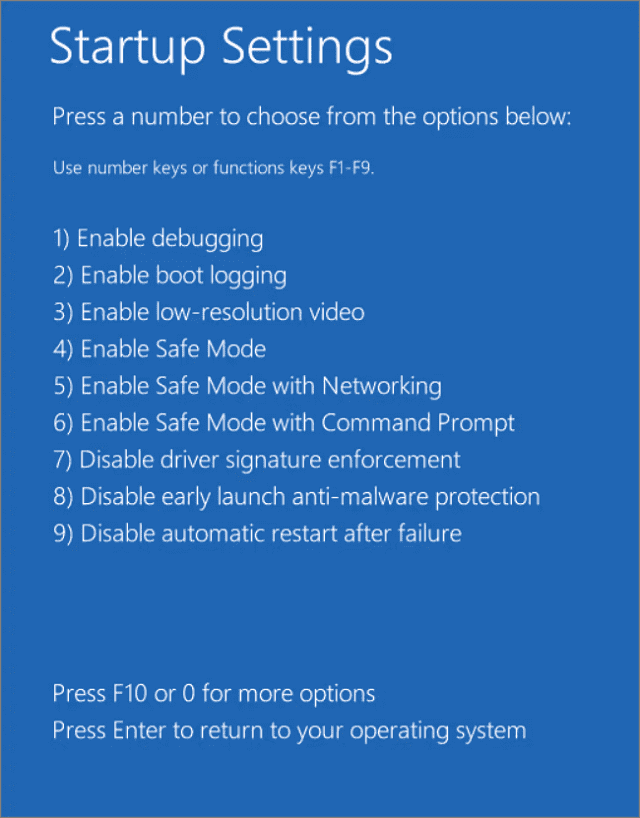
Open Startup Settings
Once you enter the recovery environment:
- Select Troubleshoot.
- Choose Advanced Options.
- Click Startup Settings.
- Select Restart.
After the system restarts, Windows will display several startup options.
Start Safe Mode With Networking
When the Startup Settings screen appears, press the number associated with Safe Mode with Networking.
This option loads essential Windows services while still allowing internet access.
Networking support can be helpful if Windows needs to verify Microsoft account credentials or download necessary updates during troubleshooting.
After Windows finishes loading, sign in using your account password.
Reconfigure Sign-In Settings
Once inside Safe Mode, you can remove damaged Windows Hello credentials and create a new PIN.
Safe Mode often allows authentication settings to be modified without interference from background services or third-party applications.
Remove the Existing PIN
After signing in:
- Open Settings.
- Select Accounts.
- Click Sign-in Options.
- Expand PIN (Windows Hello).
- Select Remove.
Windows may ask you to verify your account password before removing the PIN.
Allow the process to complete.
Recreate the PIN
After removing the old PIN, remain in the Sign-in Options section.
Select Add PIN or Set up PIN and follow the prompts.
Enter a new PIN and complete the setup process.
Windows will generate a new set of Windows Hello credentials linked to your account.
Restart Windows Normally
After creating the new PIN, restart the computer normally.
Do not select Safe Mode during the next startup.
Once Windows loads in normal mode, attempt to sign in using the newly created PIN.
If the sign-in process completes successfully, the issue was likely caused by corrupted Windows Hello settings or a software conflict that Safe Mode helped bypass.
When Should You Use This Solution?
This method is especially useful when:
- The PIN cannot be removed in normal mode.
- Windows Hello settings fail to load properly.
- Third-party security software may be interfering with authentication.
- The issue appeared after installing new software or drivers.
- Previous PIN reset attempts were unsuccessful.
What If the Problem Persists?
If the error continues even after recreating the PIN in Safe Mode, the issue may involve deeper user profile corruption or system-level authentication problems.
In that case, proceed to the next solution, which involves creating a new user account to determine whether the problem is isolated to your existing profile.
Takeaway: Safe Mode loads Windows with only essential components. This makes it an effective environment for removing corrupted PIN settings, recreating Windows Hello credentials, and resolving login issues caused by software conflicts.
Solution 6: Create a New User Account
If the “Your PIN Is No Longer Available” error continues after trying the previous solutions, your Windows user profile may be corrupted. Creating a new user account allows you to test whether the problem is tied to your current profile and often restores normal sign-in functionality.
Windows stores account-specific settings, authentication data, Windows Hello credentials, and user preferences inside each profile. If any of this information becomes damaged, Windows may struggle to verify your identity correctly.
In some cases, the operating system itself works perfectly, but the user profile becomes corrupted. When this happens, PIN-related issues may persist even after resetting Windows Hello credentials.
When Is This Method Necessary?
This solution is most useful when authentication problems appear to be limited to a single account.
If previous fixes such as resetting the PIN, recreating the NGC folder, repairing system files, and clearing the TPM have not solved the problem, profile corruption becomes a likely cause.
Corrupted User Profile
A Windows user profile contains far more than personal settings. It also stores account configurations, authentication data, application preferences, and Windows Hello information.
Profile corruption can occur after failed updates, disk errors, malware infections, unexpected shutdowns, or interrupted synchronization processes.
When the profile becomes damaged, Windows may fail to load authentication settings correctly. As a result, PIN sign-in can stop working even though the account password continues to function normally.
You may also notice other symptoms, such as missing settings, unusual account behavior, or recurring authentication errors.
Persistent Authentication Errors
Sometimes the PIN error returns even after successfully recreating Windows Hello credentials.
This usually indicates that the root cause exists somewhere within the profile itself.
For example, Windows may successfully create a new PIN, but corrupted profile data can cause the authentication information to become damaged again after a restart.
If this pattern continues, creating a fresh account becomes a practical troubleshooting step.
Create a New Administrator Account
A new account provides a clean environment with fresh authentication settings and Windows Hello credentials.
To create a new account, open Settings and navigate to Accounts > Other Users.
Select Add Account and follow the on-screen instructions. You can create either a Microsoft account or a local account, depending on your preference.
Once the account has been created, change its account type to Administrator. Administrative privileges allow you to manage settings, install software, and perform troubleshooting tasks without restrictions.
After completing the setup, sign out of your current account and sign in to the new one.
Windows will spend a few moments creating the new profile and configuring the account.
Test Windows Hello and PIN Authentication
After logging into the new account, open Settings > Accounts > Sign-in Options and create a new Windows Hello PIN.
Once the PIN has been configured, restart the computer and attempt to sign in using the newly created credentials.
If the PIN works normally, the issue is likely isolated to the original user profile rather than the operating system itself.
This simple test can quickly confirm whether profile corruption is responsible for the problem.
Transfer Files and Settings
If the new account functions correctly, you can begin moving your personal data to the new profile.
Start by transferring important files such as documents, photos, videos, downloads, and desktop items.
You may also want to reconfigure browser settings, bookmarks, email applications, and other personalized preferences.
Take your time during this process. Verify that all important files are accessible from the new account before making any changes to the original profile.
Avoid copying hidden profile folders or system-related account files. If those files contain corruption, transferring them could recreate the same problem in the new profile.
Remove the Corrupted Profile
After confirming that the new account works correctly and all important data has been transferred, you can remove the old account.
Open Settings > Accounts > Other Users, select the original account, and choose the option to remove it.
Before proceeding, double-check that all required files have been backed up or successfully copied to the new profile.
Deleting the old account removes its settings, credentials, and profile data from the computer.
Why This Solution Works
Windows Hello credentials are closely connected to the user profile.
If profile corruption damages authentication settings, simply resetting the PIN may not solve the underlying problem.
A newly created account starts with fresh profile data, new security credentials, and clean Windows Hello settings. This eliminates any corruption that may have accumulated within the original profile.
When Should You Use This Fix?
This solution is typically recommended when the error affects only one user account, keeps returning after multiple repairs, or appears alongside other profile-related issues.
Although creating a new account requires some additional setup, it is often one of the most reliable ways to resolve persistent authentication problems.
Takeaway: A corrupted user profile can prevent Windows Hello from functioning properly even when Windows itself is healthy. Creating a new account provides a clean authentication environment and can permanently resolve recurring PIN sign-in issues.
Solution 7: Perform System Restore
If the “Your PIN Is No Longer Available” error started recently after a Windows update, driver installation, software change, or security modification, System Restore may be able to fix the problem. It works by returning Windows to a previous state without affecting your personal files.
System Restore is one of Windows’ built-in recovery tools. It uses restore points to save important system settings, drivers, registry configurations, and system files at specific moments in time.
When a restore point is available, you can roll back Windows to a period before the problem appeared.
This can be particularly useful if the PIN error began immediately after a recent change and previous troubleshooting methods have not worked.
Restore Windows to an Earlier State
System Restore reverses recent system changes while preserving your personal documents, photos, videos, and other user files.
Unlike a full Windows reset, System Restore focuses on system components rather than personal data.
It can undo changes made by:
- Windows updates
- Driver installations
- Software installations
- Registry modifications
- Security configuration changes
If one of these changes disrupted Windows Hello or account authentication, restoring the system may resolve the issue.
Open System Restore
To begin, sign in using your account password if possible.
Open the Start menu and search for Create a Restore Point.
Select the matching result to open the System Properties window.
Under the System Protection tab, click System Restore.
Windows will launch the System Restore wizard and display available restore points.
If no restore points are listed, System Restore may not be available on your device. In that case, proceed to the next solution.
Select a Restore Point
Choose a restore point that was created before the PIN error first appeared.
Windows may automatically create restore points before major updates, driver installations, or software changes.
Review the available restore points carefully and select one from a date when the computer was functioning normally.
If multiple restore points are available, choose the most recent point that predates the problem.
Windows may also provide information about programs and drivers that will be affected by the restoration process.
Review this information before continuing.
Complete the Restoration Process
After selecting the restore point, follow the on-screen instructions to confirm the restoration.
Windows will restart the computer and begin restoring system settings.
The process may take some time depending on your system configuration and the amount of data that needs to be restored.
During this stage, avoid turning off the computer or interrupting the process.
Once the restoration is complete, Windows will restart automatically.
Sign in and test whether the PIN issue has been resolved.
What Happens After System Restore?
System Restore replaces current system settings with the versions stored in the selected restore point.
If a recent update, driver, or security change caused Windows Hello to malfunction, those changes are rolled back.
Personal files remain untouched, but software installed after the restore point was created may need to be reinstalled.
Similarly, certain updates or drivers applied after that date may need to be installed again if required.
When Should You Use System Restore?
This solution is most effective when:
The error appeared shortly after a Windows update.
A new driver was installed before the problem started.
You recently modified security settings.
Windows Hello stopped working after a system change.
You have a restore point from a time when the PIN worked correctly.
Limitations of System Restore
System Restore can only help if restore points exist.
If System Protection was disabled or no restore points were created before the issue occurred, this option may not be available.
Additionally, System Restore cannot repair severe profile corruption or hardware-related TPM problems.
In those situations, more advanced recovery options may be necessary.
Takeaway: System Restore can roll back Windows to a time before the PIN error appeared. If a recent update, driver, or system change triggered the problem, restoring the system to an earlier state may quickly restore Windows Hello and PIN authentication.
Solution 8: Reset Windows 11 Without Losing Files
If none of the previous solutions resolve the “Your PIN Is No Longer Available” error, resetting Windows 11 may be the most effective option. The “Keep My Files” reset reinstalls Windows while preserving your personal files, helping eliminate deep system corruption that may be affecting Windows Hello and account authentication.
This solution should be considered a last resort.
By this stage, you have already attempted to reset the PIN, recreate Windows Hello credentials, repair system files, clear the TPM, use Safe Mode, create a new user account, and perform a System Restore.
If the problem still exists, there may be extensive corruption within Windows components that standard repair tools cannot fix.
A reset provides a fresh operating system installation without requiring a complete wipe of your personal data.
Last Resort Option
Resetting Windows replaces core operating system files with fresh copies and removes damaged settings that may be causing authentication failures.
Over time, Windows can accumulate corrupted files, broken configurations, driver conflicts, and authentication issues that are difficult to identify individually.
Rather than troubleshooting every possible cause, a reset allows Windows to rebuild itself from a clean foundation.
This often resolves persistent Windows Hello and PIN-related problems that survive other repair methods.
Before proceeding, make sure your important files are backed up to an external drive or cloud storage service.
Although the Keep My Files option is designed to preserve personal data, maintaining a backup is always recommended before major system changes.
Keep My Files Reset
To start the reset process, open Settings and navigate to:
System → Recovery
Under Recovery Options, select Reset PC.
Windows will present two choices:
- Keep My Files
- Remove Everything
Choose Keep My Files.
Windows will then guide you through the remaining setup process and explain the changes that will be made during the reset.
You may also be given the option to perform either a local reinstall or a cloud download.
The cloud option downloads fresh Windows installation files directly from Microsoft, while the local option uses files already stored on the device.
Both methods can resolve authentication-related issues.
What Gets Removed?
The Keep My Files option preserves personal data but removes applications and system configurations.
During the reset, Windows removes installed programs and restores many settings to their default state.
This includes software that was added after the computer was initially configured.
Examples include productivity applications, third-party utilities, development tools, games, and custom system modifications.
Windows will typically generate a list of removed applications after the reset is complete, making it easier to reinstall them later.
Certain customized settings may also need to be configured again.
What Stays Intact?
Personal files stored in your user account remain on the computer after the reset.
Documents, photos, videos, downloads, and other personal files are generally preserved.
The reset process is specifically designed to separate personal data from operating system files.
However, it is still wise to verify that important files are backed up before starting.
Unexpected issues such as storage failures, power interruptions, or hardware problems can affect any major system operation.
After the reset finishes, Windows will restart and guide you through the setup process.
You can then sign in, configure Windows Hello, and create a new PIN.
Because the operating system has been rebuilt with fresh system files and settings, many authentication problems disappear at this stage.
When Should You Use This Solution?
This method is most appropriate when:
The PIN error continues after all other troubleshooting methods.
Windows Hello repeatedly fails to function correctly.
System file repairs do not resolve the issue.
Authentication problems affect multiple user accounts.
You suspect widespread operating system corruption.
What to Expect After the Reset
Once Windows has been reset, you’ll need to reinstall applications, reconfigure certain settings, and sign back into services such as Microsoft accounts, browsers, and productivity tools.
You should also set up a new Windows Hello PIN during the initial configuration process.
For most users, this is a small trade-off compared to continuing to deal with persistent sign-in problems.
Takeaway: Resetting Windows 11 with the Keep My Files option reinstalls the operating system while preserving personal data. Although it should be used only after other solutions fail, it is one of the most reliable ways to eliminate deep system corruption and restore normal PIN authentication.
How to Prevent the PIN Error in the Future
The best way to prevent the “Your PIN Is No Longer Available” error is to maintain a healthy Windows installation, protect TPM-related security settings, and keep alternative sign-in methods available. While no solution can eliminate the risk completely, a few simple practices can significantly reduce the chances of encountering this issue again.
Most PIN-related problems occur when Windows Hello credentials become corrupted or when security components, such as the TPM, lose synchronization with Windows authentication data.
The following practices can help keep your sign-in experience stable and reliable.
Keep Windows Updated
Regular Windows updates improve security, stability, and compatibility with Windows Hello authentication features.
Microsoft frequently releases fixes for Windows Hello, TPM communication, authentication services, and security vulnerabilities.
Installing updates helps ensure that your system has the latest bug fixes and security improvements.
At the same time, avoid interrupting the update process. An incomplete or failed update can sometimes damage authentication components and lead to sign-in issues.
Allow Windows updates to finish completely before restarting or shutting down your computer.
Avoid Forced Shutdowns
Unexpected shutdowns can corrupt Windows Hello files, user profile data, and system components involved in authentication.
Pressing and holding the power button should only be used when the system becomes completely unresponsive.
Frequent forced shutdowns increase the risk of file corruption and may damage important authentication data stored by Windows.
Whenever possible, shut down or restart the computer using the normal Windows options.
If the device becomes unresponsive, give Windows time to complete any background operations before forcing a restart.
Backup BitLocker Recovery Keys
If your device uses BitLocker encryption, keeping a backup of the recovery key can prevent serious access problems during TPM-related troubleshooting.
Many Windows security features work closely with the TPM.
If the TPM is reset, updated, or cleared in the future, BitLocker may require the recovery key before allowing access to encrypted drives.
Store the recovery key in a secure location, such as your Microsoft account, an encrypted password manager, or an offline backup location.
Having immediate access to the recovery key can save significant time during recovery situations.
Maintain TPM Health
The TPM plays a critical role in Windows Hello authentication, so keeping it healthy helps prevent PIN-related issues.
Avoid clearing or resetting the TPM unless a troubleshooting guide specifically requires it.
Before performing BIOS updates, motherboard firmware upgrades, or major security changes, review the manufacturer’s instructions carefully.
If Windows Security reports TPM-related warnings or errors, investigate them promptly rather than waiting for authentication issues to develop.
Regularly checking TPM status through Windows Security can help identify problems before they affect sign-in functionality.
Create Multiple Sign-In Methods
Relying on a single sign-in method increases the risk of being locked out of your account. Windows 11 allows you to configure multiple authentication options for added security and convenience.
If one sign-in method stops working, another method can help you regain access without extensive troubleshooting.
A good approach is to keep several authentication methods available on the same device.
PIN
A PIN provides fast and convenient access while remaining protected by Windows Hello and TPM security.
For most users, it remains the preferred everyday sign-in method.
Password
Your Microsoft account password or local account password serves as an important backup authentication method.
Even if Windows Hello encounters problems, the password can often be used to access the account and repair the issue.
Fingerprint
If your device includes a fingerprint reader, Windows Hello Fingerprint provides an additional secure sign-in option.
Because it uses a different authentication mechanism, it can remain available even when PIN-related issues occur.
Security Key
A hardware security key provides another layer of protection and can be particularly useful for users who prioritize account security.
Security keys support passwordless authentication and can act as an alternative sign-in method when other options are unavailable.
Build a Recovery Plan Before Problems Occur
Many users only think about recovery options after they become locked out of their accounts.
A better approach is to prepare in advance.
Keep your account password accessible, back up important data regularly, store BitLocker recovery information safely, and maintain at least one secondary sign-in method.
These simple precautions can make recovery much easier if authentication issues arise in the future.
Takeaway: Most PIN-related errors can be prevented through regular system maintenance, healthy TPM management, proper backups, and multiple sign-in options. Taking these precautions now can save significant troubleshooting time later and help ensure uninterrupted access to your Windows 11 device.
Frequently Asked Questions
Why Did My Windows 11 PIN Suddenly Stop Working?
Your Windows 11 PIN may stop working if Windows can no longer verify the credentials associated with it. This often happens after a Windows update, TPM reset, BIOS update, security setting change, or corruption of Windows Hello data.
In some cases, the PIN itself is not the problem. Instead, Windows loses access to the authentication information used to validate the PIN. When this occurs, the operating system displays the “Your PIN Is No Longer Available” error and requires you to create a new PIN.
Does Resetting the PIN Delete My Files?
No. Resetting a Windows Hello PIN does not delete your personal files, installed applications, or user account.
The process only removes and recreates the authentication credentials associated with the PIN. Your documents, photos, videos, and other personal data remain untouched.
However, you may need your Microsoft account password or local account password to complete the reset process.
Is TPM Responsible for This Error?
The TPM is often involved, but it is not always the direct cause.
Windows Hello relies on the Trusted Platform Module (TPM) to protect authentication credentials. If the TPM is reset, cleared, disabled, updated, or becomes out of sync with Windows Hello data, Windows may reject the existing PIN.
Other factors, such as corrupted Windows Hello files, damaged user profiles, failed updates, or system file corruption, can also trigger the same error.
Can I Disable Windows Hello Completely?
Yes. Windows 11 allows you to remove Windows Hello sign-in methods and use a traditional password instead.
You can do this from Settings > Accounts > Sign-in Options.
Keep in mind that Windows Hello provides additional security because PINs, fingerprints, and facial recognition are tied to the device and protected by the TPM. Disabling Windows Hello may reduce convenience and remove some of the security benefits provided by modern authentication methods.
What Happens If I Delete the NGC Folder?
Deleting the NGC folder removes the Windows Hello credentials stored on the device.
The folder contains PIN-related authentication data used during sign-in. If these files become corrupted, Windows may fail to validate your PIN correctly.
When the folder is deleted, and a new PIN is created, Windows automatically generates a fresh set of credentials. This often resolves authentication problems caused by corrupted Windows Hello data.
Deleting the NGC folder does not remove your user account or personal files. However, you will need to set up a new PIN afterward.
Will a Windows Update Cause This Error Again?
It is possible, although it is not common.
Most Windows updates install without affecting Windows Hello. However, major feature updates, security changes, failed update installations, or interrupted updates can occasionally impact authentication components.
Keeping Windows updated, avoiding forced shutdowns during updates, maintaining healthy TPM settings, and keeping alternative sign-in methods available can reduce the likelihood of encountering the problem again.
If the error reappears after a future update, the troubleshooting methods covered in this guide can usually resolve it quickly.
When Professional Help May Be Needed
Most cases of the “Your PIN Is No Longer Available” error can be resolved using the troubleshooting methods in this guide. However, some situations may indicate a deeper hardware, firmware, or enterprise management issue that requires professional assistance.
If you have worked through the recommended solutions and the problem still persists, it may be time to contact Microsoft Support, your device manufacturer, or your organization’s IT department.
TPM Is Not Detected
Windows Hello relies heavily on the Trusted Platform Module (TPM) for secure authentication.
If the TPM Management Console reports that no TPM is present, or Windows Security cannot detect the security processor, the problem may involve BIOS settings, firmware issues, motherboard hardware, or TPM malfunction.
In these situations, standard Windows troubleshooting may not be enough.
Windows Hello Cannot Be Configured
After repairing Windows Hello credentials, recreating the NGC folder, and resetting the PIN, Windows should normally allow you to configure a new PIN.
If Windows repeatedly refuses to create a PIN, displays configuration errors, or fails during setup, there may be a deeper authentication problem affecting the operating system.
Professional support can help identify configuration issues that are difficult to diagnose through normal troubleshooting.
Multiple User Accounts Are Affected
If the PIN error affects several accounts on the same computer, the issue is unlikely to be limited to a single user profile.
This may indicate:
- System-wide authentication corruption
- TPM-related problems
- Security policy conflicts
- Windows component failures
When multiple accounts experience the same behavior, additional investigation may be required beyond standard profile repairs.
The Device Is Managed by an Organization
Many workplace and school computers are managed through group policies, device management platforms, or enterprise security tools.
In these environments, Windows Hello settings may be controlled by organizational policies that cannot be changed by standard users.
Attempting to modify authentication settings without authorization could create additional issues.
If your device belongs to an employer, educational institution, or government organization, contact the IT department before making major security-related changes.
Authentication Problems Continue After a Windows Reset
A Windows reset resolves most software-related causes of PIN authentication failures.
If the error continues even after performing a Reset This PC operation, the underlying cause may involve:
- Hardware issues
- Firmware problems
- TPM malfunction
- BIOS configuration errors
- Enterprise security policies
At this stage, professional diagnosis is often the most efficient next step.
Information to Gather Before Contacting Support
Before reaching out for assistance, collect details about your system and the troubleshooting steps you have already completed.
Useful information includes:
- Windows 11 version
- Device model
- TPM version
- Exact error message
- Recent updates or hardware changes
- Solutions already attempted
Providing this information can help support teams diagnose the problem more quickly.
Final Recommendation
If the TPM is functioning correctly, Windows Hello can be configured, and the issue affects only a single account, the solutions in this guide will resolve most cases.
However, when hardware, firmware, or enterprise management factors are involved, seeking professional assistance can save significant time and prevent unnecessary troubleshooting.
Takeaway: Contact Microsoft Support or your IT administrator if the TPM is not detected, Windows Hello cannot be configured, multiple accounts are affected, the device is organization-managed, or authentication problems persist even after resetting Windows.
Final Thoughts
The “Your PIN Is No Longer Available” error in Windows 11 can be alarming, especially when it prevents you from accessing your account. Fortunately, the issue is usually related to Windows Hello credentials, TPM security data, or authentication settings rather than permanent damage to your account or personal files.
In most cases, the problem can be resolved without reinstalling Windows. Starting with simple troubleshooting methods and gradually moving to more advanced solutions helps minimize risk while restoring access as quickly as possible.
The key is to identify whether the issue stems from corrupted PIN credentials, TPM-related changes, damaged system files, or a problematic user profile.
Which Solution Should You Try First?
Start with the least invasive solutions before moving on to advanced repairs. This approach saves time and reduces the chance of making unnecessary system changes.
A recommended troubleshooting order is:
- Sign in using your password instead of the PIN.
- Reset the Windows Hello PIN.
- Delete and recreate the NGC folder.
- Run SFC and DISM scans.
- Clear the TPM and set up Windows Hello again.
- Use Safe Mode to repair sign-in settings.
- Create a new user account.
- Perform a System Restore.
- Reset Windows 11 while keeping your files.
Many users resolve the problem within the first few steps, particularly by resetting the PIN or recreating Windows Hello credentials.
Key Takeaway
Windows Hello is designed to improve security, but it depends on several components working together correctly. If TPM data, authentication credentials, or system files become corrupted, Windows may temporarily disable PIN-based sign-in.
The good news is that the error is usually recoverable. By following the solutions in this guide, most users can restore access to their accounts without losing files or performing a complete Windows reinstall.
Keeping alternative sign-in methods available, backing up important recovery information, and maintaining a healthy Windows installation can help prevent similar authentication problems in the future.
About the Author
Rajkumar R R is a technology blogger, digital marketer, and technology researcher with a strong interest in Windows systems, cybersecurity, artificial intelligence, emerging computing technologies, and digital transformation. Through his work at Twitiq.com, he focuses on creating practical, research-driven content that helps readers understand complex technology topics and solve real-world technical problems.
With years of experience publishing technology guides, tutorials, and industry analysis, Rajkumar specializes in breaking down technical concepts into clear, actionable insights for both beginners and experienced users. His areas of expertise include Windows troubleshooting, cybersecurity awareness, AI applications, networking technologies, next-generation computing, and consumer technology.
At Twitiq.com, he is committed to delivering accurate, user-focused content that prioritizes clarity, technical accuracy, and practical solutions while helping readers stay informed about the latest developments in technology.