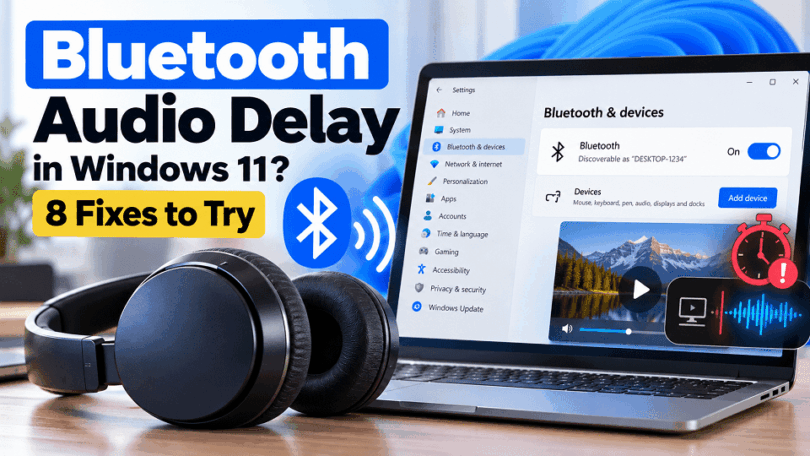

Bluetooth audio delay in Windows 11 can make videos feel out of sync, conversations sound unnatural, and games harder to play. The sound may arrive a fraction of a second after the action on your screen.
The cause is not always a Windows problem. Bluetooth headphones, audio drivers, wireless interference, and individual apps can all contribute to the delay.
Start by testing the headphones in another app. Then work through the fixes below, beginning with the simplest checks. You do not need to change every setting if one solution resolves the problem.
Why Is Bluetooth Audio Delayed in Windows 11?
Bluetooth audio delay happens when sound takes longer to reach your headphones than the video or action displayed on your screen. This delay is also called audio latency.
Common causes include:
- Bluetooth latency: Wireless audio needs time to encode, transmit, and decode sound.
- Headphone limitations: Some headphones introduce more delay than others.
- Driver problems: An outdated or incompatible Bluetooth or audio driver can affect playback.
- Wireless interference: Nearby wireless devices, physical obstructions, or distance can disrupt the connection.
- App-specific issues: A browser, video player, or game may introduce its own audio synchronization delay.
- Microphone use: Some Bluetooth headsets change audio profiles when their microphone becomes active. This can affect sound quality and behavior.
- Windows audio settings: Certain enhancements or device configurations can contribute to playback problems.
The cause matters because Windows settings cannot eliminate every type of Bluetooth latency. If the delay comes from the headphones or the app, you may need a different solution.
8 Ways to Fix Bluetooth Audio Delay in Windows 11
1. Check Whether the Delay Affects Every App
First, determine whether the problem affects Windows generally or only one application. This simple test can prevent unnecessary driver changes.
Try the following:
- Play a video in a different browser or media player.
- Test another video or audio file.
- If possible, compare playback with another pair of headphones.
- Check whether the delay occurs only in a particular game or communication app.
If the problem appears in just one app, check its audio synchronization, playback, and device settings. Update the app if an appropriate update is available.
If every app has the same delay, continue with the Windows and Bluetooth checks below.
2. Disconnect and Reconnect Your Bluetooth Headphones
A temporary connection problem can sometimes cause unstable playback. Reconnecting the headphones is a useful first troubleshooting step.
- Press Windows + I to open Settings.
- Select Bluetooth & devices.
- Open Devices and locate your headphones.
- Disconnect them if Windows offers that option.
- Turn the headphones off and back on.
- Reconnect them and test the audio.
The exact controls depend on the headphone model. If disconnecting does not help, continue to the next fix.
3. Reduce Wireless Interference
Bluetooth operates in the 2.4 GHz radio band. Other wireless devices and nearby networks can sometimes contribute to interference.
Try these changes:
- Move closer to your computer.
- Keep the headphones within their recommended operating range.
- Avoid placing the PC or Bluetooth adapter behind metal objects.
- Temporarily move other wireless devices away from the headphones and adapter.
- If you use a USB Bluetooth adapter, try a different USB port. A short USB extension cable may help position the adapter away from the computer’s case.
Test the audio after each change. If the delay remains unchanged, interference may not be the main cause.
4. Turn Off Audio Enhancements for Testing
Windows audio enhancements can affect playback. Disabling them temporarily helps determine whether an enhancement is contributing to the problem.
- Open Settings.
- Select System > Sound.
- Under Output, select your Bluetooth headphones if they appear.
- Look for Audio enhancements.
- Set the option to Off if it is available.
- Play the same audio again.
Windows may show different controls depending on your device, driver, and Windows 11 version. Some Bluetooth headphones also use their own companion apps for sound processing.
If disabling enhancements makes no difference, restore your preferred settings and try the next fix.
5. Check the Selected Audio Output and Format
Windows may send sound to the wrong output device or use a configuration that does not work well with a particular driver.
Start by confirming that Windows is using the intended headphones.
- Open Settings > System > Sound.
- Under Output, select your Bluetooth headphones.
- Play audio and confirm that sound comes through the correct device.
- If a format option is available, test another supported format.
- Compare playback before and after the change.
Changing the sample rate or bit depth does not automatically reduce Bluetooth latency. Use this step as a diagnostic test rather than assuming that a higher setting is faster.
If the audio format makes no difference, restore the original setting.
6. Update or Roll Back the Bluetooth Driver
A Bluetooth driver problem can affect connection stability and device behavior. Updating the driver is worth trying if the delay started after a Windows update, driver change, or hardware installation.
Update the Bluetooth driver
- Right-click Start and open Device Manager.
- Expand Bluetooth.
- Right-click your Bluetooth adapter.
- Select Update driver.
- Follow the available instructions.
Windows may report that the best driver is already installed. If that happens, check the support website for your PC or Bluetooth adapter manufacturer. Download drivers that match your exact hardware and Windows version.
Avoid third-party driver-updater tools that promise to update every driver automatically.
Roll back a problematic driver
If the delay began immediately after a driver update, rollback may help.
- Open Device Manager.
- Expand Bluetooth.
- Open the Bluetooth adapter’s Properties.
- Select the Driver tab.
- Choose Roll Back Driver if the option is available.
Follow the prompts and restart the computer if requested. The rollback option may be unavailable if Windows has no previous driver to restore.
7. Update the Audio Driver and Windows 11
Bluetooth and audio drivers serve different functions. Depending on your hardware, an audio driver problem may affect sound output even when the Bluetooth connection appears normal.
Check for Windows updates first:
- Open Settings > Windows Update.
- Select Check for updates.
- Install applicable updates.
- Restart the computer if requested.
- Test the headphones again.
You can also check Advanced options > Optional updates for relevant driver updates.
For additional driver support, visit your PC or audio-device manufacturer’s official website. Use the driver designed for your specific model.
If the problem started immediately after a particular update, investigate that change before removing anything. Do not uninstall a security update casually, and do not remove Windows updates without a reasonable basis for linking one to the problem.
8. Remove and Pair the Headphones Again
If the connection settings are corrupted or the pairing behaves incorrectly, removing the headphones and pairing them again may help.
Before starting, make sure you know how to put the headphones into pairing mode.
- Open Settings > Bluetooth & devices.
- Find your headphones in the device list.
- Open the device menu and select Remove device.
- Turn the headphones off and back on.
- Activate pairing mode according to the manufacturer’s instructions.
- In Windows, select Add device > Bluetooth.
- Choose the headphones when they appear.
- Complete pairing and test the sound.
The wording may differ slightly by Windows version and device.
If the delay remains after pairing again, test the headphones with another compatible device. That comparison can help determine whether the issue is specific to your Windows PC or the headphones themselves.
Bluetooth Audio Delay in Games and Videos
Audio delay is especially noticeable when a character’s speech does not match their lips or a game sound arrives after an action.
If You Notice Delay While Watching Videos
Test the same video in another browser or player. If the delay occurs in only one application, look for its playback or audio synchronization controls.
Some video players allow you to adjust audio timing manually. That can compensate for a particular file or playback problem, but it does not fix Bluetooth latency across all applications.
If You Notice Delay While Gaming
Bluetooth headphones may introduce enough latency to affect rhythm games, competitive games, and other situations requiring precise sound timing.
Try these steps:
- Check whether the game offers audio synchronization settings.
- Close unnecessary audio-processing applications temporarily.
- Test another output device to compare latency.
- Check whether your headphones offer a dedicated low-latency mode.
- If low latency is essential, consider a wired connection or a compatible wireless headset designed for gaming.
A Bluetooth version number alone does not guarantee low audio latency. The headphones, audio codec, adapter, software support, and connection all influence the result.
What If Bluetooth Audio Is Still Delayed?
If none of the fixes works, use a comparison test to narrow down the cause.
Test 1: Connect the headphones to another device. If the delay persists across devices and apps, the headphones or their normal Bluetooth latency may be responsible.
Test 2: Connect another Bluetooth headset to your PC. If the second headset works normally, investigate the original headphones and their firmware or settings.
Test 3: Compare wired audio. If wired headphones play in sync while Bluetooth headphones do not, the issue is more likely related to the wireless audio path.
Test 4: Check for recent changes. Think about whether the problem began after a Windows update, driver installation, or application change. Investigate that specific change before attempting advanced repairs.
If you suspect a hardware or driver issue, consult the PC or adapter manufacturer’s support documentation. Do not uninstall unfamiliar devices or modify the Windows registry as a routine latency fix.
Frequently Asked Questions
Why Are My Bluetooth Headphones Delayed on Windows 11?
The delay may come from Bluetooth latency, headphone processing, wireless interference, drivers, or an application. Test another app and another compatible device to narrow down the cause.
Can I Fix Bluetooth Audio Delay Without Buying New Headphones?
Often, you can improve the situation by reconnecting the headphones, reducing interference, checking audio settings, or updating a driver. However, some delay is inherent to the headphone’s wireless audio design.
Does Bluetooth 5.3 Eliminate Audio Delay?
No. A Bluetooth version number does not guarantee that audio will be perfectly synchronized. Actual latency depends on the hardware, audio codec, device support, and implementation.
Why Is Bluetooth Audio Delayed Only in One App?
The application may have a playback synchronization issue or use a different audio-processing path. Test another browser or media player and check the affected app’s settings before changing Windows drivers.
Does Using a Bluetooth Microphone Cause Audio Delay?
Activating a Bluetooth headset microphone can change the audio profile on some systems, which may reduce playback quality or change audio behavior. It does not necessarily increase latency in every setup. Test playback with the microphone inactive to see whether the behavior changes.
Final Thoughts
Bluetooth audio delay in Windows 11 can come from the headphones, wireless connection, drivers, or the application playing sound. Start by testing another app and reconnecting your headphones. Then check interference, audio settings, and drivers.
If the delay persists, compare the headphones with another device and test a wired output. These checks can help you decide whether to troubleshoot Windows further or whether the headphones’ latency is the limiting factor.