
Introduction
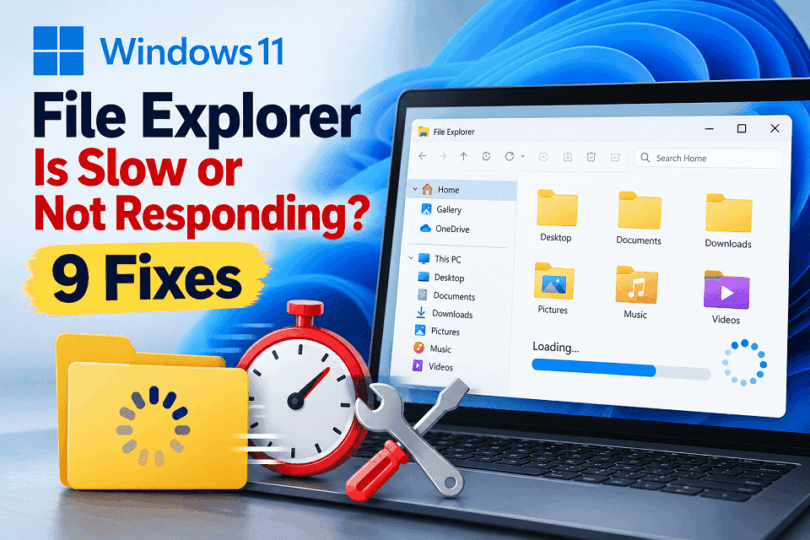
Why Windows 11 File Explorer is slow on your PC? Why Does it take too long to open folders, freeze while browsing files, display a loading bar that never seems to finish, or stop responding when you right-click? These problems can interrupt your workflow and make even simple file management tasks frustrating. Common causes include corrupted File Explorer history, overloaded folders, background processes consuming system resources, outdated drivers, and conflicts with third-party applications.
Fortunately, you may not need to reset Windows or install additional software to resolve the issue. In this guide, we’ll walk you through 9 practical fixes for slow or unresponsive File Explorer in Windows 11, starting with simple troubleshooting steps and progressing to more advanced solutions. Whether File Explorer is slow to launch, freezes when opening folders, or becomes unresponsive during everyday use, these methods will help you identify the possible cause and restore smoother performance.
Before You Begin: Protect Your Files
Most initial checks in this guide—such as restarting Windows Explorer, clearing File Explorer history, or changing the folder opening location—should not affect your personal files. Even so, make sure your important documents, photos, and other irreplaceable data are backed up to a separate, accessible location before attempting advanced troubleshooting.
This is especially important before changing system settings, running repair or recovery procedures, modifying startup configuration, or considering a Windows reset or reinstall. Save open work first, and follow each step carefully. If you plan to use System Restore, remember that a restore point is not a backup of your personal files. Never delete files or folders simply because a troubleshooting guide mentions cache or temporary data; review the selected items before confirming deletion.
Quick Troubleshooting Guide: Match the Symptom to the Fix
Use this table to choose a sensible starting point. These are clues, not guaranteed diagnoses; test one change at a time and stop when File Explorer behaves normally.
For the safest results, start with reversible checks. Avoid changing permissions, disabling services, or repairing Windows unless the symptoms point in that direction.
| What you notice | Possible cause to check | Start with |
| File Explorer is slow as soon as it opens | Home, recent items, or cloud recommendations | Fixes 2 and 3: clear history and open to This PC |
| The green loading bar stays on one folder | Many files, metadata, thumbnails, or folder-type detection | Fix 4: test a smaller folder and thumbnail settings |
| Photos and videos take a long time to appear | Thumbnail generation or media metadata | Fix 4: temporarily show icons instead of thumbnails |
| Right-clicking causes a pause or freeze | Third-party context-menu extension | Fix 7: update or isolate the suspected extension |
| Only OneDrive folders are slow | Sync activity or online-only files | Check OneDrive status and test a local folder |
| Only a mapped drive or external disk is slow | Unavailable network path, connection, or storage device | Test local folders, then check the affected connection |
| Every folder and the taskbar are sluggish | High resource usage, low disk space, or a broader Windows issue | Fixes 1 and 5, then continue only if needed |
Why Is File Explorer So Slow in Windows 11?
File Explorer can become slow or unresponsive for several reasons, including large folders, excessive background activity, cloud-connected content, and problems with Windows components. You might notice that File Explorer takes too long to open, freezes when you browse folders, displays a green loading bar for an extended period, or becomes sluggish when you right-click a file.
Some slowdowns result from ordinary resource limitations, while others may be associated with specific Windows 11 features or software conflicts. Understanding the possible causes can help you identify the right solution instead of applying unnecessary changes.
1. Large Folders and Thumbnail Generation
Folders containing thousands of files, high-resolution photographs, videos, or mixed file types can take longer to load. File Explorer may need to retrieve file metadata, generate thumbnails, and organize items according to the selected view.
The problem can be more noticeable when a folder contains media files or columns that require Windows to read additional metadata, such as image dimensions, duration, or date taken. If File Explorer slows down only when opening a particular folder, its contents and view settings are worth checking first.
2. File Explorer Home, Recent Files, and History Clutter
Windows 11 File Explorer opens to Home by default. Depending on your configuration, this page can display pinned folders, recent files, frequently used locations, and recommended content. File Explorer also maintains browsing history and information about recently accessed items.
If Home takes a long time to load, unavailable locations or problems retrieving recent-file information may contribute to the delay. Clearing File Explorer history and changing the startup location to This PC are useful diagnostic steps.
However, a long history alone does not prove that history clutter is responsible for poor performance. If File Explorer is already slow when opening This PC or browsing local folders, another cause may be involved.
3. Office.com, OneDrive, and Cloud-Connected Files
File Explorer integrates with Microsoft 365 and cloud services to help users access recent, recommended, and synchronized files. This integration can be convenient, but retrieving cloud-related information may contribute to delays when a connection is unreliable, an account has synchronization problems, or a cloud location is unavailable.
For example, File Explorer Home might respond slowly while displaying recommended Office.com files, or a OneDrive folder may take longer to populate when synchronization is still in progress. Network latency and unavailable cloud resources can also affect browsing.
If the slowdown appears mainly on Home or in cloud-connected folders, consider testing File Explorer with Office.com recommendations disabled and opening directly to This PC. These changes can help isolate the cause without requiring you to uninstall OneDrive or Microsoft 365.
4. Automatic Folder Type Discovery and Folder Templates
Windows can analyze folder contents and select an appropriate template, such as General Items, Documents, Pictures, or Music. These templates influence how files are displayed and which details appear in File Explorer.
On some Windows 11 systems, users have reported repeated folder-type detection and delays when browsing folders containing large numbers of files. Microsoft Q&A discussions describe testing in which applying a uniform General Items template improved responsiveness in certain configurations. However, these reports are user observations, not proof that automatic folder type discovery is responsible for every File Explorer slowdown.
If a particular folder repeatedly takes a long time to load, its template and view settings may be worth investigating. Using a uniform template can be a workaround, but it may remove specialized layouts that are useful for pictures, music, and other media. Treat this as an advanced, optional troubleshooting measure rather than a change every user needs to make.
5. Background Processes and High CPU or Disk Usage
File Explorer may respond slowly when other applications compete for CPU, memory, or storage resources. Antivirus scans, Windows Search indexing, cloud synchronization, file transfers, and applications processing large amounts of data can all contribute to temporary slowdowns.
You might notice delayed navigation, sluggish context menus, or folders that take longer to display their contents. Open Task Manager and check CPU, memory, and disk usage to see whether a resource-intensive process coincides with the problem.
If one application consistently consumes excessive resources, investigate that process before making changes to File Explorer itself.
6. Third-Party Shell Extensions and Context Menu Delays
Some applications integrate with File Explorer to add right-click commands, archive options, file previews, version-control features, and other functions. These integrations are commonly implemented through shell extensions.
A faulty, incompatible, or poorly performing extension can delay context menus, interfere with file browsing, or contribute to Explorer crashes. This is particularly worth investigating when File Explorer works normally until you right-click a file or folder.
If the problem began after installing a new utility, archive manager, synchronization client, or other application that integrates with Explorer, investigate that application first. Advanced users can test suspected shell extensions individually rather than disabling every extension indiscriminately.
7. Network Drives and Unavailable Storage Locations
Mapped network drives, shared folders, external storage devices, and cloud-synchronized directories can introduce delays when Windows tries to retrieve file information from a location that is slow or unavailable.
For example, File Explorer may appear to hang while attempting to access a disconnected network share or an external drive with connection problems. A mapped drive that points to an unavailable computer can also delay navigation in some circumstances.
If File Explorer opens normally when disconnected locations are unavailable or removed from the test, investigate the affected drive, network connection, or storage device. Avoid disconnecting business-critical network resources without checking their purpose.
8. Windows Updates, Drivers, and Version-Specific Bugs
File Explorer depends on Windows components, device drivers, and the broader operating system. A software bug, incompatible driver, or problematic update can sometimes cause slow loading, freezing, or repeated crashes.
Pay attention to when the issue first appeared. If File Explorer became slow immediately after a Windows update, driver installation, or application change, that timing can help narrow down the cause.
Check Windows Update for available fixes and investigate relevant driver updates where appropriate. Avoid assuming that every new update causes performance problems, and do not uninstall updates unless there is a reasonable basis for connecting one to the issue. Windows App SDK is a development platform, not a general File Explorer performance switch; do not try to disable or remove it as a routine fix.
9. Low Disk Space and Storage Problems
When the Windows drive is nearly full, Windows may have less room for temporary files, updates, and routine operations. A drive with performance or connection problems can also make folders slow to open, particularly when the affected files are stored on that drive.
Check the available space under File Explorer > This PC. If the system drive is running low, use Settings > System > Storage to review temporary files and cleanup recommendations before removing anything. Low free space is not the only possible cause, but it is a practical check before attempting advanced repairs.
Understanding these causes will help you troubleshoot more efficiently. Start with the simpler fixes below, then move to advanced diagnostics if File Explorer remains slow or unresponsive.
How to Fix Slow or Unresponsive File Explorer in Windows 11
If File Explorer is slow to open, freezes when browsing folders, or stops responding during everyday tasks, the solution depends on what is causing the problem. Temporary Explorer glitches may disappear after a restart, while slow folder loading can be related to thumbnails, cloud-connected files, storage performance, or folder settings. Persistent problems may require checking drivers, third-party extensions, or Windows system files.
Work through the fixes in order, testing File Explorer after each one using the folder or action that originally caused the slowdown. Stop as soon as the problem is resolved; you do not need to apply every fix. If the symptoms clearly point to one area—for example, a right-click delay or a single network folder—you can start with the matching fix instead of changing unrelated settings.
1. Restart Windows Explorer Using Task Manager
Restarting Windows Explorer is one of the quickest ways to resolve temporary interface glitches. It can help when File Explorer stops responding, the taskbar becomes unresponsive, or open Explorer windows behave unexpectedly.
Follow these steps:
- Press Ctrl + Shift + Esc to open Task Manager.
- Select Processes.
- Find Windows Explorer in the list. Use the search box if necessary.
- Right-click Windows Explorer and select Restart.
- Wait for the taskbar and desktop to refresh, then open File Explorer again.
Your taskbar, desktop icons, or open Explorer windows may disappear briefly during the restart. This is normal.
Restarting Explorer does not restart Windows or repair the underlying cause of a recurring problem. If File Explorer becomes slow again, continue with the following fixes.
If Windows Explorer is missing from Task Manager, you can use Run new task in Task Manager to start explorer.exe. If the entire system is unresponsive, restart your PC before proceeding.
2. Clear File Explorer History and Recent Items
File Explorer maintains browsing history and displays recently accessed files, frequently used folders, and other personalized content. If Home takes a long time to load, clearing the history is a reasonable troubleshooting step.
How to clear File Explorer history:
- Press Windows + E to open File Explorer.
- Select the three-dot menu on the command bar.
- Choose Options.
- Under the General tab, locate the Privacy section.
- Select Clear next to the option for clearing File Explorer history.
- Select Apply, then OK.
Depending on your Windows 11 version, the wording and layout may differ slightly.
You can also review the available Privacy options for displaying recently used files and frequently used folders. If you prefer a cleaner Home page, turn off the relevant options.
Does this clear the File Explorer cache?
Not completely. Clearing File Explorer history removes browsing-history information, but it does not clear every cache maintained by Windows. Thumbnail images, for example, have a separate cache.
If File Explorer remains slow when opening folders containing photographs or videos, investigate thumbnail generation in Fix 4. Avoid deleting arbitrary system folders or registry entries in an attempt to clear the File Explorer cache.
3. Open File Explorer to This PC Instead of Home
Windows 11 opens File Explorer to Home by default. Depending on your configuration, Home can display pinned folders, recent files, recommended items, and cloud-connected content from supported Microsoft services.
If File Explorer takes a long time to open but responds normally after navigating elsewhere, Home-related content may be contributing to the delay.
Change the default opening location:
- Open File Explorer using Windows + E.
- Select the three-dot menu and choose Options.
- Under the General tab, find Open File Explorer to.
- Select This PC from the dropdown menu.
- Click Apply, then OK.
- Close File Explorer and reopen it to test the change.
This setting helps you bypass Home during startup, but it does not disable every cloud integration or repair an underlying problem.
Check Office.com and OneDrive integration
If Home is slow because it is retrieving recent or recommended files, test whether the problem persists when File Explorer opens directly to This PC. In File Explorer Options, review the Privacy settings under General. Where available, turn off the option for including account-based insights, recent, favorite, and recommended files to test whether personalized Home content contributes to the delay.
If OneDrive folders are slow, check the OneDrive cloud icon in the notification area for syncing, sign-in, or error messages. Wait for active syncing to finish, then test again. For a short diagnostic test, you can pause syncing temporarily from the OneDrive menu, test the same folder, and resume syncing immediately afterward.
Do not leave syncing paused as a permanent fix. Check whether affected files are online-only and need downloading; compare the result with a normal local folder such as Documents. If only cloud-backed content is slow, investigate sync status, connectivity, and Files On-Demand behavior rather than uninstalling OneDrive or Microsoft 365.
Do not uninstall OneDrive or Microsoft 365 simply because File Explorer is slow. First establish whether the slowdown is limited to cloud-connected content.
For additional guidance, see Microsoft’s File Explorer support documentation.
4. Optimize Folder Settings, Thumbnails, and Access Permissions
File Explorer can take longer to display folders containing thousands of files, high-resolution photographs, videos, or mixed file types. Windows may need to retrieve metadata, generate thumbnails, and determine which folder template to use.
If the slowdown occurs only in particular folders, try the following steps.
- Change the folder template
Windows can use templates such as General Items, Documents, Pictures, and Music to determine how folder contents are displayed. Automatic folder type discovery may contribute to delays in some configurations, particularly when a folder contains many files or its contents are repeatedly analyzed.
To test a different template:
- Right-click the affected folder and select Properties.
- Open the Customize
- Under Optimize this folder for, select General items.
- If appropriate, select the option to apply the template to subfolders.
- Select Apply, then OK.
Reopen the folder and compare its loading time.
This is an optional workaround, not a universal solution. General Items may remove specialized views that are useful for pictures, music, or other media. Apply the change only to folders where it makes sense.
- Test whether thumbnail generation is slowing down folders
If folders containing photographs or videos load slowly, temporarily disable thumbnail previews to see whether generating them contributes to the delay.
- Open File Explorer and select the three-dot menu.
- Choose Options.
- Open the View
- Enable Always show icons, never thumbnails, if the option is available.
- Select Apply, then OK.
Test the affected folder again. If it loads faster, thumbnail generation may be contributing to the slowdown. The trade-off is that you will see file icons instead of image and video previews.
You can restore the original setting after testing.
If disabling thumbnails improves loading, you can test clearing the thumbnail cache separately: open Settings > System > Storage > Temporary files, then select Thumbnails if that category is listed.
Review the selected categories before choosing Remove files; do not select Downloads or other categories unless you intend to delete their contents. Windows will rebuild thumbnail previews as needed, so folders with many images may initially load more slowly again. Menu labels and the available categories can vary by Windows 11 version.
Remember: File Explorer Options > Privacy > Clear removes File Explorer history; it is not the same operation as deleting the thumbnail cache. Neither action clears every cache used by Windows.
- Check folder permissions if access is denied
Incorrect permissions or restricted access can prevent File Explorer from opening particular folders. This is more relevant when a folder displays an access-denied message or remains inaccessible than when every folder on the PC is slow.
To check permissions:
- Right-click the affected folder and select Properties.
- Open the Security
- Select your Windows account or the relevant user group.
- Review the listed permissions, particularly Read and Read & execute.
If the required permissions are missing, contact the folder owner or your system administrator. Do not change ownership or grant broad permissions to Windows system folders indiscriminately.
Folder permissions generally explain access restrictions, not widespread File Explorer slowness. If all folders are affected, investigate the other fixes instead.
5. Check CPU, Memory, and Disk Usage in Task Manager
File Explorer can become sluggish when another application consumes excessive CPU, memory, or disk resources. Antivirus scans, Windows Search indexing, cloud synchronization, large file transfers, and background applications may temporarily compete for system resources.
Task Manager can help you identify whether a resource-intensive process coincides with the slowdown.
Follow these steps:
- Press Ctrl + Shift + Esc to open Task Manager.
- Select Processes.
- Review the CPU, Memory, and Disk columns.
- Look for applications or processes using unusually high resources while File Explorer is slow.
- If a nonessential application is responsible, save your work and close it normally.
- Test File Explorer again.
Look for persistent patterns rather than a single high reading. High disk usage during a large file transfer, for example, may be expected. Sustained high usage when the computer is idle deserves further investigation.
If Windows Explorer itself consistently consumes excessive CPU, restart it as described in Fix 1 and check whether the behavior returns. A recurring problem may involve a particular folder, shell extension, or other software issue.
Check available disk space as well. Open File Explorer, select This PC, and review the free space on the Windows drive. If it is nearly full, go to Settings > System > Storage and review Cleanup recommendations or Temporary files. Select only items you understand before deleting them; do not remove personal files just to free space. See Microsoft’s guide to freeing up drive space.
If Task Manager shows persistent memory pressure even after unnecessary applications are closed, review our guide to upgrading laptop RAM before deciding whether a hardware upgrade is necessary.
Avoid ending unfamiliar system processes simply because they consume resources. Identify the process before taking action.
6. Install Windows Updates and Check Device Drivers
Windows updates can include bug fixes, compatibility improvements, and security patches. If File Explorer became slow after an update or driver change, checking for subsequent fixes is a sensible next step.
Check for Windows updates:
- Press Windows + I to open Settings.
- Select Windows Update.
- Click Check for updates.
- Install applicable updates and restart the PC if prompted.
- Test File Explorer again.
You can also review Advanced options > Optional updates for relevant driver updates. Optional updates are not necessarily required, so review their descriptions and install only those appropriate for your hardware or a suspected driver-related problem.
For graphics, storage, chipset, or other device drivers, use Windows Update or the device manufacturer’s official support website. Avoid third-party driver-updater utilities that promise to update every driver automatically.
If the problem began immediately after a specific update or driver installation, investigate that change before making further modifications. Do not assume every update causes performance problems, and do not uninstall updates without a reasonable basis for connecting one to the issue.
7. Identify Problematic Shell Extensions and Test Separate Folder Processes
Third-party shell extensions allow applications to add functionality to File Explorer. Archive utilities, cloud-storage clients, version-control tools, and other programs may add right-click commands, previews, and additional file-management features.
A faulty or incompatible extension can delay context menus, cause freezing, or contribute to repeated crashes.
How to investigate shell extensions:
- Check whether File Explorer becomes slow specifically when right-clicking files or folders.
- Consider whether the problem began after installing or updating an application.
- Update the suspected application through its official update mechanism.
- If the problem continues, temporarily disable or uninstall the suspected extension or application, where appropriate.
- Restart Windows if required and repeat the action that originally caused the slowdown.
Advanced users can use Microsoft Sysinternals Autoruns to inspect Explorer add-ons and other configured auto-start entries. In Autoruns, review Explorer-related entries and focus on identifiable third-party extensions. Disable one suspected entry at a time, keep a record of changes, and test again. Do not disable unfamiliar or Microsoft-signed entries indiscriminately.
Try opening folder windows in a separate process
Windows 11 also provides an option to launch folder windows in a separate process. This can help isolate certain Explorer window failures, but it is not a guaranteed performance improvement and may consume additional system resources.
To test it:
- Open File Explorer and select the three-dot menu.
- Choose Options.
- Open the View
- Under Advanced settings, find Launch folder windows in a separate process, if available.
- Enable the checkbox and select Apply.
- Test File Explorer again.
If the setting makes no difference or performance worsens, return to the same menu and disable it.
Treat this as an optional diagnostic experiment for persistent window instability rather than a standard fix for slow folder loading. If the problem remains, proceed to the clean-boot test in Fix 9.
8. Repair Windows System Files Using DISM and SFC
Before proceeding: save your work and confirm that important personal files are backed up. DISM and SFC are built-in repair tools, but they modify or repair Windows components; follow Microsoft’s instructions and review any reported errors rather than interrupting the scans.
If File Explorer remains unresponsive alongside other Windows problems, damaged or missing system files may be contributing to the issue. Windows includes two built-in tools—Deployment Image Servicing and Management (DISM) and System File Checker (SFC)—that can check and repair certain types of system corruption.
These commands are not guaranteed to fix every File Explorer performance problem, but they are useful when system-file corruption is suspected.
Step 1: Open Command Prompt as an administrator
- Open Start and type Command Prompt.
- Right-click the search result.
- Select Run as administrator.
- Approve the User Account Control prompt if it appears.
Step 2: Run DISM
Enter the following command and press Enter:
DISM.exe /Online /Cleanup-Image /RestoreHealth
Allow the operation to finish. It may take several minutes or longer, depending on your system. DISM can use Windows Update to obtain files needed for repairs, so an internet connection may be required.
Step 3: Run System File Checker
After DISM completes successfully, enter:
sfc /scannow
Press Enter and wait for the verification process to reach 100%. Do not close Command Prompt while the scan is running.
SFC checks protected Windows system files and attempts to repair corrupted files using appropriate cached copies. Review the final message to determine whether corruption was found and whether it was repaired.
Restart your PC if necessary, then test File Explorer again.
For official instructions and explanations of the possible scan results, consult Microsoft’s System File Checker guide.
9. Perform a Clean Boot to Find Software Conflicts
Before proceeding: save open work, make a note of the services and startup items you change, and confirm you can restore the original startup configuration. A clean boot is a diagnostic test, not a permanent configuration.
If File Explorer continues to freeze or lag after the previous fixes, a clean boot can help determine whether a third-party service or startup application is interfering with Windows.
A clean boot starts Windows with a reduced set of drivers and startup programs. It is a diagnostic procedure, not a permanent performance optimization.
Before starting: Save your work and note any startup items you disable. Some applications and connected devices may temporarily lose functionality during the test.
How to perform a clean boot:
- Sign in using an administrator account.
- Press Windows + R, type msconfig, and press Enter.
- In System Configuration, open the Services
- Select Hide all Microsoft services.
- Select Disable all, then click Apply.
- Open the Startup tab and select Open Task Manager.
- In Task Manager, open Startup apps.
- Disable the enabled startup applications you want to exclude from the test, keeping a record of your changes.
- Close Task Manager and select OK in System Configuration.
- Restart the PC and test File Explorer.
If File Explorer works normally after the clean boot, a disabled service or startup application may be responsible. Re-enable items in a controlled manner to identify the source of the conflict.
If the problem remains, the cause may lie elsewhere, such as a Windows component, storage issue, or specific folder or network location.
Restore normal startup after testing
Once you have completed the test, reopen System Configuration by running msconfig. On the General tab, select Normal startup. Review the Services and Startup settings, restore the items you changed, and restart Windows. If you identify a problematic application, update, repair, or remove that application rather than leaving unrelated startup items disabled.
For the complete procedure and recovery instructions, see Microsoft’s clean-boot guide.
After completing these steps, test File Explorer under the conditions that originally caused the slowdown. If the problem persists, note whether it affects all folders or only particular locations, because that distinction can help narrow down the next diagnostic step.
What to Do If File Explorer Is Still Slow
If File Explorer is still slow after the nine fixes, avoid repeating the same steps. Use these checks to determine whether the problem is limited to a particular location or affects Windows more broadly.
1. Test Whether the Problem Affects All Folders
Open a few local folders, such as Documents and Downloads, and compare them with the folder that causes the slowdown. You can also create a temporary folder containing a few non-sensitive files. If only one location is slow, investigate its contents, thumbnails, folder template, or permissions. If all local folders are slow, focus on system resources, storage, extensions, or Windows itself.
2. Check External Drives, Network Folders, and Cloud Sync
Test a normal local folder first, without opening mapped drives, shared folders, external devices, or cloud-synchronized locations. Check whether the OneDrive icon reports syncing or an error, and wait for active sync to finish. If useful, briefly pause OneDrive syncing, test the same folder, and resume syncing afterward.
For a mapped drive, verify that the network or VPN is connected and that the share is reachable; if permitted, compare with the same share opened by its network path. Do not delete a drive mapping or unplug a drive while files are being transferred. For external storage, check the cable, port, power, and drive health, and use Safely Remove Hardware before disconnecting when applicable.
If local folders are fast but one external or network location is not, troubleshoot that specific connection or device. If a drive is not detected or does not appear in File Explorer, see our guide to fixing a hard drive that is not showing up.
3. When to Consider Further Windows Repair
If the slowdown affects all local folders, check the available space on the Windows drive, review Task Manager, and examine the results of the DISM and SFC scans. If the problem began after a particular update or application installation, investigate that change. A clean boot can help identify third-party conflicts. Consider a repair installation or Windows reset only if the problem persists alongside broader system instability; back up important files first.
For recovery choices and their implications, consult Microsoft’s Windows recovery options.
Frequently Asked Questions
Why Does File Explorer Take So Long to Open in Windows 11?
File Explorer may take a long time to open because of large folders, thumbnail generation, cloud-connected content, background processes, or third-party shell extensions. Try restarting Windows Explorer, clearing File Explorer history, and changing the default opening location to This PC to identify whether these factors contribute to the delay.
How Do I Restart File Explorer Without Restarting My PC?
Press Ctrl + Shift + Esc to open Task Manager, find Windows Explorer under Processes, right-click it, and select Restart. The taskbar and desktop may briefly disappear while Windows reloads the shell. This procedure does not require restarting your computer.
Why Does File Explorer Freeze When I Open a Folder?
File Explorer may freeze when opening a folder containing thousands of files, generating thumbnails, retrieving metadata, or accessing an unavailable network or cloud location. Faulty shell extensions and storage problems can also contribute. Test a different folder to determine whether the issue is limited to one location.
Can Clearing File Explorer History Make It Faster?
Yes, clearing File Explorer history may help if the slowdown is associated with Home or recently accessed locations. Open File Explorer Options, locate the Privacy section under General, and select Clear. However, this does not clear every Windows cache, and it may not improve performance if the underlying problem involves storage, drivers, or background processes.
Why Is File Explorer Slow After a Windows Update?
File Explorer may become slow after an update because of a software regression, driver compatibility issue, background indexing, or temporary post-update activity. Restart your PC, check Windows Update for subsequent fixes, and monitor resource usage in Task Manager. If the problem began immediately after a specific update, investigate that update before attempting to uninstall it.
Why Does File Explorer Freeze When I Right-Click a File?
A slow or frozen right-click menu can be caused by a third-party context-menu handler, such as an extension installed by an archive utility, PDF application, or cloud-storage tool. Update or temporarily disable the suspected application and test again. Advanced users can inspect Explorer extensions with Microsoft Sysinternals Autoruns, but should disable only entries they can identify and restore any changes that do not help.
How Do I Clear the Thumbnail Cache in Windows 11?
Open Settings > System > Storage > Temporary files and select Thumbnails if it is available. Review the selected categories carefully before removing files. Windows will rebuild thumbnails as you browse folders, so the first load after clearing the cache may take longer. Clearing File Explorer history from Folder Options is a separate action and does not clear the thumbnail cache.
Final Thoughts
A slow or unresponsive File Explorer in Windows 11 can disrupt everyday tasks, but the problem does not always require advanced repairs. Start by restarting Windows Explorer, clearing its browsing history, and changing the default opening location to This PC. If folders continue to load slowly, check thumbnail generation, folder settings, CPU and disk usage, and the availability of network or cloud-connected files.
When these basic steps do not help, investigate Windows updates, third-party shell extensions, and possible system-file corruption. Advanced options, such as testing a separate Explorer process or performing a clean boot, can help narrow down persistent problems, but they are not necessary for every PC.
The key is to identify where and when the slowdown occurs before making major changes. Test File Explorer after each fix, stop when normal performance returns, and reserve system repairs or Windows recovery options for problems that persist despite simpler troubleshooting. This approach saves time and reduces the risk of making unnecessary changes to your Windows 11 installation.